



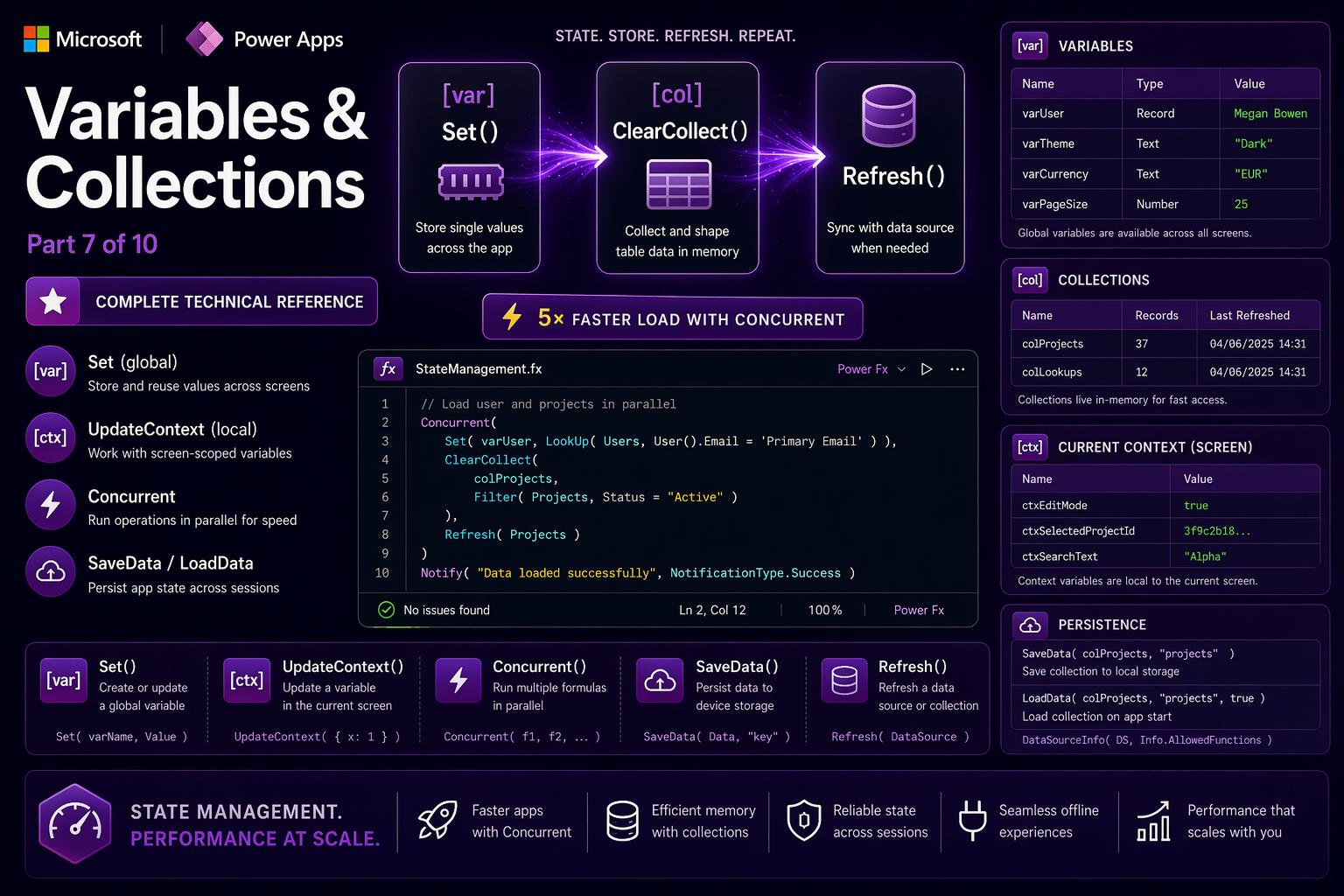
📌 This is Part 7 of the complete Power Apps Canvas Functions series. Screenshots are illustrative.
📚 Power Apps Canvas Functions — Complete Series
- Part 1 — Text Functions
- Part 2 — Number & Math Functions
- Part 3 — Logical & Conditional Functions
- Part 4 — Table & Record Functions
- Part 5 — Date & Time Functions
- Part 6 — Navigation, App Control & Forms
- Part 7 — Variables, Collections & Data Sources (this post)
- Part 8 — Color, Type Conversion, AI & Signals
- Part 9 — Utility, Testing & Context Keywords
- Part 10 — Master Index, Delegation Table & Performance Patterns
Variables, Collections & Data Source Functions
State management is where most Power Apps performance problems and data bugs originate. A global variable used where a local variable should be. A collection that accumulates stale data because Collect was used instead of ClearCollect. Five sequential ClearCollect calls instead of one Concurrent block that does them all in parallel. This section covers the tools that determine how your app stores data, handles offline scenarios, and loads as fast as possible.
📌 Three variable scopes — choose the right one
Global variables (Set) — visible from every screen, persist for the entire session. Use for data that must cross screen boundaries: current user record, the record being edited, app configuration, batch operation results. Naming convention: var prefix (varCurrentUser, varSelectedProject).
Screen-local variables (UpdateContext) — visible only on the current screen, reset when navigating away and back. Use for UI state that belongs to one screen: active tab, panel open/closed, sort direction, form dirty flag. Naming convention: loc prefix (locActiveTab, locPanelVisible).
Collections (ClearCollect, Collect, Clear) — in-memory tables, visible from every screen, persist for the session. No size limit, no delegation concerns. Use for cached data, user selections, shopping carts, draft records. Naming convention: col prefix (colProducts, colSelectedItems).
Set
Set(variableName: Name, value: Any) → VoidCreates or updates a global variable — a named value visible from every screen for the duration of the app session. No declaration step — the first Set call both creates and sets the variable. Set can hold any Power Fx value: text, number, boolean, record, table, color, date, or Blank().
When to use it: storing a LookUp result for use across multiple screens, holding the gallery’s selected record so a detail or edit screen can display it, storing computed values multiple screens need, capturing the app initialization state, freezing a batch timestamp before a ForAll loop.
Set(varCurrentUser, LookUp(Employees, Email = Lower(User().Email)))— cache the current user’s recordSet(varSelectedProject, Gallery1.Selected)— store gallery selection before navigatingSet(varUserRole, Coalesce(varCurrentUser.AppRole, "Viewer"))— derive a role stringSet(varAppReady, true)— signal initialization complete (drives loading screen Visible property)Set(varBatchTimestamp, UTCNow())— freeze a timestamp before a ForAll loopSet(varCounter, varCounter + 1)— increment a counter
⚠️ Watch out: Set is synchronous — it completes before the next statement. However, if LookUp returns Blank() because the record does not exist, varRecord.Field will be blank on the very next line. Always guard with IsBlank(varRecord) before accessing fields on a record variable that might not have been populated.
🔗 Works well with — Set + App.OnStart — enterprise app initialization pattern
Load all data in parallel with Concurrent, then derive dependent values sequentially. The loading screen stays visible until varAppReady is true.
// App.OnStart — parallel load first:
Concurrent(
  Set(varCurrentUser,         LookUp(Employees, Email = Lower(User().Email))),
  ClearCollect(colAppConfig,  Filter(AppSettings, AppName = "ProjectTracker")),
  ClearCollect(colStatuses,   StatusOptions),
  ClearCollect(colDepartments,Departments),
  ClearCollect(colCurrencies, Currencies)
);
// Sequential: derive values that depend on the Concurrent results:
Set(varUserRole,        Coalesce(varCurrentUser.AppRole, "Viewer"));
Set(varUserDept,        varCurrentUser.Department);
Set(varMaxBudget,       Value(Coalesce(LookUp(colAppConfig, Key = "MaxBudget").Value, "100000")));
Set(varDefaultCurrency, Coalesce(LookUp(colAppConfig, Key = "Currency").Value, "EUR"));
Set(varAppReady,        true)

// Loading screen Visible property:
// Not(varAppReady)
🔗 Works well with — Set — record variable for cross-screen Create/Edit routing
// Gallery item OnSelect — store selected record, navigate to edit screen:
Set(varEditingRecord, ThisItem);
Navigate(EditProjectScreen, ScreenTransition.Cover)

// "New" button OnSelect — clear the variable first:
Set(varEditingRecord, Blank());
Navigate(EditProjectScreen, ScreenTransition.Cover)

// EditProjectScreen form Item property:
varEditingRecord

// EditProjectScreen form mode:
If(IsBlank(varEditingRecord), FormMode.New, FormMode.Edit)
UpdateContext
UpdateContext(contextRecord: Record) → VoidCreates or updates one or more screen-local variables on the current screen. Pass a record with one field per variable. Multiple variables can be set in a single call. Screen-local variables are invisible to other screens and reset when the user navigates away and back.
When to use it: any UI state that belongs exclusively to one screen — active tab, panel visibility, sort column, sort direction, form dirty flag, wizard step counter, confirm dialog target.
UpdateContext({locActiveTab: "Overview"})— set active tabUpdateContext({locPanelVisible: true, locPanelTitle: "Add Comment"})— open panel with title (two variables in one call)UpdateContext({locSortColumn: "DueDate", locSortAscending: false})— sort stateUpdateContext({locHasChanges: true})— mark form as dirty on any field changeUpdateContext({locStep: locStep + 1})— advance wizard step
⚠️ Watch out: UpdateContext sets variables on the current screen only. From the destination screen, you cannot read variables set by UpdateContext on another screen. To pass data to a destination screen, use the updateContextRecord parameter of Navigate(), or use a global Set variable. Reading a local variable from the wrong screen returns Blank() silently — no error.
🔗 Works well with — UpdateContext — tab navigation system without multiple screens
// Tab button OnSelect values:
// Overview button: UpdateContext({locActiveTab: "Overview"})
// Tasks button:    UpdateContext({locActiveTab: "Tasks"})
// Docs button:     UpdateContext({locActiveTab: "Documents"})

// Container Visible properties:
// Overview container: locActiveTab = "Overview"
// Tasks container:    locActiveTab = "Tasks"
// Docs container:     locActiveTab = "Documents"

// Tab button Fill — highlight the active one:
If(locActiveTab = "Overview", RGBA(114, 39, 116, 1), RGBA(240, 240, 240, 1))

// Screen OnVisible — always initialize:
UpdateContext({locActiveTab: "Overview", locSortAscending: true, locHasChanges: false})
🔗 Works well with — UpdateContext — wizard step controller with per-step validation
// "Next" button OnSelect:
Switch(
  locCurrentStep,
  1, If(Len(Trim(TitleInput.Text)) = 0,
         Notify("Title is required.", NotificationType.Warning),
         UpdateContext({locCurrentStep: 2})),
  2, If(IsBlank(CategoryDropdown.Selected),
         Notify("Select a category.", NotificationType.Warning),
         UpdateContext({locCurrentStep: 3})),
  3, SubmitForm(ProjectForm)
)

// Step indicator: "Step " & Text(locCurrentStep) & " of 3"
// Back button:    If(locCurrentStep > 1, UpdateContext({locCurrentStep: locCurrentStep - 1}))
// Container visibility: locCurrentStep = 1 / 2 / 3
SaveData / LoadData / ClearData
SaveData(collection: Collection, name: Text) → Void
LoadData(collection: Collection, name: Text, ignoreNonExistentFile?: Boolean) → Void
ClearData(name: Text) → Void
Local device storage for Canvas Apps. SaveData serializes a collection to the device’s local storage under a string key name. LoadData reads it back. ClearData deletes it. Data persists across app sessions on the same device — closing and reopening the app still finds the data.
When to use them: offline-capable apps that need data when the network is unavailable, user preferences and customizations that should survive session restarts (chosen language, default filters), draft records that should survive an accidental app close.
SaveData(colUserPreferences, "UserPrefs_" & User().Email)— save user-specific preferencesLoadData(colUserPreferences, "UserPrefs_" & User().Email, true)— load on startup (true= no error on first run)ClearData("UserPrefs_" & User().Email)— clear on sign-outSaveData(colDraftOrder, "DraftOrder")— persist a draft order locally
⚠️ Watch out: SaveData/LoadData store data locally on the device only — no sync between devices, not visible to other users, not backed up. If the user uninstalls the app or uses a different device, the data is gone. Never use local storage as a replacement for a data source. Use it for caches, preferences, and drafts — where loss is recoverable. Always pass true as the third parameter to LoadData — the default (false) throws an error on first run before the file exists.
🔗 Works well with — SaveData + LoadData — offline-capable product catalog with online/offline detection
// App.OnStart — smart cache strategy:
LoadData(colProductCache, "ProductCatalog", true);  // load local cache first

If(
  Connection.Connected,
  // Online: refresh from server and save fresh copy:
  ClearCollect(colProducts, Filter(Products, IsActive = true));
  SaveData(colProducts, "ProductCatalog"),
  // Offline: use the local cache:
  ClearCollect(colProducts, colProductCache)
);

// Offline banner Visible:
Not(Connection.Connected)

// Offline banner Text:
"⚠️ Offline mode — showing cached data"
Refresh
Refresh(dataSource: DataSource) → VoidForces Power Apps to discard its local cache of a data source and reload from the server. Canvas Apps cache records to avoid repeated network calls — Refresh invalidates that cache and triggers a fresh fetch.
When to use it: after a Patch or Remove to ensure the gallery shows updated state, after a Power Automate flow may have written data, when another user’s changes need to be visible.
Patch(Tasks, rec, {Status: "Done"}); Refresh(Tasks)— write then reloadRemove(Projects, Gallery1.Selected); Refresh(Projects)— delete then reloadRefresh(Orders)— manual sync without a write operation
⚠️ Watch out: Refresh triggers a full network call — it reloads the entire data source. Never call it inside a timer with a short interval (under 30 seconds), inside a ForAll loop, or after every user interaction. For near-real-time dashboards, use a 30–60 second timer interval at minimum. Refresh is not designed for real-time data — use Power Automate webhooks for that.
🔗 Works well with — Refresh + Timer — periodic background refresh for a monitoring dashboard
// Timer control properties:
// Duration: 60000 (60 seconds)
// Repeat: true
// AutoStart: true

// Timer OnTimerEnd property:
If(
  Connection.Connected,
  Refresh(MonitoringMetrics);
  Set(varLastRefresh, Now())
)

// "Last updated" label:
"Last updated: " & Text(varLastRefresh, "[$-en-US]HH:mm:ss")
DataSourceInfo
DataSourceInfo(dataSource: DataSource, information: DataSourceInfo, columnName?: Text) → AnyReturns metadata about a data source or a specific column. Used to build adaptive forms and validation logic that respect the data source’s own constraints — reading max lengths, required flags, and permissions from the server rather than hardcoding values that might go out of sync.
DataSourceInfo enum values: DataSourceInfo.MaxLength (max text length), DataSourceInfo.Required (column is required), DataSourceInfo.EditPermission, DataSourceInfo.DeletePermission, DataSourceInfo.CreatePermission, DataSourceInfo.ReadPermission.
DataSourceInfo(Products, DataSourceInfo.MaxLength, "Description")— max chars for Description columnDataSourceInfo(Projects, DataSourceInfo.Required, "Title")— is Title required?DataSourceInfo(Orders, DataSourceInfo.EditPermission)— can the user edit Orders?DataSourceInfo(Customers, DataSourceInfo.CreatePermission)— can the user create new customers?
⚠️ Watch out: DataSourceInfo returns data source-level constraints and permissions, not app-level role checks. Layer both: And(DataSourceInfo(Projects, DataSourceInfo.EditPermission), UserRole = "Manager"). Neither check alone is sufficient for complete access control.
🔗 Works well with — DataSourceInfo — adaptive character counter that reads max length from Dataverse
// Set max length from Dataverse metadata on App.OnStart:
Set(varDescMaxLen, DataSourceInfo(Projects, DataSourceInfo.MaxLength, "cr_description"))

// Character counter label Text:
Text(Len(DescriptionInput.Text)) & " / " & Text(varDescMaxLen)

// Input control MaxLength property — enforces at control level:
varDescMaxLen

// Label Color — red when approaching limit (>90% used):
If(
  Len(DescriptionInput.Text) > varDescMaxLen * 0.9,
  RGBA(207, 52, 52, 1),
  RGBA(100, 100, 100, 1)
)
// No hardcoded "2000" — when the Dataverse column limit changes, the app adapts automatically
Concurrent
Concurrent(formula1: Any, formula2: Any, ...) → VoidExecutes multiple formulas simultaneously rather than sequentially. In a normal semicolon-separated behavior formula, statements run one after another — ClearCollect(A, ...); ClearCollect(B, ...) waits for A to complete before starting B. Concurrent starts all formulas at the same time and waits until the last one finishes.
The total execution time equals the slowest single operation, not the sum of all operations. An app that loads five collections averaging 1 second each takes ~5 seconds sequentially — and ~1 second with Concurrent. This is the single highest-impact performance optimization in Canvas Apps.
Concurrent(ClearCollect(colA, TableA), ClearCollect(colB, TableB), ClearCollect(colC, TableC))— three parallel loadsConcurrent(Set(varUser, LookUp(...)), ClearCollect(colOptions, ...))— mix Set and ClearCollectConcurrent(Refresh(Orders), Refresh(Customers), Refresh(Products))— parallel refresh
⚠️ Watch out: Concurrent runs formulas in parallel with no guaranteed order. If formula B depends on the result of formula A (e.g., formula B uses a variable that formula A sets), they cannot be in the same Concurrent block — B may run before A finishes. Structure: one Concurrent for independent operations, then sequential statements for operations that depend on the results.
🔗 Works well with — Concurrent — dashboard screen OnVisible fast load pattern
The single most impactful pattern for app performance. Load everything in parallel; show a loading state while waiting; reveal content when done.
// Dashboard screen OnVisible:
UpdateContext({locScreenReady: false});
Concurrent(
  ClearCollect(colMyProjects,
    Filter(Projects, Owner = User().Email, Status <> "Archived")),
  ClearCollect(colMyTasks,
    Filter(Tasks, AssignedTo = User().Email, Status = "Open")),
  ClearCollect(colPendingApprovals,
    Filter(Approvals, ApproverEmail = User().Email, Status = "Pending")),
  Set(varProjectCount,
    CountIf(Projects, Owner = User().Email))
);
// These DEPEND on the Concurrent results — must run after:
Set(varOverdueTasks, Filter(colMyTasks, DueDate < Today()));
Set(varUrgentCount,  CountRows(Filter(colMyTasks, Priority = "Critical")));
UpdateContext({locScreenReady: true})

// Loading spinner Visible: Not(locScreenReady)
// Content container Visible: locScreenReady
ReadNFC
ReadNFC() → RecordReads a Near Field Communication (NFC) tag using the device’s hardware NFC sensor. Returns a record with fields: Identifier (unique hardware ID), Text (human-readable content), TNF (type name format), Type, and Payload. Available only on iOS and Android — not in web browsers or desktop.
When to use it: asset tracking where physical items carry NFC tags, check-in systems, access control on NFC-capable devices, inventory management in warehouses and field service.
Set(varScannedTag, ReadNFC())— read and store the tagReadNFC().Text— human-readable text content of the tagReadNFC().Identifier— unique hardware identifier for lookup
⚠️ Watch out: ReadNFC is a blocking operation — it waits for the user to hold a tag near the sensor. Must be triggered from a button OnSelect, never automatically. On iOS, requires explicit user permission. Always wrap in IfError to handle cancellation or timeout gracefully.
🔗 Works well with — ReadNFC — asset check-in/check-out system
// "Scan Asset" button OnSelect:
With(
  {tag: IfError(ReadNFC(), Blank())},
  If(
    IsBlank(tag),
    Notify("No tag detected. Hold device near the NFC tag.", NotificationType.Warning),
    With(
      {asset: LookUp(Assets, NFCIdentifier = tag.Identifier)},
      If(
        IsBlank(asset),
        Notify("Unknown tag: " & tag.Identifier, NotificationType.Error),
        Patch(AssetLogs, Defaults(AssetLogs), {
          AssetID:  asset.ID,
          AssetName:asset.Name,
          ScannedBy:User().Email,
          ScannedAt:UTCNow(),
          Action:   If(asset.Status = "Checked Out", "Check In", "Check Out")
        });
        Patch(Assets, asset, {Status: If(asset.Status = "Checked Out", "Available", "Checked Out")});
        Notify(
          "\"" & asset.Name & "\" " & If(asset.Status = "Checked Out", "checked in.", "checked out."),
          NotificationType.Success
        )
      )
    )
  )
)Print() → VoidOpens the browser’s native print dialog, allowing the user to print the current screen or save it as a PDF. Only available when the app runs in a web browser — not in the Power Apps mobile app or in Teams.
Print()— open the print/save-as-PDF dialogIf(Confirm("Print this report?"), Print())— confirm first
⚠️ Watch out: Print prints the entire visible screen as it appears — including navigation bars, buttons, and all interactive controls. Build a dedicated “print layout” screen containing only the content meant for paper: no buttons, no sidebars, no interactive elements. Navigate to it, call Print(), then navigate back. The PDF() function in Part 9 is the programmatic alternative when you need to generate a PDF file rather than invoking the print dialog.
Quick Reference — Variables, Collections & Data Source Functions
| Function | Scope | Returns | Use when |
|---|---|---|---|
| Set(name, value) | Global — all screens | Void | Cross-screen state — user record, editing record, config |
| UpdateContext({name: value}) | Screen-local only | Void | UI state for one screen — tabs, panels, sort, dirty flag |
| SaveData(col, name) | Device storage | Void | Persist collection across sessions — offline cache, preferences |
| LoadData(col, name, safe?) | Device storage | Void | Restore saved collection — always pass true for safe |
| ClearData(name) | Device storage | Void | Delete stored data — sign-out cleanup |
| Refresh(source) | Server | Void | Force reload from server — min 30s interval, never in loops |
| DataSourceInfo(src, info, col?) | Dataverse metadata | Any | Read column constraints and permissions dynamically |
| Concurrent(f1, f2, …) | App engine | Void | Parallel execution — highest-impact perf optimization |
| ReadNFC() | Device hardware | Record | NFC tag scan — iOS/Android only, blocking, OnSelect only |
| Print() | Browser | Void | Print dialog — web only, use dedicated print screen |
What’s Next
Part 8 covers Color, Type Conversion, AI & Signal Functions — RGBA, ColorValue, ColorFade, Boolean, GUID, JSON, ParseJSON, the six AI Builder functions (AIClassify, AISentiment, AISummarize…), and the device signals User, Language, Param, Connection, Location. These tools control how your app looks, handles data types, and integrates AI directly into the formula bar.
