



Why a Complete Power Fx Reference?
There are plenty of quick-lookup tables for Power Apps functions. What is harder to find is a reference that actually explains why a function works the way it does, what breaks if you use it wrong, and how to combine it with other functions to solve real enterprise problems. That is what this series is.
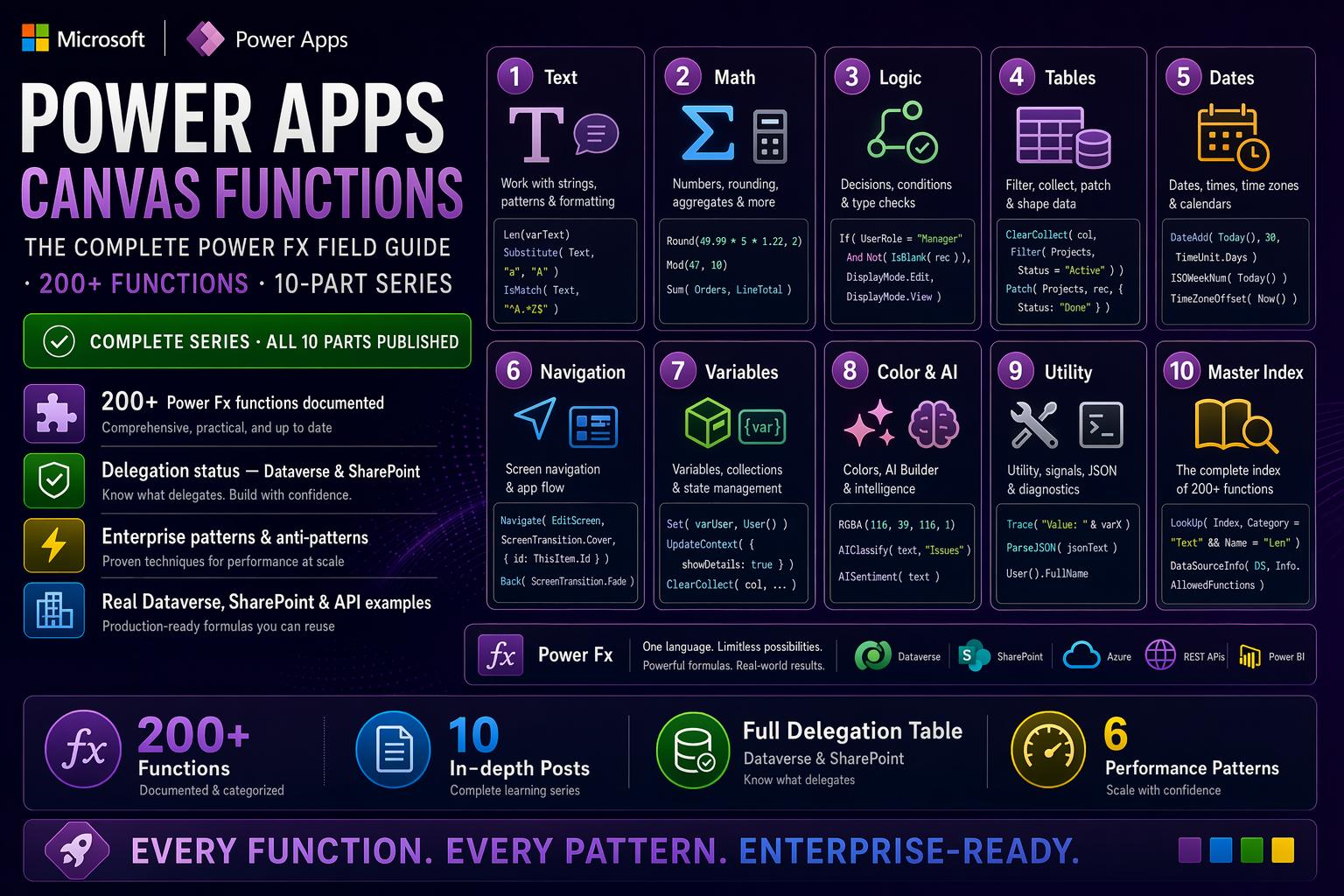
This is Part 1 of a 10-part complete field guide to every Power Apps Canvas function. Each part covers one category in depth — with typed signatures, plain-language explanations, production-grade examples, and the kind of “Watch out” notes that only come from building real apps for real clients. Parts cover Text, Numbers, Logic, Tables, Dates, Navigation, Variables, Colors and AI, Utilities, and a final Master Index with delegation tables and performance patterns.
Each post stands on its own. You can read them in order or jump to whatever category you need today.
📚 Power Apps Canvas Functions — Complete Series
- Part 1 — Text Functions (this post)
- Part 2 — Number & Math Functions
- Part 3 — Logical & Conditional Functions
- Part 4 — Table & Record Functions
- Part 5 — Date & Time Functions
- Part 6 — Navigation, App Control & Forms
- Part 7 — Variables, Collections & Data Sources
- Part 8 — Color, Type Conversion, AI & Signals
- Part 9 — Utility, Testing & Context Keywords
- Part 10 — Master Index, Delegation Table & Performance Patterns
What is Power Fx?
Every formula you write in a Canvas App — whether it is a label’s Text property, a button’s OnSelect, or a gallery’s Items — is evaluated by the Power Fx engine. Power Fx is the open-source, declarative formula language at the heart of the entire Microsoft Power Platform.
Unlike imperative languages — where you tell the computer how to compute step by step — Power Fx is declarative. You describe what the result should be, and the engine recalculates it automatically whenever any dependency changes. This is exactly how a spreadsheet cell reacts when you update an input cell it references. The formula for a label’s text recalculates when the data source changes, when a variable updates, when the user types in a connected input. You do not schedule this — it just happens.
⚠️ A word on Delegation — you will see this throughout the guide
When Power Apps evaluates a formula against a remote data source like Dataverse or SharePoint, it tries to delegate the work to the server — the server filters and sorts before sending data to the app. When a function is not delegable, Power Apps fetches up to 500 records (configurable to 2000) into memory first, then applies the formula locally. Non-delegable formulas silently return incomplete results on large datasets. Delegation warnings appear as blue underlines in the formula bar — never ignore them in production apps.
Part 1 — Text Functions
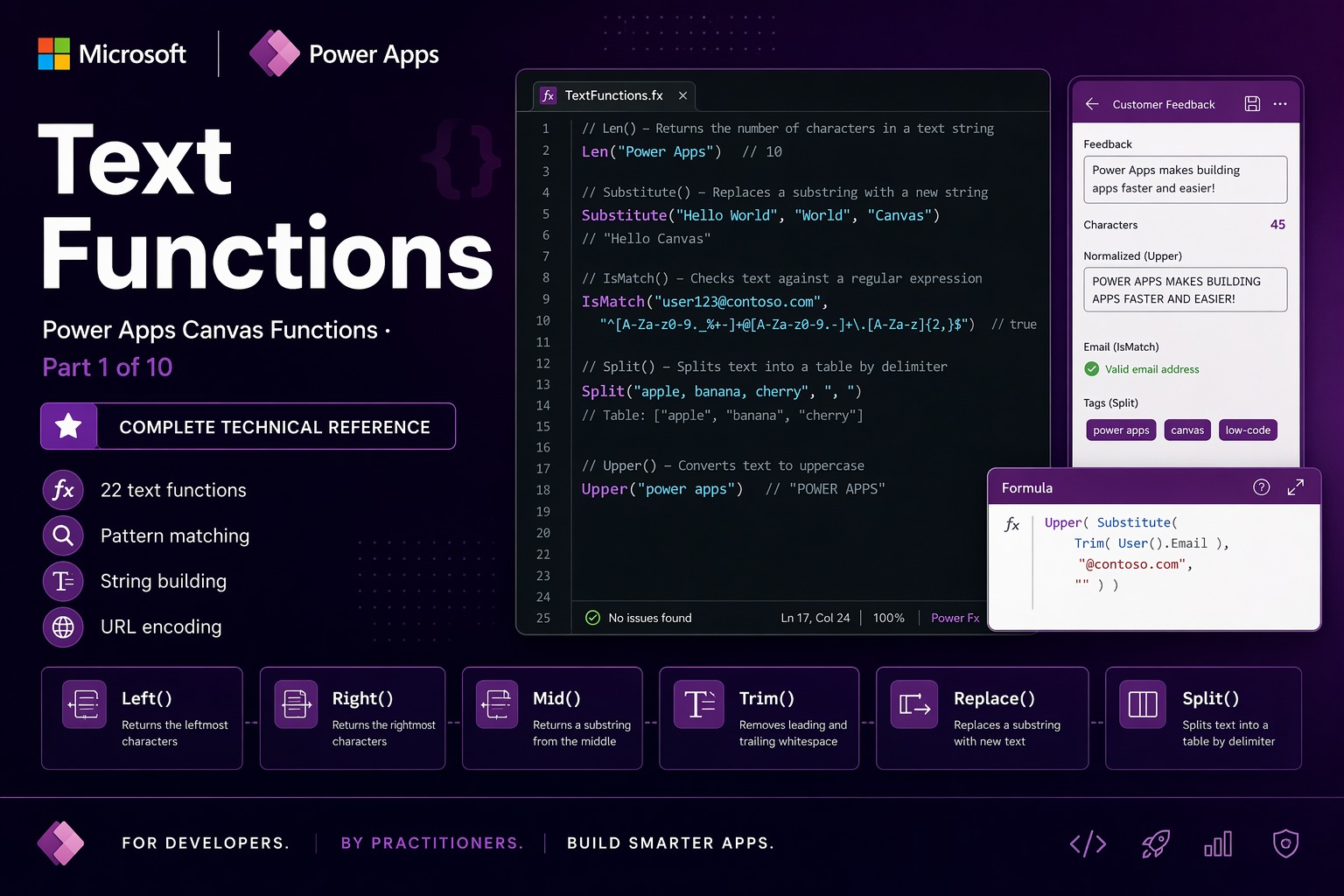
Text functions are the foundation of every Canvas App. Nearly every piece of data you display, validate, store, or transmit passes through at least one of them. This section covers all 22 text-related functions in Power Fx — from the simple (Len, Trim) to the powerful (IsMatch, MatchAll, Concat).
Char
Char(charCode: Number) → TextConverts a Unicode character code into its corresponding single-character string. The inverse of Code. Every printable character — and many invisible ones — has a code number. The ones you will use most in Power Apps are 10 (line feed / new line), 13 (carriage return), and 9 (horizontal tab), because you cannot type those characters directly inside a formula string.
When to use it: building multi-line strings for labels or email bodies, inserting tab characters for formatted export text, generating characters that are awkward to type in the formula bar.
Char(10)— returns a newline character (line feed)Char(65)— returns"A"Char(9)— returns a tab characterChar(169)— returns"©"(copyright symbol)
⚠️ Watch out: Windows text fields traditionally use CRLF line endings — Carriage Return (Char(13)) followed by Line Feed (Char(10)) together. For SharePoint multi-line fields and Outlook email bodies, use Char(13) & Char(10) to guarantee correct line breaks across all clients. Using only Char(10) works in Power Apps labels but may display as a single line in Outlook or Word.
🔗 Works well with — Char(10) + Concatenate: multi-line notification message
The only reliable way to force a line break inside a Power Apps label or Teams notification. You cannot press Enter inside the formula bar.
// Label Text property — shows three lines:
"🔔 New Request Submitted" & Char(10) &
"Submitted by: " & User().FullName & Char(10) &
"Date: " & Text(Now(), "[$-en-US]dd/MM/yyyy HH:mm")

// Result:
// 🔔 New Request Submitted
// Submitted by: Vincenzo Sguera
// Date: 07/06/2025 14:30
🔗 Works well with — Char + Substitute: strip line breaks before writing to a single-line field
Dataverse and SharePoint single-line text columns reject embedded newlines. Strip all line breaks before any Patch call.
Substitute(
  Substitute(NotesInput.Text, Char(13), ""),
  Char(10),
  " "
)
// Replaces CR and LF with spaces — safe for any single-line column
Code
Code(text: Text) → NumberReturns the Unicode code point of the first character in a string. The inverse of Char. Used for character-level validation, detecting non-printable characters in imported data, and building custom sort logic based on character codes.
Code("A")— returns65Code("a")— returns97Code("0")— returns48Code("€")— returns8364Code("Hello")— returns72(only the first character “H” is read)
⚠️ Watch out: Code reads only the first character regardless of string length. Code("Hello") returns 72 (H), not something about the full word. To inspect characters beyond position 1, combine with Mid: Code(Mid(text, 3, 1)) reads the third character.
Concatenate / &
Concatenate(text1: Text, text2: Text, ...) → TextJoins two or more text strings into a single string. Identical in effect to the & operator — the shorthand universally preferred in practice because it is more readable. Both accept any number of arguments. When passed a single-column table instead of individual strings, Concatenate joins all rows into one string with no separator.
When to use it: building dynamic labels, assembling filenames, constructing notification messages, building OData filter strings for Dataverse queries. Use & for everyday string joining; use Concatenate only for its table-joining variant.
"INV-" & Text(Year(Today()), "0000") & "-" & Text(InvoiceSeq, "00000")— returns"INV-2025-00042""Hello, " & User().FullName & "!"— returns"Hello, Vincenzo Sguera!"Concatenate(Products.Name)— joins all Name values with no separator
⚠️ Watch out: The table variant of Concatenate joins values with no delimiter. Concatenate(Products.Name) returns "WheelChairDeskLamp" — not "Wheel, Chair, Desk, Lamp". Use Concat(table, field, ", ") when you need a separator.
🔗 Works well with — & + Text(Today()): auto-generating document reference codes
Build a unique, human-readable reference code combining a prefix, a date, and a sequence number — the standard pattern in procurement, HR, and legal apps.
Set(
  varNewReference,
  "CASE-" &
  Text(Year(Today()), "0000") &
  Text(Month(Today()), "00") &
  "-" &
  Text(CountRows(SupportCases) + 1, "0000")
)
// Example result: "CASE-202506-0043"
// Use a Dataverse auto-number column in production for true uniqueness
Concat
Concat(table: Table, formula: Text, separator?: Text) → TextEvaluates a text formula for each row in a table and concatenates all results into a single string, with an optional separator between each value. The table-aware version of string building — Power Fx’s equivalent of SQL’s STRING_AGG or Excel’s TEXTJOIN.
When to use it: building comma-separated tag lists from a collection, assembling multi-recipient email address strings, generating summary lines from filtered records.
Concat(SelectedTags, TagName, ", ")— returns"Power Apps, Dataverse, Canvas"Concat(Filter(Approvers, Role = "Primary"), Email & ";")— semicolon-separated recipient listConcat(Filter(Tasks, Status = "Overdue"), "• " & Title & Char(10))— bullet list of overdue tasks
⚠️ Watch out: Concat is not delegable for Dataverse or SharePoint. It operates only on records already loaded into memory. For large tables, pre-filter into a collection first, then apply Concat. Calling it directly on a large Dataverse table silently operates only on the first 500 records.
🔗 Works well with — Concat + Filter: build an overdue task summary for an email body
Filter to exactly the records you need, then format them into a readable summary. This replaces what would otherwise require a Power Automate flow just to build a message body.
"The following tasks are overdue:" & Char(10) & Char(10) &
Concat(
  Filter(ProjectTasks, Status = "Overdue" And AssignedTo = User().Email),
  "• " & Title &
  "  (Due: " & Text(DueDate, "[$-en-US]dd MMM yyyy") & ")" &
  Char(10)
)
// Result:
// The following tasks are overdue:
//
// • Architecture Review  (Due: 01 Jun 2025)
// • Security Sign-off  (Due: 03 Jun 2025)
Left / Right / Mid
Left(text: Text, numberOfCharacters: Number) → Text
Right(text: Text, numberOfCharacters: Number) → Text
Mid(text: Text, startingPosition: Number, numberOfCharacters?: Number) → Text
Left returns characters from the beginning of a string. Right returns characters from the end. Mid extracts a substring starting at a specific position. Together they cover every fixed-position slicing scenario — extracting prefixes, suffixes, and middle segments from structured strings like reference codes, IBANs, and file paths.
Critical note on Mid: Positions in Power Fx are 1-based — the first character is at position 1, not 0. This catches every developer coming from JavaScript, Python, or C#. Mid("Hello", 1, 1) returns "H". Mid("Hello", 0, 1) returns an error.
Left("REF-2025-INV-00123", 3)— returns"REF"Right("report_final_v3.pdf", 3)— returns"pdf"Right("4532 0151 1283 0366", 4)— returns"0366"(last 4 digits for masked card display)Mid("REF-2025-INV-00123", 5, 4)— returns"2025"(starts at position 5, takes 4 chars)Mid("EU-ACME-CONTRACT-V3", 4)— returns"ACME-CONTRACT-V3"(to end of string)
⚠️ Watch out: Left and Right return the full string — no error — when you request more characters than the string contains. Mid is 1-based, not 0-based. Right counts from the end including trailing spaces — always call TrimEnds first on data from SharePoint imports.
🔗 Works well with — Left + Find: extract username from email
Left(
  EmailInput.Text,
  Find("@", EmailInput.Text) - 1
)
// "vincenzo.sguera@contoso.com" → "vincenzo.sguera"
// Works regardless of username length
🔗 Works well with — Right + Lower: normalize file extension
// Gallery filter — show only PDF files:
Filter(
  Attachments,
  Lower(Right(FileName, 4)) = ".pdf"
)
// Handles .PDF, .Pdf, .pdf identically
🔗 Works well with — Find + Mid: extract segment between two delimiters
// Extract "SALES" from "EU/SALES/ACME/Ref123":
With(
  {
    firstSlash:  Find("/", "EU/SALES/ACME/Ref123"),
    secondSlash: Find("/", "EU/SALES/ACME/Ref123", Find("/", "EU/SALES/ACME/Ref123") + 1)
  },
  Mid(
    "EU/SALES/ACME/Ref123",
    firstSlash + 1,
    secondSlash - firstSlash - 1
  )
)
// Result: "SALES"
// With() names the two Find results so we compute each position only once
Len
Len(text: Text) → NumberReturns the number of characters in a string, including spaces. When passed a single-column table, returns a table of lengths — one number per row. Used for input validation, live character counters, and conditional logic based on content size.
Len("Hello")— returns5Len(Blank())— returns0(safe — no error)Len(TextInput1.Text)— recalculates live as the user typesLen(" hello ")— returns9(spaces count)
⚠️ Watch out: Len counts all characters including spaces. A field containing only spaces returns a non-zero length — it is not empty. Len(field) > 0 does not guarantee meaningful content. The correct required-field check is Len(Trim(field)) > 0.
🔗 Works well with — Len + Trim: the correct required-field validation
IsBlank alone does not catch a field containing only spaces. Len(Trim(...)) does.
// Submit button DisplayMode — gates on three validations:
If(
  And(
    Len(Trim(TitleInput.Text)) >= 3,
    Len(Trim(DescriptionInput.Text)) >= 10,
    Not(IsBlank(CategoryDropdown.Selected))
  ),
  DisplayMode.Edit,
  DisplayMode.Disabled
)
🔗 Works well with — Len: live character counter
// Label Text property below a notes input:
Text(Len(NotesInput.Text)) & " / 2000"

// Label Color — turns red when approaching the limit:
If(Len(NotesInput.Text) > 1900, RGBA(207, 52, 52, 1), RGBA(100, 100, 100, 1))
Find
Find(findText: Text, withinText: Text, startingPosition?: Number) → NumberReturns the 1-based starting position of a substring within a string. Returns Blank() — not zero, not -1 — when the substring is not found. The optional startingPosition lets you start the search from a specific offset, enabling you to find the second, third, or Nth occurrence of a character by chaining calls.
Find("@", "vincenzo@contoso.com")— returns9Find("-", "REF-2025-INV-00123")— returns4(first dash)Find("-", "REF-2025-INV-00123", 5)— returns9(second dash)Find("xyz", "Hello World")— returnsBlank()(not found)
⚠️ Watch out: Find returns Blank() on no match — not a number. Using a failed Find result directly in Left, Mid, or arithmetic propagates blank and causes errors. Always guard with IsBlank(Find(...)) before using the position. This is the most common Find bug in production Power Apps.
🔗 Works well with — IsBlank + Find: safe email username extraction
If(
  IsBlank(Find("@", EmailInput.Text)),
  "⚠ Not a valid email address",
  Left(EmailInput.Text, Find("@", EmailInput.Text) - 1)
)
// "vincenzo@contoso.com" → "vincenzo"
// "not-an-email" → "⚠ Not a valid email address"
Search
Search(table: Table, searchString: Text, column1: Text, ...) → TableFilters a table to rows where any of the specified text columns contain the search string. Case-insensitive, partial match — “app” matches “Power Apps” and “Application”. Returns a table of matching rows. This is the natural data source for a live search bar in a gallery.
Search(Customers, SearchBox.Text, "CompanyName", "ContactEmail")— rows where either column contains the typed textSearch(Products, "canvas", "Title", "Description", "SKU")— three-column searchSearch(colCachedEmployees, SearchInput.Text, "FullName", "Department", "JobTitle")— on a local collection
⚠️ Watch out: Search is not delegable for Dataverse or SharePoint on large tables. It loads records up to the delegation limit and then filters locally. For large Dataverse tables, use Filter with StartsWith (which IS delegable) instead. Search works perfectly on in-memory collections loaded with ClearCollect.
🔗 Works well with — Search + IsBlank: show all records when search box is empty
// Gallery Items property:
If(
  IsBlank(SearchBox.Text),
  SortByColumns(Products, "Title", SortOrder.Ascending),
  Search(Products, SearchBox.Text, "Title", "Category", "Description")
)
// Empty box → full sorted list
// Any text → filtered results across three columns
Replace / Substitute
Replace(originalText: Text, startingPosition: Number, numberOfCharacters: Number, newText: Text) → Text
Substitute(originalText: Text, oldText: Text, newText: Text, instanceNumber?: Number) → Text
Two complementary replacement functions. Replace is position-based — you specify where to replace. Substitute is content-based — you specify what to replace, and it replaces every occurrence. Use Replace when you know the exact character positions; use Substitute when you know the content.
Replace("REF-XXXX-2025", 5, 4, "ACME")— returns"REF-ACME-2025"Substitute("0742 123 456", " ", "")— returns"0742123456"(strips all spaces)Substitute("Q3/2025 Report", "/", "-")— returns"Q3-2025 Report"Substitute("first.second.third", ".", "_", 2)— returns"first.second_third"(only 2nd dot replaced)
⚠️ Watch out: Substitute is case-sensitive. Substitute("Hello", "hello", "Hi") returns "Hello" unchanged. If you need case-insensitive replacement, Lower() a copy to find the position, then use Replace with that position.
🔗 Works well with — Substitute + Substitute: chain two cleanups
Each call returns a new string that becomes the input for the next. Clean in two passes without intermediate variables.
// Remove spaces and dashes from a bank account number:
Substitute(
  Substitute("GB29 NWBK-6016 1234 5678", " ", ""),
  "-",
  ""
)
// "GB29 NWBK-6016 1234 5678" → "GB29NWBK60161234567"
🔗 Works well with — Substitute + Char: strip CR and LF before writing to Dataverse
// Strip both line break variants before Patch:
Substitute(
  Substitute(PastedText.Text, Char(13), " "),
  Char(10),
  " "
)
// Safe for any Dataverse or SharePoint single-line column
Trim / TrimEnds
Trim(text: Text) → Text
TrimEnds(text: Text) → Text
Trim strips leading and trailing whitespace and collapses multiple consecutive internal spaces into a single space. TrimEnds strips only the edges, leaving internal spacing untouched. This distinction matters when internal spacing is intentional — formatted addresses, indented text, user-authored content.
Trim(" Contoso Ltd ")— returns"Contoso Ltd"Trim("Power Apps")— returns"Power Apps"(internal double space collapsed)TrimEnds(" Hello World ")— returns"Hello World"(internal triple space preserved)
⚠️ Watch out: Trim collapses internal whitespace runs too — not just the edges. If you need to preserve internal spacing (formatted addresses, indented text), use TrimEnds. For data quality normalization before storage or comparison, Trim is almost always correct.
🔗 Works well with — Trim + Lower: the two-step normalization every enterprise app needs
Trim handles spaces, Lower handles casing. Together they cover the two most common data quality failures in one expression. Apply to every user-typed value before storing or comparing.
// Reliable email comparison — matches any casing or spacing:
Lower(Trim(EmailInput.Text)) = Lower(Trim(LookupRecord.Email))

// Before Patch — normalize stored values:
Patch(
  Contacts,
  Defaults(Contacts),
  {
    Email:       Lower(Trim(EmailInput.Text)),
    CompanyName: Proper(Trim(CompanyInput.Text)),
    Phone:       Substitute(Trim(PhoneInput.Text), " ", "")
  }
)
Upper / Lower / Proper
Upper(text: Text) → Text
Lower(text: Text) → Text
Proper(text: Text) → Text
Convert string casing. Lower is the most important of the three — always normalize both sides of a string comparison with Lower to avoid silent case-sensitivity mismatches. Status fields, email addresses, and category values typed by users are unreliable in casing. Proper capitalizes the first letter of every word — useful for formatting names from all-caps imported data.
Lower("VINCENZO@CONTOSO.COM")— returns"vincenzo@contoso.com"Upper("draft")— returns"DRAFT"Proper("john van der berg")— returns"John Van Der Berg"Proper("CONTOSO LIMITED")— returns"Contoso Limited"
⚠️ Watch out: Proper capitalizes every word — including prepositions and articles. Proper("van der Berg") returns "Van Der Berg". It also lowercases everything else — Proper("NATO") returns "Nato". Avoid Proper on strings that contain acronyms.
🔗 Works well with — Lower: delegable prefix search on Dataverse
StartsWith with Lower is delegable to Dataverse — the recommended pattern for search-as-you-type on large tables.
// Delegable search on a large Dataverse Contacts table:
Filter(
  Contacts,
  StartsWith(Lower(Email), Lower(Trim(SearchBox.Text)))
)
// Both StartsWith and Lower delegate to the Dataverse server
// Works correctly on tables with millions of rows
StartsWith / EndsWith
StartsWith(text: Text, startText: Text) → Boolean
EndsWith(text: Text, endText: Text) → Boolean
Return true if a string begins or ends with a given substring. Both are case-insensitive in Power Fx — unlike their equivalents in JavaScript, Python, or Power Automate which are case-sensitive. No need to Lower() both sides first.
Strategic use: StartsWith is delegable for Dataverse and SharePoint — making it the recommended pattern for prefix-based search on large tables where Search and Contains are not delegable.
StartsWith("INV-2025-00123", "INV-")— returnstrueEndsWith("contract.pdf", ".pdf")— returnstrueEndsWith("Report.PDF", ".pdf")— returnstrue(case-insensitive — no Lower needed)
⚠️ Watch out: Power Fx StartsWith and EndsWith are case-insensitive by design — this is different from Power Automate’s equivalents which are case-sensitive. Do not add Lower() on both sides — it is unnecessary and adds visual noise.
🔗 Works well with — StartsWith + Filter: delegable prefix search on large Dataverse tables
// Gallery Items — delegable filter on a large Dataverse table:
Filter(
  Products,
  StartsWith(ProductCode, SearchBox.Text) Or
  StartsWith(Title, SearchBox.Text)
)
// Both StartsWith calls delegate to the Dataverse server
// No 500-record delegation limit applies here
Split
Split(text: Text, separator: Text) → TableBreaks a string into a single-column table of substrings by splitting at every occurrence of the separator. The column is always named Result. Whenever a field contains multiple values packed into one string — comma-separated tags, semicolon-delimited emails, pipe-delimited categories — Split turns it into something you can count, loop through, or display in a gallery.
Split("Power Apps,Dataverse,Canvas", ",")— returns a table with 3 rowsLast(Split("docs/reports/2025/q3.pdf", "/")).Result— returns"q3.pdf"CountRows(Split(TagsField, ","))— counts the number of tags
⚠️ Watch out: Split returns a table, not an array. Access individual items with First(Split(...)).Result, Last(Split(...)).Result, or Index(Split(...), 2).Result. The column is always named Result — accessing .Value (as with Sequence) returns blank. A trailing delimiter produces an empty last row — always Trim the source string if trailing delimiters are possible.
🔗 Works well with — Split + ForAll: create a Dataverse record for each tag
// Normalize a comma-separated tag field into individual Dataverse records:
ForAll(
  Split(ProjectForm.LastSubmit.Tags, ","),
  Patch(
    ProjectTags,
    Defaults(ProjectTags),
    {
      TagName:   Trim(Result),
      ProjectID: ProjectForm.LastSubmit.ID
    }
  )
)
// Result is the column name from Split — always Trim it to remove spaces around the comma
EncodeUrl / PlainText
EncodeUrl(text: Text) → Text
PlainText(html: Text) → Text
EncodeUrl converts special characters in a string into their percent-encoded URL equivalents, making the string safe to include as a URL query parameter. Without encoding, a raw & or space in a dynamic URL value breaks the link silently. PlainText strips all HTML markup tags from a string, returning only the readable text — used when processing SharePoint rich text columns or API responses that return HTML.
EncodeUrl("Power Apps & Canvas 2025")— returns"Power%20Apps%20%26%20Canvas%202025"PlainText("<p>Hello <strong>World</strong></p>")— returns"Hello World"
⚠️ Watch out: EncodeUrl encodes the value — not the full URL. Encoding the entire URL including the scheme and slashes breaks it. Only encode the dynamic parameter values — everything after = in a query string. For PlainText: HTML block tags (<p>, <div>) are removed but no spaces are inserted in their place — consecutive paragraphs run together without a gap.
🔗 Works well with — EncodeUrl + &: safe Teams deep link from a people directory
// Open a Teams chat with a specific person:
Launch(
  "https://teams.microsoft.com/l/chat/0/0?users=" &
  EncodeUrl(ThisItem.Email) &
  "&message=" &
  EncodeUrl("Hi " & ThisItem.FirstName & ", reaching out about " & varProjectTitle)
)
// Without EncodeUrl: spaces and & in the message break the URL
Value / Text
Value(text: Text, languageTag?: Text) → Number
Text(value: Any, formatString?: Text, languageTag?: Text) → Text
Value converts a text string into a true numeric value. Text converts numbers, dates, booleans, and other values into formatted display strings. These are the primary type conversion bridges in Power Fx. Data from HTTP connectors, SharePoint, and user input arrives as text; calculations require numbers; display requires formatted strings.
Value("1250.75")— returns1250.75(numeric)Value("1.250,75", "it-IT")— returns1250.75(Italian locale)Text(1250.75, "[$€-it-IT]#,##0.00")— returns"€1.250,75"Text(Today(), "[$-en-US]dd MMMM yyyy")— returns"07 June 2025"Text(Now(), "[$-en-US]yyyy-MM-dd HH:mm:ss")— ISO timestamp for logs
⚠️ Watch out: In Text format strings, MM (uppercase) = month and mm (lowercase) = minutes. Text(Now(), "HH:MM") gives hours and months — not hours and minutes. The correct time format is "HH:mm". This is the most common date formatting bug in Power Apps, inherited from .NET format specifier conventions.
🔗 Works well with — Text + DateAdd: formatted contract expiry date
"Contract expires: " &
Text(DateAdd(Today(), 90, TimeUnit.Days), "[$-en-US]dd MMMM yyyy")
// Result: "Contract expires: 05 September 2025"

// Italian locale:
Text(DateAdd(Today(), 90, TimeUnit.Days), "[$-it-IT]dd MMMM yyyy")
// Result: "05 settembre 2025"
🔗 Works well with — Value + IsNumeric: safe numeric conversion from user input
// Always validate before converting — Value throws on non-numeric input:
If(
  Not(IsNumeric(QuantityInput.Text)) Or Value(QuantityInput.Text) <= 0,
  Notify("Quantity must be a positive number.", NotificationType.Warning),
  Patch(Orders, Defaults(Orders), {Quantity: Value(QuantityInput.Text)})
)
IsMatch / Match / MatchAll
IsMatch(text: Text, pattern: Text, options?: MatchOptions) → Boolean
Match(text: Text, pattern: Text, options?: MatchOptions) → Record
MatchAll(text: Text, pattern: Text, options?: MatchOptions) → Table
Regular expression (regex) functions. A regular expression is a pattern-matching language — a concise syntax for describing what a valid string looks like. IsMatch validates (returns true/false), Match extracts the first match as a record, MatchAll extracts all matches as a table.
Power Fx includes built-in named patterns for common cases: Match.Email, Match.Digit, Match.Letter, Match.MultipleDigits, Match.MultipleLetters, Match.OptionalDigits, Match.Space.
IsMatch(EmailInput.Text, Match.Email)— returnstruefor valid email formatIsMatch(PostalCode.Text, "\d{5}", MatchOptions.Complete)— exactly 5 digitsMatch("Order REF-2025-00123", "REF-(\d{4})-(\d{5})").FullMatch— returns"REF-2025-00123"MatchAll("Call 0742-123-456 or 0800-999-888", "\d{4}[\-]\d{3}[\-]\d{3}")— table of 2 matches
⚠️ Watch out: By default, IsMatch checks whether the pattern appears anywhere in the string. Use MatchOptions.Complete to require the pattern to match the entire string — critical for strict field validation. Without it, IsMatch("abc123", "\d{3}") returns true even if you wanted only digits.
🔗 Works well with — IsMatch + MatchOptions.Complete: strict format validation
// UK postcode validation — must match the entire field:
IsMatch(
  Trim(PostcodeInput.Text),
  "^[A-Z]{1,2}[0-9][0-9A-Z]?\s?[0-9][A-Z]{2}$",
  MatchOptions.Complete
)
// true for "SW1A 2AA", "EC1A 1BB", "W1A 0AX"
// false for "not-a-postcode" or any extra characters
🔗 Works well with — MatchAll: extract all monetary amounts from a contract
// Find every Euro amount in a contract text block:
With(
  {matches: MatchAll(ContractText, "€\s?\d{1,3}(?:[.,]\d{3})*(?:[.,]\d{2})?")},
  Sum(
    matches,
    Value(Substitute(Substitute(Substitute(FullMatch, "€", ""), " ", ""), ".", ""))
  )
)
// Returns the total of all Euro amounts found in the contract body
Quick Reference — Text Functions
| Function | Returns | Use when |
|---|---|---|
| Char(code) | Text | Insert newline, tab, or special character by code number |
| Code(text) | Number | Get Unicode code point of first character |
| Concatenate / & | Text | Join strings — & preferred; Concatenate for table variant |
| Concat(table, formula, sep?) | Text | Join table rows with separator — SQL STRING_AGG equivalent |
| Left(text, n) | Text | First N characters — safe at boundaries |
| Right(text, n) | Text | Last N characters — file extensions, masked IDs |
| Mid(text, start, n?) | Text | Substring at position — 1-based, not 0-based |
| Len(text) | Number | Character count — use Len(Trim(field)) for required-field check |
| Find(find, within, start?) | Number | Position of substring — returns Blank() if not found |
| Search(table, str, col…) | Table | Case-insensitive partial match — not delegable, use on collections |
| Replace(text, start, n, new) | Text | Replace at known position |
| Substitute(text, old, new, n?) | Text | Replace all occurrences by content — case-sensitive |
| Trim(text) | Text | Strip edges + collapse internal spaces — use before storing or comparing |
| TrimEnds(text) | Text | Strip edges only — preserve internal spacing |
| Upper(text) | Text | All uppercase — internal codes and identifiers |
| Lower(text) | Text | All lowercase — normalize before ANY string comparison |
| Proper(text) | Text | Title case — avoid on acronyms |
| StartsWith(text, sub) | Boolean | Prefix check — case-insensitive, delegable on Dataverse |
| EndsWith(text, sub) | Boolean | Suffix check — case-insensitive, file extension validation |
| Split(text, sep) | Table | String to table — column named Result, not Value |
| EncodeUrl(text) | Text | URL-encode a value — encode values only, never full URLs |
| PlainText(html) | Text | Strip HTML tags — SharePoint rich text columns |
| Value(text, locale?) | Number | Parse number from string — always validate with IsNumeric first |
| Text(value, format?, locale?) | Text | Format number/date/bool — MM=month, mm=minutes |
| IsMatch(text, pattern, opts?) | Boolean | Regex validation — use MatchOptions.Complete for full-string match |
| Match(text, pattern, opts?) | Record | Extract first regex match with capture groups |
| MatchAll(text, pattern, opts?) | Table | Extract all regex matches as a table |
What’s Next
Part 2 covers Number and Math Functions — the complete arithmetic toolkit for Power Fx, including rounding strategies for financial calculations, Mod for round-robin patterns, the full trigonometric suite, and the aggregate functions (Sum, Average, Max, Min) with their delegation behavior on Dataverse and SharePoint.
