



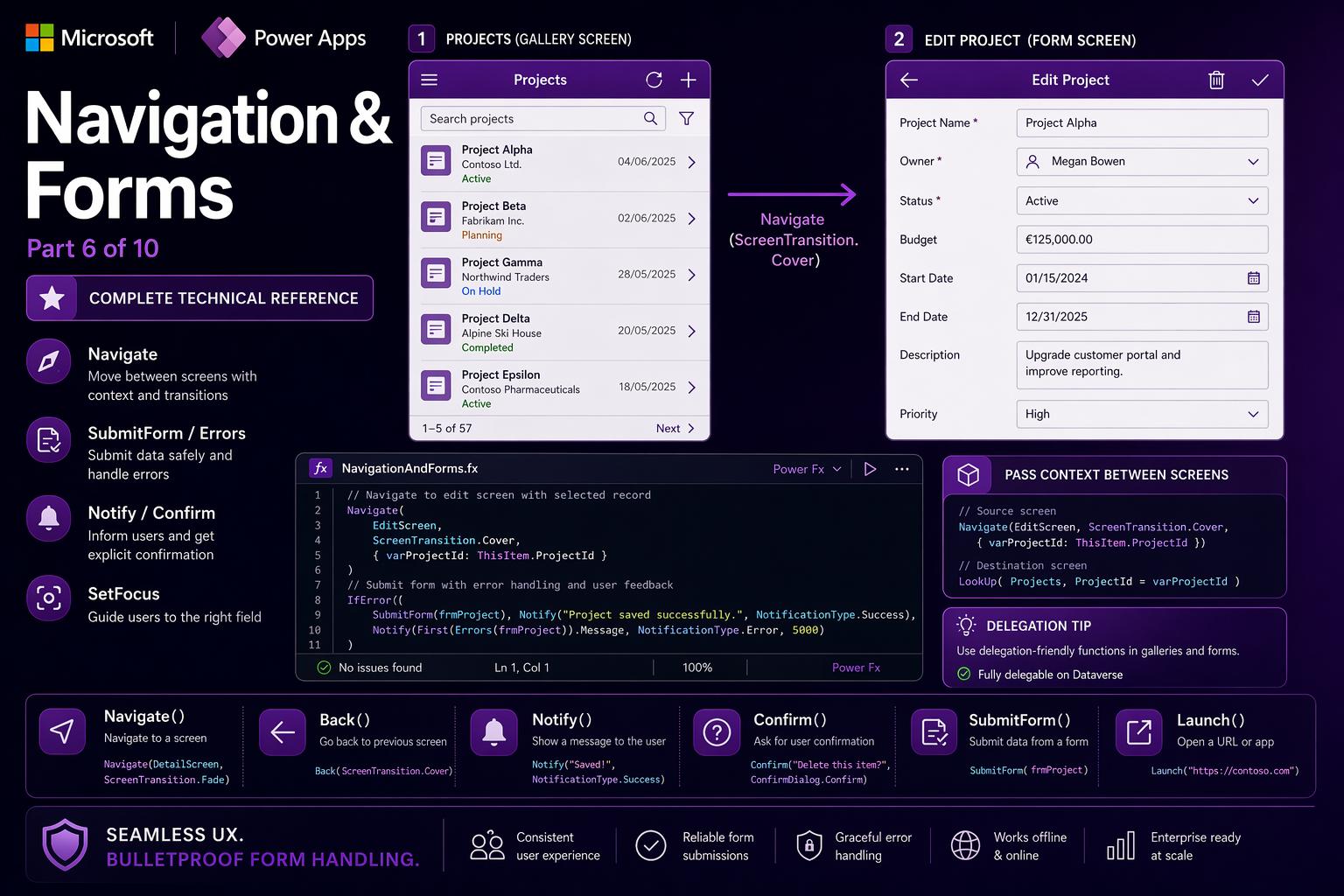
📌 This is Part 6 of the complete Power Apps Canvas Functions series. Screenshots are illustrative.
📚 Power Apps Canvas Functions — Complete Series
- Part 1 — Text Functions
- Part 2 — Number & Math Functions
- Part 3 — Logical & Conditional Functions
- Part 4 — Table & Record Functions
- Part 5 — Date & Time Functions
- Part 6 — Navigation, App Control & Forms (this post)
- Part 7 — Variables, Collections & Data Sources
- Part 8 — Color, Type Conversion, AI & Signals
- Part 9 — Utility, Testing & Context Keywords
- Part 10 — Master Index, Delegation Table & Performance Patterns
Navigation, App Control & Form Functions
Every function in this section belongs to the behavior formula category — they execute when an event fires and can produce side effects: changing the screen, writing data, showing messages, moving focus. They live in event properties like OnSelect, OnVisible, OnChange, OnStart. They cannot appear in data properties like Text, Fill, Visible — those expect formulas that return a value without side effects.
📌 Two things that are different in behavior formulas
Semicolons as statement separators. In behavior formulas, multiple statements are separated by semicolons (;). Patch(...); Navigate(...) writes the data and then navigates — the sequence is guaranteed, left to right.
UpdateContext vs. Set. UpdateContext({name: value}) creates a screen-local variable visible only on the current screen. Set(name, value) creates a global variable visible from any screen. Use UpdateContext for UI state (panel open/closed, active tab). Use Set for data that must survive screen navigation (current user, selected record, app configuration).
Navigate
Navigate(screen: Screen, transition?: ScreenTransition, updateContextRecord?: Record) → VoidChanges the visible screen. The primary navigation function in Canvas Apps. The optional transition controls the animation. The optional updateContextRecord sets screen-local variables on the destination screen — this is the standard mechanism for passing data between screens.
ScreenTransition options: None (instant, use in large apps), Fade (smooth), Cover (new screen slides in from right), CoverRight (from left), UnCover (current screen slides away right), UnCoverRight (slides away left). Use Cover/UnCover as pairs — Cover forward, UnCover for Back.
Navigate(HomeScreen)— instant navigation, no animationNavigate(DetailScreen, ScreenTransition.Cover)— slide in detail screenNavigate(EditScreen, ScreenTransition.Cover, {locRecordID: ThisItem.ID, locMode: "Edit"})— pass data to destinationNavigate(If(UserRole = "Admin", AdminDashboard, UserDashboard), ScreenTransition.Fade)— conditional routing
⚠️ Watch out: The updateContextRecord parameter sets variables on the destination screen — they become screen-local variables there, available by name in any formula. These variables are set before the destination screen’s OnVisible fires, so OnVisible can use them immediately to load the correct data. Both updateContextRecord and global Set variables work for passing data; updateContextRecord keeps the data scoped to the destination screen.
🔗 Works well with — Navigate + context — drill-down from gallery to detail screen
The most common navigation pattern. The gallery item passes its record ID; the detail screen uses it to load the full record in OnVisible.
// Gallery item OnSelect:
Navigate(
  ProjectDetailScreen,
  ScreenTransition.Cover,
  {locProjectID: ThisItem.ID}
)

// ProjectDetailScreen OnVisible — runs after locProjectID is set:
Set(
  varCurrentProject,
  LookUp(Projects, ID = locProjectID)
)

// Any label on the detail screen:
varCurrentProject.Title
varCurrentProject.ClientName
🔗 Works well with — Navigate — role-based routing on App.OnStart
// App.OnStart — load user and route to correct home screen:
Set(varCurrentUser, LookUp(Employees, Email = Lower(User().Email)));
Set(varUserRole, Coalesce(varCurrentUser.AppRole, "Viewer"));
Navigate(
  Switch(
    varUserRole,
    "Admin",    AdminHomeScreen,
    "Manager",  ManagerHomeScreen,
    "Approver", ApproverHomeScreen,
    ViewerHomeScreen
  ),
  ScreenTransition.Fade
)
Back
Back(transition?: ScreenTransition) → VoidReturns to the previous screen in the navigation history — whatever was visible before the most recent Navigate call. Power Apps maintains a navigation stack; Back pops one level.
Back()— return with no animationBack(ScreenTransition.UnCover)— reverse of a Cover transitionIf(locHasUnsavedChanges, UpdateContext({locShowDiscardDialog: true}), Back(ScreenTransition.UnCover))— warn before discarding
⚠️ Watch out: Back() goes to whatever the previous screen was — not a named screen. If the user arrived via multiple paths, Back() goes to whichever path they took, which may not be what you expect. For predictable navigation, use Navigate(SpecificScreen) for important flow control. Reserve Back() for simple cancel/close patterns.
🔗 Works well with — Back + unsaved change detection — warn before discarding edits
// Cancel button OnSelect:
If(
  locHasUnsavedChanges,
  UpdateContext({locShowDiscardDialog: true}),
  Back(ScreenTransition.UnCover)
)

// "Discard changes" button in the confirmation panel:
UpdateContext({locShowDiscardDialog: false, locHasUnsavedChanges: false});
Back(ScreenTransition.UnCover)

// Any input field OnChange — mark form as dirty:
UpdateContext({locHasUnsavedChanges: true})
Exit
Exit(signOut?: Boolean) → VoidExits the running canvas app and returns the user to wherever they launched from — Teams, the Power Apps mobile app, or a browser tab. When signOut: true, also signs the user out of their Microsoft account.
Exit()— close app, stay signed inExit(true)— close app and sign out (use only in kiosk/shared-device scenarios)If(Confirm("Exit the app?"), Exit())— confirm before closing
⚠️ Watch out: Exit(true) signs the user out of their entire Microsoft 365 session — not just the app. Outlook, Teams, SharePoint, and every other M365 service in that browser session are all signed out. Use only in dedicated kiosk or shared-device scenarios where sign-out is genuinely required between different users.
Launch
Launch(url: Text, parameters?: Record, target?: LaunchTarget) → VoidOpens a URL in the browser, launches another Canvas App, opens a model-driven app record, or triggers a deep link (mailto, tel, Teams). The most flexible outbound link function. LaunchTarget.New opens in a new tab (default). LaunchTarget.Replace replaces the current tab. LaunchTarget.Self opens in the same frame.
Launch("https://learn.microsoft.com/power-apps")— open docs in new tabLaunch("https://teams.microsoft.com/l/chat/0/0?users=" & EncodeUrl(ThisItem.Email))— Teams chatLaunch("mailto:" & Email & "?subject=" & EncodeUrl("Re: " & CaseTitle))— pre-filled emailLaunch("tel:" & Substitute(PhoneNumber, " ", ""))— phone call on mobileLaunch("https://contoso.crm.dynamics.com/main.aspx?etn=account&id=" & AccountID)— model-driven record
⚠️ Watch out: Pop-up blockers will block Launch calls that are not directly triggered by a user tap. Never call Launch from a timer, App.OnStart, or a formula chain triggered by a data load — only from OnSelect. Always EncodeUrl() any dynamic values in URLs — unencoded spaces and special characters break the link silently.
🔗 Works well with — Launch + EncodeUrl — Teams deep links from a people directory
// Chat button OnSelect:
Launch(
  "https://teams.microsoft.com/l/chat/0/0?users=" &
  EncodeUrl(ThisItem.Email) &
  "&message=" &
  EncodeUrl("Hi " & ThisItem.FirstName & ", reaching out about " & varProjectTitle)
)

// Video call button:
Launch("https://teams.microsoft.com/l/call/0/0?users=" & EncodeUrl(ThisItem.Email))

// Pre-filled email with subject and body:
Launch(
  "mailto:" & ThisItem.Email &
  "?subject=" & EncodeUrl("[Action Required] " & varProjectTitle) &
  "&body=" & EncodeUrl("Dear " & ThisItem.FirstName & "," & Char(10) & Char(10) & varEmailBody)
)
Notify
Notify(message: Text, notificationType?: NotificationType, timeout?: Number) → VoidDisplays a banner notification at the top of the screen. Auto-dismisses after timeout milliseconds (default ~4000ms). Four types: NotificationType.Success (green ✅), NotificationType.Error (red ❌), NotificationType.Warning (yellow ⚠️), NotificationType.Information (blue ℹ️).
Rule: call Notify after every Patch, SubmitForm, Remove, or connector call to confirm success or report failure. Never leave users guessing whether their action worked.
Notify("Record saved successfully.", NotificationType.Success)— green confirmationNotify("Save failed: " & FirstError.Message, NotificationType.Error)— error with detailNotify("Please fill all required fields.", NotificationType.Warning)— validation feedbackNotify(Text(CountRows(colSelected)) & " records updated.", NotificationType.Success, 5000)— 5-second banner with count
⚠️ Watch out: Notify banners stack — multiple rapid calls fill the screen with overlapping banners. Never call Notify inside a ForAll loop. Call it once after the loop completes. Also, Notify does not block execution — the formula chain continues immediately. It is a UI notification, not a pause.
🔗 Works well with — Notify — multi-step save feedback chain
// Save button OnSelect — validation → write → notify → navigate:
If(
  Len(Trim(TitleInput.Text)) = 0,
  Notify("Title is required.", NotificationType.Warning),
  IfError(
    With(
      {saved: Patch(Projects, Defaults(Projects), {
        Title:  Trim(TitleInput.Text),
        Budget: Round(Value(BudgetInput.Text), 2),
        Owner:  OwnerPicker.Selected.Email
      })},
      Notify(
        "\"" & saved.Title & "\" created.",
        NotificationType.Success, 5000
      );
      Navigate(ProjectsScreen, ScreenTransition.UnCover)
    ),
    Notify("Save failed: " & FirstError.Message, NotificationType.Error)
  )
)
Confirm
Confirm(message: Text, optionsRecord?: Record) → BooleanDisplays a modal confirmation dialog and returns true if the user confirms, false if they cancel. Uniquely among Canvas App functions, Confirm is synchronous — execution pauses until the user responds. Options record accepts ConfirmButton, CancelButton, and Title text fields.
Rule: use Confirm for every destructive, irreversible, or high-consequence action. Never call Remove, RemoveIf, or a bulk update without a confirmation first.
Confirm("Delete this record? This cannot be undone.")— simpleConfirm("Archive project?", {ConfirmButton: "Archive", CancelButton: "Keep active"})— custom labelsConfirm("Submit to " & ManagerName & "?", {Title: "Confirm", ConfirmButton: "Submit", CancelButton: "Not yet"})— with title and context
⚠️ Watch out: Confirm is synchronous and blocks all Power Apps processing while the dialog is open. Overusing it for non-critical confirmations trains users to click through without reading. Reserve it for genuinely irreversible or high-impact actions — not routine saves.
🔗 Works well with — Confirm — bulk action with record count in the message
// "Archive all completed" button OnSelect:
With(
  {toArchive: Filter(colProjects, Status = "Completed")},
  If(
    IsEmpty(toArchive),
    Notify("No completed projects to archive.", NotificationType.Information),
    Confirm(
      "Archive " & CountRows(toArchive) & " completed projects?",
      {
        Title:         "Confirm Bulk Archive",
        ConfirmButton: "Archive " & CountRows(toArchive) & " projects",
        CancelButton:  "Cancel"
      }
    ),
    ForAll(
      toArchive,
      Patch(Projects, LookUp(Projects, ID = ThisItem.ID), {Status: "Archived", ArchivedOn: UTCNow()})
    );
    Notify(CountRows(toArchive) & " projects archived.", NotificationType.Success)
  )
)
RequestHide
RequestHide() → VoidCloses the form panel when a Canvas App is running embedded in a SharePoint list as a custom form. Equivalent to the user clicking the X on the SharePoint form panel. Has no effect outside a SharePoint form context — it is silently ignored in standalone apps.
RequestHide()— close the SharePoint form panelSubmitForm(SharePointForm1); RequestHide()— save and closeIf(Confirm("Discard changes?"), RequestHide())— confirm before closing without saving
⚠️ Watch out: If your app runs in both standalone and SharePoint-embedded contexts, use a configuration variable to conditionally call either RequestHide() or Back(). Calling RequestHide() in a standalone app does nothing — no error, no effect. This silent failure can mask navigation bugs during development.
SubmitForm / ResetForm / NewForm / EditForm / ViewForm
SubmitForm(form: Form) → Void
ResetForm(form: Form) → Void
NewForm(form: Form) → Void
EditForm(form: Form) → Void
ViewForm(form: Form) → Void
The five form mode functions. Power Apps Edit Form controls operate in three modes: New (create), Edit (modify), View (read-only). These functions switch modes and trigger the form write action.
SubmitForm— writes the form’s current values to the data source. TriggersOnSuccesson success,OnFailureon failure.ResetForm— discards all unsaved changes, resets to original values, returns to View mode.NewForm— clears all fields, switches to New (create) mode.EditForm— switches from View to Edit mode for an existing record.ViewForm— switches back to read-only View mode.
If(ProjectForm.Valid, SubmitForm(ProjectForm), Notify("Required fields missing.", NotificationType.Warning))NewForm(TaskForm); Navigate(TaskFormScreen, ScreenTransition.Cover)— open blank formResetForm(ProjectForm); Back()— cancel and go back
⚠️ Watch out: SubmitForm does not run Power Fx validation logic — only data source constraints (required columns, max length, data type). Check form.Valid first and run business rule validation with If before calling SubmitForm. Also, SubmitForm is asynchronous — use the form’s OnSuccess and OnFailure properties for post-submit logic, not statements after SubmitForm in the same formula chain.
🔗 Works well with — SubmitForm + OnSuccess + OnFailure — the complete enterprise form lifecycle
// Submit button OnSelect:
If(
  Not(ProjectForm.Valid),
  Notify("Please complete all highlighted required fields.", NotificationType.Warning),
  SubmitForm(ProjectForm)
)

// Form OnSuccess property — runs after successful write:
Set(varLastSavedTitle, ProjectForm.LastSubmit.Title);
Notify("\"" & varLastSavedTitle & "\" saved.", NotificationType.Success);
Navigate(ProjectsListScreen, ScreenTransition.UnCover)

// Form OnFailure property — runs after failed write:
Notify(
  "Save failed: " & First(Errors(Projects, ProjectForm.LastSubmit)).Message,
  NotificationType.Error
)
Reset
Reset(control: Control) → VoidResets a single input control to its Default property value, discarding any user input. Different from ResetForm which resets an entire form. Use Reset to clear individual text inputs, dropdowns, date pickers, toggles, or sliders programmatically.
Reset(SearchBox)— clear the search boxReset(CategoryDropdown)— return filter to its default “All” stateReset(AttachmentControl)— clear all attached files
⚠️ Watch out: Reset resets to the control’s Default property value — not necessarily blank. If CategoryDropdown.Default = "All Items", then Reset(CategoryDropdown) returns it to “All Items”. To truly blank a control, set its Default to Blank() or the desired empty-state value first.
🔗 Works well with — Reset — clear all search and filter controls with one button
// "Clear all filters" button OnSelect:
Reset(SearchBox);
Reset(CategoryFilter);
Reset(StatusFilter);
Reset(DateRangeStart);
Reset(DateRangeEnd);
Reset(AssigneeFilter);
UpdateContext({locSortColumn: "Title", locSortAscending: true});
Notify("All filters cleared.", NotificationType.Information, 2000)
SetFocus
SetFocus(control: Control) → VoidMoves keyboard input focus to a specific control, making it immediately ready for user input without requiring a click or tap. Essential for keyboard-driven workflows and accessibility. Works on text inputs, dropdowns, combo boxes, buttons, sliders, toggles, and checkboxes. Does not work on labels, images, galleries, or form controls.
SetFocus(TitleInput)— focus the title field when a form screen opensSetFocus(SearchBox)— return focus to search after clearingSetFocus(BudgetInput)— jump to error field after validation fails
⚠️ Watch out: On mobile devices, SetFocus on a text input triggers the on-screen keyboard to appear. This is usually desirable on a dedicated input screen, but jarring in a read-heavy screen where you just want to highlight a field. Test on actual mobile devices, not just the browser simulator.
🔗 Works well with — SetFocus + OnVisible — keyboard-ready form on screen open
// Form screen OnVisible:
NewForm(ProjectForm);
SetFocus(TitleInput)
// User arrives and can immediately start typing — no click required
🔗 Works well with — SetFocus + validation — jump focus to the first invalid field
// Submit button OnSelect — validate and focus on first error:
If(
  Len(Trim(TitleInput.Text)) = 0,
  Notify("Title is required.", NotificationType.Warning);
  SetFocus(TitleInput),

  Not(IsNumeric(BudgetInput.Text)),
  Notify("Budget must be a number.", NotificationType.Warning);
  SetFocus(BudgetInput),

  IsBlank(OwnerDropdown.Selected),
  Notify("An owner must be selected.", NotificationType.Warning);
  SetFocus(OwnerDropdown),

  // All valid — submit:
  SubmitForm(ProjectForm)
)
Errors
Errors(dataSource: DataSource, record?: Record) → TableReturns a table of error records from the most recent data source operation. Each row contains Column, Message, Error, and Source fields. Used in form OnFailure handlers and after Patch calls to surface field-level errors to the user.
First(Errors(Projects)).Message— message from the first errorIsEmpty(Errors(Projects))—trueif the last operation succeededErrors(Projects, ProjectForm.LastSubmit)— errors for the record just submittedFirst(Errors(Projects)).Column— which column caused the error (e.g.,"cr_budget")
⚠️ Watch out: Errors() returns errors from the most recent data source operation and clears when the next operation succeeds. If multiple operations run in sequence, only the errors from the last one are accessible. Capture errors immediately after the operation you care about.
🔗 Works well with — Errors — field-level error display beneath individual inputs
// Error label Visible property beneath the Budget field:
Not(IsEmpty(Filter(Errors(Projects, ProjectForm.LastSubmit), Column = "cr_budget")))

// Error label Text property:
Coalesce(
  First(Filter(Errors(Projects, ProjectForm.LastSubmit), Column = "cr_budget")).Message,
  ""
)
// Shows nothing if no error — shows the server's message when the budget field fails
Defaults
Defaults(dataSource: DataSource) → RecordReturns a record with the default values for all columns in a data source — the blank template for creating a new record. Used as the baseRecord argument in Patch when creating new records, and to pre-populate form fields with sensible column defaults.
Patch(Projects, Defaults(Projects), {Title: "New", Status: "Draft"})— create with Dataverse defaults for all other fieldsSet(varNewRecordTemplate, Defaults(Projects))— cache defaults for use as a form ItemDefaults(Orders).Currency— returns the default value of the Currency column
⚠️ Watch out: Defaults returns Dataverse column defaults — not the defaults you set on Power Apps form controls. Those are a separate layer. When using Patch directly (without a form), always use Defaults(dataSource) as the base record so Dataverse server-side defaults are respected.
RecordInfo
RecordInfo(record: Record, recordInfoEnum: RecordInfo) → BooleanReturns metadata about a specific record’s permissions. RecordInfo.EditPermission — can the current user edit this record? RecordInfo.DeletePermission — can they delete it? RecordInfo.ReadPermission — can they read it? Checks data source permissions (Dataverse security roles, SharePoint item-level permissions) — not app-level role checks.
RecordInfo(Gallery1.Selected, RecordInfo.EditPermission)— can the user edit the selected record?RecordInfo(ThisItem, RecordInfo.DeletePermission)— controls Delete button visibility
⚠️ Watch out: RecordInfo checks data source permissions, not app-level role variables. A user might have Dataverse write permission but your app further restricts editing to managers. Layer both checks: And(RecordInfo(rec, RecordInfo.EditPermission), UserRole = "Manager"). Neither layer alone is sufficient for complete access control.
🔗 Works well with — RecordInfo — conditional Edit/Delete buttons in a gallery
// Edit button Visible property — only show if user can edit:
RecordInfo(ThisItem, RecordInfo.EditPermission)

// Delete button Visible — require edit permission AND Admin role:
And(
  RecordInfo(ThisItem, RecordInfo.DeletePermission),
  UserRole = "Admin"
)

// Edit button OnSelect — double-check permission before navigating:
If(
  RecordInfo(ThisItem, RecordInfo.EditPermission),
  Navigate(EditScreen, ScreenTransition.Cover, {locRecordID: ThisItem.ID}),
  Notify("You do not have permission to edit this record.", NotificationType.Warning)
)
Revert
Revert(dataSource: DataSource, record?: Record) → VoidDiscards locally cached changes for a data source and reloads from the server. Used to recover from a failed Patch or to refresh a specific record without reloading the entire data source.
Revert(Projects)— reload all Projects from the serverRevert(Projects, Gallery1.Selected)— reload only the selected recordIfError(Patch(Projects, rec, changes), Revert(Projects, rec))— rollback on error
⚠️ Watch out: Revert discards the local cache — it does not undo a committed write. If a Patch succeeded and wrote to Dataverse, Revert does not reverse it. For true undo, store pre-edit values in a variable and Patch them back.
Quick Reference — Navigation, App Control & Form Functions
| Function | Returns | Use when |
|---|---|---|
| Navigate(screen, transition?, context?) | Void | Go to a named screen — primary navigation |
| Back(transition?) | Void | Return to previous screen — cancel/close patterns |
| Exit(signOut?) | Void | Close the app — kiosk or post-completion scenarios |
| Launch(url, params?, target?) | Void | Open URL, Teams, email, model-driven app — always from OnSelect |
| Notify(msg, type?, timeout?) | Void | Banner notification — always after every Patch/Remove/Submit |
| Confirm(msg, options?) | Boolean | Modal yes/no — required before all destructive actions |
| RequestHide() | Void | Close SharePoint embedded form panel |
| SubmitForm(form) | Void | Write form to data source — use OnSuccess/OnFailure for results |
| ResetForm(form) | Void | Discard edits, return to original state |
| NewForm(form) | Void | Switch to create mode — blank record |
| EditForm(form) | Void | Switch from View to Edit mode |
| ViewForm(form) | Void | Switch to read-only View mode |
| Reset(control) | Void | Reset single control to Default value — not necessarily blank |
| SetFocus(control) | Void | Move keyboard focus — accessibility, post-validation, form open |
| Errors(source, record?) | Table | Error details after failed write — Column, Message, Error fields |
| Defaults(source) | Record | Default values template — base record for Patch when creating |
| RecordInfo(record, enum) | Boolean | Edit/delete/read permission on a specific record |
| Revert(source, record?) | Void | Discard local cache and reload from server — not an undo |
What’s Next
Part 7 covers Variables, Collections & Data Source Functions — Set, UpdateContext, SaveData, LoadData, Refresh, DataSourceInfo, Concurrent, and more. These are the state management and caching tools that determine how your app stores data, handles offline scenarios, and loads as fast as possible.
