


I’ve worked on Power Platform implementations across banking, manufacturing, and public administration. In virtually every organization I’ve joined mid-project, there’s at least one “legacy flow” nobody dares to touch. It runs. Something critical depends on it. But nobody knows exactly what it does anymore — not fully — because it grew organically, one requirement at a time, until it became something nobody designed.
This post is about preventing that. The combination of Power Apps and Power Automate is genuinely powerful — you can connect a front-end interface directly to complex back-end automation, all within the Microsoft 365 ecosystem, without writing a single line of server-side code. But that ease of building is also the trap. The same speed that lets you prototype in an afternoon will let a team of well-intentioned makers build an unmaintainable system by Christmas.
The difference between a process that scales and one that collapses is almost never the tools. It’s the architecture.
— vsgueradev.com
Section 1 — How Power Apps Triggers Power Automate
Before talking about patterns, it’s worth being precise about how the integration actually works — because there are subtle constraints that affect everything else.
How the Trigger Works
When you add a Power Automate flow to a Canvas app, the flow must use the Power Apps (V2) trigger. This is a specific trigger type under the Power Apps connector — not a general-purpose HTTP endpoint. It’s specifically designed to be called from within a Canvas app using the .Run() method in Power Fx.
⚠️ Key Constraint
Every flow called from Power Apps must have a Power Apps trigger. You cannot call a flow with a Dataverse trigger or a Scheduled trigger directly from a button’s OnSelect.
The .Run() Call and What Happens Next
When a user taps a button and OnSelect fires MyFlow.Run(param1, param2), the app waits for the flow to return before continuing. Synchronous execution. If the flow fails without returning a response, the app receives an error.
This has a direct consequence: flows triggered from Power Apps must be fast and must always return a response. Any long-running work should be delegated to asynchronous child flows.
Calling a Flow from Power Fx
// OnSelect of the Submit button
UpdateContext({ varProcessing: true, varErrorMessage: "" });

Set(
    varFlowResponse,
    ServiceRequestOrchestrator.Run(
        Text(GUID()),            // RequestId — generated client-side
        User().Email,
        drpRequestType.Selected.Value
    )
);

If(
    varFlowResponse.success = true,
    Navigate(scrSuccess, ScreenTransition.Fade),
    UpdateContext({ varErrorMessage: varFlowResponse.errorMessage })
);

UpdateContext({ varProcessing: false });
💡 Watch out: GUID() generates a unique RequestId before the flow runs. If the user double-taps, both calls carry the same ID — the validation step detects and rejects the duplicate. Bind the button’s DisplayMode to varProcessing to prevent concurrent submissions.
Section 2 — The Orchestrator Pattern: One Coordinator, Many Workers
Why Not Just Build One Big Flow?
The instinct when building a new process is to create one flow and keep adding actions to it. This works until it doesn’t — typically around the point where the flow has 40–60 actions, multiple nested conditions, and error handling glued on as an afterthought. Troubleshooting means scrolling through hundreds of actions; changing one step risks breaking something else; testing requires touching real data.
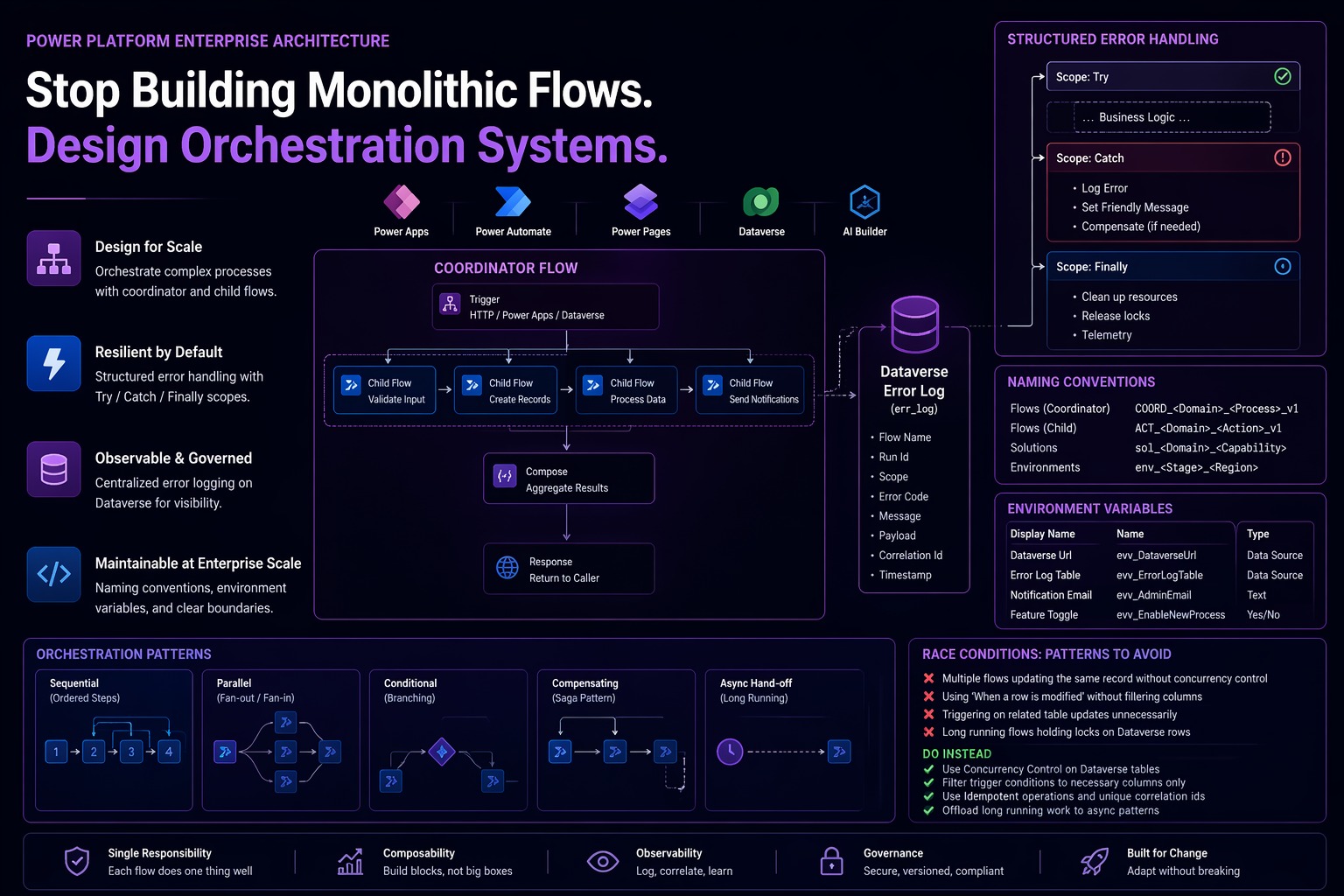
The Orchestrator Pattern solves this by separating coordination from execution. One flow knows the sequence. Many child flows each own a single step and know nothing about the broader process.
Four Platform Constraints Before You Design
- Child flows must be inside a Solution. The “Run a Child Flow” action only lists flows within a Dataverse Solution.
- Child flows must use “Manually trigger a flow” as their trigger. No other trigger type is supported.
- Connections must be embedded. In “Run only users” → set each connection to “Use this connection”. Skipping this causes a runtime error.
- Execution is synchronous. A 5-step orchestrator with 10-second child flows takes at least 50 seconds to complete.
Scenario: HR Employee Onboarding
STEP 1: HR-Onboarding-Validate-ChildFlow
  IN:  RequestId, NewEmployeeEmail, StartDate
  OUT: IsValid (bool), ValidationMessage (string)

STEP 2: HR-Onboarding-ProvisionAccess-ChildFlow
  IN:  NewEmployeeEmail, Department
  OUT: AccountProvisioned (bool), TempPassword (string)

STEP 3: HR-Onboarding-CreateProfile-ChildFlow
  IN:  RequestId, JobTitle, Department, ManagerEmail
  OUT: EmployeeRecordId (string), ProfileCreated (bool)

STEP 4: HR-Onboarding-SendWelcome-ChildFlow
  IN:  NewEmployeeEmail, StartDate, TempPassword
  OUT: WelcomeSent (bool)

STEP 5: HR-Onboarding-LogCompletion-ChildFlow
  IN:  RequestId, EmployeeRecordId, all step statuses
OUT: AuditRecordId (string)Why the Orchestrator Holds No Business Logic
The orchestrator’s job is sequencing only. It receives inputs, passes parameters to child flows, checks outputs before proceeding, calls the error handler if something fails, and returns the final result. All validation, Dataverse writes, Graph calls, and notifications live in the child flows — each can be tested in complete isolation.
Section 3 — Error Handling: Try / Catch / Finally with Scope
By default, when any action fails, the flow stops and marks the run as “Failed” — no cleanup, no useful notification, just a generic failure email to the flow owner, possibly 30 minutes later. For an orchestrated business process, this is not acceptable. A silent failure in production is a data integrity risk.
Three Scope Actions — Run After Configuration
✅ Scope — TRY
All business logic. Runs on “Is successful” from trigger. Happy path only.
🔴 Scope — CATCH
Runs on “Has failed” + “Has timed out” from TRY. Logs error, sends Teams alert, Terminate (Failed).
🟣 Scope — FINALLY
Runs on ALL outcomes. Contains “Respond to a PowerApp or flow” — MUST be here, never in TRY.
⚠️ Most common misconfiguration: “Respond to a PowerApp or flow” placed inside TRY. When TRY fails before reaching it, the app never receives a response and hangs until timeout. Move it to FINALLY.
Centralized Error Log — cr_FlowErrorLog
| Column | Type | Expression | Purpose |
|---|---|---|---|
| cr_flowname | Text | workflow()[‘name’] | Flow that generated the error |
| cr_flowrunid | Text | workflow()[‘run’][‘name’] | Direct link to run history |
| cr_errormessage | Multiline | result(‘Scope_TRY’)[0][‘error’][‘message’] | Full error text |
| cr_resolvedon | DateTime | null = unresolved | Set when operator closes incident |
Section 4 — Naming Conventions and Solution Architecture
The Recommended Convention
{Department}-{ProcessName}-{Function}-{FlowType}HR-Onboarding-Orchestrator-InstantFlow
HR-Onboarding-Validate-ChildFlow
HR-Onboarding-ProvisionAccess-ChildFlow
HR-Onboarding-CreateProfile-ChildFlow
HR-Onboarding-SendWelcome-ChildFlow
HR-Onboarding-LogCompletion-ChildFlow
HR-Onboarding-ErrorHandler-ChildFlow
HR-Onboarding-AuditCleanup-ScheduledFlowEnvironment Variables — Never Hardcode Configuration
Every value that could differ between dev, test, and production must be an Environment Variable: SharePoint URLs, notification emails, API endpoints, approval thresholds, feature flags.
⚠️ Cache Behavior
If you update an environment variable directly in an environment (not via solution import), flows continue using the cached value until toggled off and back on. Always toggle the flow after direct updates in production.
parameters('ev_NotificationEmail')Section 5 — Avoiding Race Conditions and Trigger Design
When multiple flows watch the same Dataverse table, the platform queues and processes them — but execution timing and write ordering are not guaranteed. If two flows both read a record, modify it, and write it back, the second write overwrites whatever the first changed.
Minimum Mitigation: Column Filtering + Trigger Conditions
// Prevent self-triggering on own writes
@not(equals(triggerOutputs()?['body/_modifiedby_value'], 'service-account-guid'))
The Event Table Pattern
Replace multiple Dataverse triggers with an explicit Event Table. The Canvas app writes the business record, then writes an event to cr_ProcessEvents with cr_processedon = null. A single scheduled flow polls for unprocessed events and routes each to the correct orchestrator — one consumer, one execution per event, no race conditions.
Section 6 — The 30-Day Run Limit and Long-Running Approvals
Every cloud flow has a maximum run duration of 30 days, enforced at the Azure Logic Apps infrastructure level. After 30 days, any pending steps — including waiting approvals — time out. The flow fails. The approval is lost.
💡 30 days vs 90 days — Two Different Limits
The 90-day figure refers to flow suspension — a flow not triggered for 90 days is suspended for inactivity. Completely different from the 30-day run duration limit, which applies to all license types.
The Split-Flow Pattern
- Flow 1 — InitiateApproval: creates the approval, writes ApprovalId to Dataverse, terminates. Its 30-day clock stops.
- Flow 2 — WaitForApproval: triggered by the Dataverse column update. Uses “Wait for an approval” with the stored ApprovalId. Gets its own fresh 30-day clock.
Section 7 — Governance Checklist for Production Readiness
Flow Architecture
- Every flow uses Try / Catch / Finally (Scope pattern)
- Every child flow returns structured response:
success+errorMessage - “Respond to a PowerApp or flow” inside FINALLY — never TRY
- Terminate (status: Failed) at end of every CATCH scope
- Error records written to cr_FlowErrorLog from every CATCH scope
Configuration and Security
- No hardcoded email addresses, URLs, API endpoints, or GUIDs
- All configuration in Environment Variables within the Solution
- Secrets in Azure Key Vault — never plain text in the flow
- Flow ownership on a service account, not a personal user account
Naming, Triggers and Testing
- All flows follow {Department}-{ProcessName}-{Function}-{FlowType}
- All flows inside a Solution with description (purpose, owner, last review)
- Every Dataverse trigger has Select columns + at least one Trigger Condition
- Each child flow tested in isolation — valid and invalid inputs
- CATCH scope tested by deliberately causing a failure inside TRY
Key Takeaways
The patterns in this post — Orchestrator + Child Flows, Try / Catch / Finally, centralized error logging, naming conventions, Environment Variables, column filtering on Dataverse triggers — are not advanced topics. They’re the baseline. The cost of not applying them is a system that works until it doesn’t, fails silently, and gradually becomes untouchable.
