



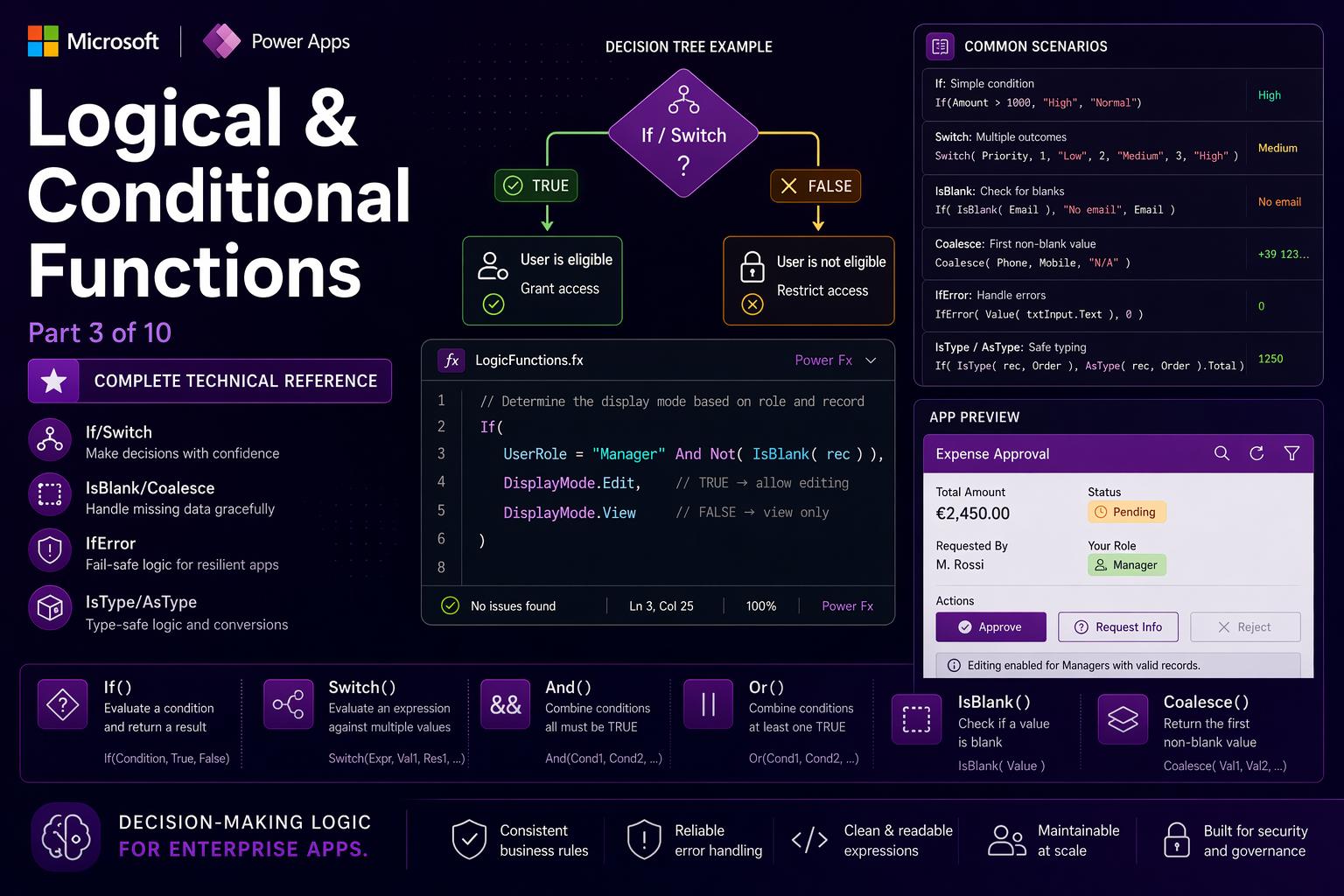
📌 This is Part 3 of the complete Power Apps Canvas Functions series. Screenshots are illustrative — Microsoft updates its UI regularly.
📚 Power Apps Canvas Functions — Complete Series
- Part 1 — Text Functions
- Part 2 — Number & Math Functions
- Part 3 — Logical & Conditional Functions (this post)
- Part 4 — Table & Record Functions
- Part 5 — Date & Time Functions
- Part 6 — Navigation, App Control & Forms
- Part 7 — Variables, Collections & Data Sources
- Part 8 — Color, Type Conversion, AI & Signals
- Part 9 — Utility, Testing & Context Keywords
- Part 10 — Master Index, Delegation Table & Performance Patterns
Logical & Conditional Functions
These are the decision-making tools of every Canvas App. They control which value a label shows, whether a button is active, what color a row gets, and whether a save operation proceeds or shows an error. Every form validation, every access control rule, every conditional UI behavior in your app runs through at least one of the functions in this section.
Two things about Power Fx logic are different enough from other languages that they catch experienced developers off guard. Both are worth understanding before you write a single conditional formula.
⚠️ Two things that are different in Power Fx
1. No short-circuit evaluation. In And(A, B), both A and B are always evaluated — even if A is false. In Or(A, B), both are evaluated — even if A is true. This means you cannot use And(Not(IsBlank(record)), record.Field = "x") to guard a field access. Use a nested If instead, or the ?. safe-navigation operator: record?.Field = "x" returns blank without error when record is blank.
2. Behavior vs. data formulas. Properties like Text, Fill, Visible, Items are data formulas — evaluated continuously and automatically. Properties like OnSelect, OnVisible, OnChange are behavior formulas — executed when an event fires, can have side effects. Logical functions work in both. Side-effecting functions (Patch, Navigate, Notify) only work in behavior formulas.
If
If(condition: Boolean, thenResult: Any, elseIfCondition?: Boolean, elseIfResult?: Any, ..., defaultResult?: Any) → AnyIf evaluates a condition and returns one of two or more values. Power Fx If is more powerful than a simple ternary — it supports chained conditions in a single function call, making it equivalent to a full if-else if-else structure without nesting. The engine evaluates conditions left to right and returns the result of the first true one. If no condition is true, the final argument (the default) is returned, or Blank() if none is provided.
When to use it: any property returning different values based on a condition — Fill, Color, Visible, DisplayMode, Text, Items. For more than 4 discrete exact values, Switch is cleaner. For range conditions (>, <), use chained If.
If(Score >= 90, "A", Score >= 80, "B", Score >= 70, "C", "F")— grade mapping, 4 branches, one expressionIf(IsBlank(PhoneField), "No phone on file", PhoneField)— null fallbackIf(UserRole = "Admin", DisplayMode.Edit, DisplayMode.Disabled)— role-based access controlIf(Connection.Connected, "Online", "Offline")— network status labelIf(Len(Trim(TitleInput.Text)) = 0, RGBA(207,52,52,1), RGBA(200,200,200,1))— red border on empty required field
⚠️ Watch out: Both branches are always evaluated before If returns. If(IsBlank(record), "empty", record.FieldName) errors when record is blank because record.FieldName is evaluated even when the first branch is taken. Use the ?. safe-navigation operator: record?.FieldName returns Blank() instead of erroring.
🔗 Works well with — If + And — compound role-based field access control
Replace nested If(If(If(...))) pyramids with a flat If using And. Three conditions, one expression, zero nesting.
// Field DisplayMode — edit only if manager in the correct department:
If(
  And(
    UserRole = "Manager",
    UserDepartment = Gallery1.Selected.Department,
    Gallery1.Selected.Status <> "Locked"
  ),
  DisplayMode.Edit,
  DisplayMode.View
)
🔗 Works well with — If (chained) — traffic light KPI color based on ranges
The chained form is the right choice when conditions involve ranges rather than exact values. Four visual states, zero nesting.
// KPI card border color — range-based chained If:
If(
  ThisItem.CompletionPct >= 90, RGBA(16, 124, 16, 1),   // green — on track
  ThisItem.CompletionPct >= 70, RGBA(255, 185, 0, 1),   // amber — at risk
  ThisItem.CompletionPct >= 50, RGBA(209, 52, 0, 1),    // orange — behind
  RGBA(164, 38, 44, 1)                                   // red — critical
)
🔗 Works well with — If + UpdateContext — toggle pattern
// Toggle button OnSelect — flip the panel open/closed:
UpdateContext({locShowAdvancedFilters: !locShowAdvancedFilters})

// Panel Visible property:
locShowAdvancedFilters
Switch
Switch(formula: Any, value1: Any, result1: Any, value2: Any, result2: Any, ..., default?: Any) → AnyEvaluates an expression and compares it against a list of exact values, returning the corresponding result for the first match. Cleaner than chained If when you have multiple discrete states to handle. If no value matches, the final argument (the default) is returned.
When to use it vs. If: use Switch when the condition is “equals one of these specific values” — status colors, icon selection, label mapping. Use If when conditions involve ranges (>, <, >=) or compound expressions with And/Or.
Switch(ThisItem.Status, "Active", Color.Green, "Pending", Color.Yellow, "Closed", Color.Gray, Color.Red)— status badge colorSwitch(UserRole, "Admin", "👑 Administrator", "Manager", "👔 Manager", "User", "👤 Standard User", "❓ Unknown")— display name from role codeSwitch(Left(ProductCode, 2), "EU", "Europe", "US", "United States", "AP", "Asia-Pacific", "Other")— region from code prefix
⚠️ Watch out: Switch uses strict equality comparison — no ranges, no partial matches, no StartsWith. If any condition involves >, <, Contains, or StartsWith, use chained If instead. All result expressions are evaluated regardless of which one matches — same non-short-circuit behavior as If.
🔗 Works well with — Switch — icon + color visual system for a priority gallery
Apply Switch twice on the same field — once for the icon, once for the background color — to build a consistent visual language with zero code duplication.
// Gallery item icon (Text property):
Switch(
  ThisItem.Priority,
  "Critical", "🔴",
  "High",     "🟠",
  "Medium",   "🟡",
  "Low",      "🟢",
  "⚪"
)

// Gallery template Fill property:
Switch(
  ThisItem.Priority,
  "Critical", RGBA(253, 231, 233, 1),
  "High",     RGBA(255, 244, 224, 1),
  "Medium",   RGBA(255, 252, 215, 1),
  "Low",      RGBA(225, 245, 225, 1),
  RGBA(245, 245, 245, 1)
)
🔗 Works well with — Switch + App.ActiveScreen — active navigation highlight
// Navigation sidebar button Fill — highlights the active screen:
Switch(
  App.ActiveScreen.Name,
  "HomeScreen",     RGBA(114, 39, 116, 0.15),
  "ProjectsScreen", RGBA(114, 39, 116, 0.15),
  RGBA(0, 0, 0, 0)  // inactive: transparent
)
And / Or / Not
And(expression1: Boolean, expression2: Boolean, ...) → Boolean
Or(expression1: Boolean, expression2: Boolean, ...) → Boolean
Not(expression: Boolean) → Boolean
Boolean logic operators. And returns true only if all arguments are true. Or returns true if at least one argument is true. Not inverts a boolean. Power Fx provides both function form (And(a, b)) and operator form (a && b, a || b, !a) — they are identical. The operator form is preferred for readability. Both forms accept multiple arguments.
And(UserRole = "Manager", Department = "HR")— both must be trueUserRole = "Manager" && Department = "HR"— identical, operator formOr(Priority = "High", DateDiff(Today(), DueDate, TimeUnit.Days) < 0)— at least one trueNot(IsBlank(EmailInput.Text))— field has content (cleaner thanIsBlank(...) = false)And(Len(Trim(TitleInput.Text)) > 0, IsNumeric(AmountInput.Text), Not(IsBlank(OwnerDropdown.Selected)))— form validation gate
⚠️ Watch out: Power Fx has no short-circuit evaluation. In And(A, B), both A and B are always evaluated — even if A is false. You cannot use And(Not(IsBlank(record)), record.Field = "x") to guard a field access — record.Field is evaluated even when record is blank and will error. Use a nested If: If(Not(IsBlank(record)), record.Field = "x", false).
🔗 Works well with — And — multi-field form validation gate
All six conditions in a single readable expression. No nested If maze.
// Submit button DisplayMode — every validation must pass:
If(
  And(
    Len(Trim(TitleInput.Text)) >= 3,
    IsNumeric(BudgetInput.Text),
    Value(BudgetInput.Text) > 0,
    Not(IsBlank(OwnerDropdown.Selected)),
    Not(IsBlank(StartDatePicker.SelectedDate)),
    DateDiff(StartDatePicker.SelectedDate, EndDatePicker.SelectedDate, TimeUnit.Days) > 0
  ),
  DisplayMode.Edit,
  DisplayMode.Disabled
)
🔗 Works well with — Not + in — exclusion filter
// Gallery Items — exclude archived and cancelled records:
Filter(
  Projects,
  Not(Status in ["Archived", "Cancelled"]),
  Or(IsBlank(SearchBox.Text), StartsWith(Title, SearchBox.Text))
)
🔗 Works well with — Or — multi-source permission check
// Record Visible property — user owns it, is an approver, or is Admin:
Or(
  ThisItem.OwnerEmail = Lower(User().Email),
  Lower(User().Email) in Lower(ThisItem.ApproversEmails),
  UserRole = "Admin"
)
IsBlank / IsBlankOrError
IsBlank(value: Any) → Boolean
IsBlankOrError(value: Any) → Boolean
IsBlank returns true for Blank(), empty strings (""), and null values from data sources. In Power Fx, blank and empty string are the same thing — IsBlank("") returns true. This is different from most languages where null and "" are distinct. IsBlankOrError catches everything IsBlank catches plus any value in an error state.
IsBlank(EmailInput.Text)—truefor empty or nullIsBlank(LookUp(Customers, ID = SelectedID))—trueif no customer foundIsBlank("")—true(empty string IS blank in Power Fx)IsBlank(0)—false(zero is a value)IsBlank(false)—false(false is a value)IsBlankOrError(1/0)—true(division by zero is an error)
⚠️ Watch out: IsBlank on a table always returns false — even for an empty table with zero rows. Use IsEmpty to check whether a table has no rows. If(IsBlank(Filter(Projects, Status = "Active")), ...) will never enter the true branch even when no projects are active. The correct check is IsEmpty(Filter(...)).
🔗 Works well with — IsBlank + Coalesce — multi-level fallback for optional fields
Coalesce replaces a chain of nested If(IsBlank(...)) calls. Much more readable with three or more fallback levels.
// Display name — try preferred name, then full name, then email:
Coalesce(
  ThisItem.PreferredName,
  ThisItem.FullName,
  ThisItem.Email,
  "Unknown User"
)
// Returns the first non-blank value in the chain
🔗 Works well with — IsBlank + If — safe field access on an optional LookUp
// Manager label — safe when no manager is assigned:
With(
  {mgr: LookUp(Employees, ID = ThisItem.ManagerID)},
  If(
    IsBlank(mgr),
    "No manager assigned",
    mgr.FullName & " (" & mgr.Department & ")"
  )
)
// Without the guard: mgr.FullName errors when LookUp returns blank
IsEmpty
IsEmpty(table: Table) → BooleanReturns true if a table has zero rows. This is the correct function for checking whether a query returned results, whether a collection is empty, or whether a filtered gallery has anything to show. IsBlank on a table always returns false regardless of row count — they are not interchangeable for tables.
IsEmpty(Filter(Tasks, Status = "Open"))—trueif no open tasksIsEmpty(Gallery1.AllItems)—trueif the gallery shows no itemsIsEmpty(colSelectedItems)—trueif no items in the selection collection
⚠️ Watch out: IsEmpty checks for zero rows — it does not check whether a collection variable has been initialized. An uninitialized collection returns true from IsEmpty because it is treated as blank, not as an empty table. Always initialize with ClearCollect(col, []) or Clear(col) before relying on IsEmpty for logic.
🔗 Works well with — IsEmpty — empty state UX pattern
// Empty state label Visible property:
IsEmpty(Gallery1.AllItems)

// Empty state label Text — different message for search vs. genuinely no data:
If(
  IsBlank(SearchBox.Text),
  "No projects found. Create your first project above.",
  "No results for \"" & SearchBox.Text & "\". Try a different search."
)
🔗 Works well with — IsEmpty + CountRows — results count badge
// Results count label — handles singular/plural and zero:
If(
  IsEmpty(Gallery1.AllItems),
  "No results",
  Text(CountRows(Gallery1.AllItems)) & " result" &
  If(CountRows(Gallery1.AllItems) = 1, "", "s")
)
// "1 result" or "42 results" or "No results"
Coalesce
Coalesce(value1: Any, value2: Any, ...) → AnyReturns the first non-blank value from its arguments, evaluated left to right. The Power Fx equivalent of the null-coalescing operator (?? in C# or JavaScript). Replaces chains of nested If(IsBlank(...)) with a single readable expression. Stops evaluating as soon as it finds a non-blank value.
Coalesce(record.PreferredName, record.FullName, "Unknown")— first non-blank nameCoalesce(LocationOverride, DefaultLocation, "Headquarters")— three-level fallbackCoalesce(Value(PriceInput.Text), 0)— 0 if input is blankCoalesce(LookUp(Config, Key = "MaxApprovers").Value, "3")— config value with hardcoded default
⚠️ Watch out: Coalesce skips blank values but does not skip false, 0, or other falsy values. Coalesce(false, true) returns false — not true. It is a null-coalescing function, not a falsy-coalescing function. When working with boolean columns that can legitimately hold false, this matters.
🔗 Works well with — Coalesce — config-driven app settings from Dataverse with hardcoded fallbacks
Store configurable values in a Dataverse settings table. Admins can update them without republishing the app. If a setting is missing, the hardcoded default applies automatically.
// App.OnStart — load config with fallbacks:
ClearCollect(colAppConfig, Filter(AppSettings, AppName = "ProjectTracker"));
Set(varMaxAttachments,
    Value(Coalesce(LookUp(colAppConfig, Key = "MaxAttachments").Value, "10")));
Set(varApprovalThreshold,
    Value(Coalesce(LookUp(colAppConfig, Key = "ApprovalThreshold").Value, "5000")));
Set(varDefaultCurrency,
         Coalesce(LookUp(colAppConfig, Key = "DefaultCurrency").Value, "EUR"))
// If the config record exists → use it. If missing → hardcoded default applies.
IsError / IfError
IsError(value: Any) → Boolean
IfError(value: Any, fallback1: Any, ...) → Any
IsError returns true when a value is in an error state — division by zero, type mismatch, a failed Value() conversion, or a data source operation that returned an error. IfError evaluates an expression and returns a fallback if it errors — exactly like Excel’s IFERROR. The special record FirstError is available inside IfError and contains the error details, including FirstError.Message.
IfError(1 / SliderValue, 0)— returns0if slider is at zeroIfError(Value(AmountInput.Text), 0)— returns0if user typed non-numeric textIsError(Sqrt(NegativeInput.Value))—trueif the input is negativeIfError(LookUp(Products, SKU = TextInput.Text).Price, Blank())— blank if SKU not found
⚠️ Watch out: IfError is powerful but dangerous when overused. Wrapping every operation silently hides real bugs — a formula that returns 0 instead of a real value may corrupt data in subtle ways. Use IfError intentionally for expected failure modes (user input, external connectors), not as a blanket crash suppressor. When debugging, temporarily remove IfError wrappers to see actual errors.
🔗 Works well with — IfError + Notify + FirstError.Message — production-grade save error handling
Show the server’s actual error message to the user instead of silently failing. FirstError.Message contains what Dataverse or SharePoint returned.
// Save button OnSelect:
IfError(
  Patch(
    Projects,
    Defaults(Projects),
    {
      Title:  TitleInput.Text,
      Budget: Value(BudgetInput.Text),
      Owner:  OwnerDropdown.Selected.Email
    }
  ),
  // On error:
  Notify("Save failed: " & FirstError.Message, NotificationType.Error),
  // On success:
  Navigate(ProjectsScreen, ScreenTransition.UnCover)
)
// FirstError.Message contains the actual server error — much more useful than a generic message
IsNumeric
IsNumeric(value: Text) → BooleanReturns true if a text string can be interpreted as a number in the current locale. The essential pre-check before calling Value(), which throws an error on non-numeric strings. Used for form validation, import data cleaning, and any input where the user is expected to type a number.
IsNumeric("42")— returnstrueIsNumeric("42.5")— returnstrueIsNumeric("abc")— returnsfalseIsNumeric("")— returnsfalseIsNumeric("1,250.75")—trueinen-USlocale, may befalseinit-IT
⚠️ Watch out: IsNumeric is locale-sensitive. The string "1,250.75" is valid in English (comma = thousands separator, dot = decimal) but may fail in Italian locale (where comma = decimal separator). For international apps, normalize the input — strip thousands separators, standardize the decimal character — before calling IsNumeric.
🔗 Works well with — IsNumeric + Value — the standard safe numeric input pattern
// Validate → convert → clamp — the full safe numeric input chain:
If(
  Not(IsNumeric(PriceInput.Text)),
  Notify("Price must be a valid number.", NotificationType.Warning),
  Value(PriceInput.Text) <= 0,
  Notify("Price must be greater than zero.", NotificationType.Warning),
  Value(PriceInput.Text) > 999999,
  Notify("Price cannot exceed €999,999.", NotificationType.Warning),
  // All validations passed:
  Patch(Products, SelectedProduct, {UnitPrice: Round(Value(PriceInput.Text), 2)})
)
IsToday / IsUTCToday
IsToday(dateTime: DateTime) → Boolean
IsUTCToday(dateTime: DateTime) → Boolean
IsToday returns true if a datetime value falls on today’s date in the user’s local time zone. IsUTCToday checks against UTC midnight — useful when working with Dataverse datetime columns that store values in UTC, or when multiple users across time zones need a consistent “today” definition.
IsToday(ThisItem.DueDate)—trueif the task is due today (local time)IsToday(DatePicker.SelectedDate)—trueif the user selected todayIsUTCToday(ThisItem.CreatedOn)—trueif the record was created today in UTC
⚠️ Watch out: IsToday is not delegable for Dataverse or SharePoint. Filter(LargeTable, IsToday(DateColumn)) only checks the first 500 records. For large tables, use a delegable date range: Filter(Tasks, DueDate >= Today(), DueDate < DateAdd(Today(), 1, TimeUnit.Days)).
🔗 Works well with — IsToday — conditional formatting for today / overdue / due soon
// DueDate label Color property — four visual states:
If(
  IsToday(ThisItem.DueDate),
  RGBA(209, 52, 0, 1),     // orange — due today
  ThisItem.DueDate < Today(),
  RGBA(164, 38, 44, 1),    // red — overdue
  ThisItem.DueDate <= DateAdd(Today(), 3, TimeUnit.Days),
  RGBA(255, 185, 0, 1),    // amber — due within 3 days
  RGBA(50, 50, 50, 1)      // dark gray — not urgent
)
IsType / AsType
IsType(record: Record, table: Table) → Boolean
AsType(record: Record, table: Table) → Record
Two functions for handling polymorphic lookups in Dataverse. A polymorphic lookup is a column that can reference records from different tables — for example, a Customer field that might point to a Contact (an individual) or an Account (a company). Without these functions, you cannot determine which table the reference points to, or access the specific columns of that type.
IsType checks which table a record reference points to. AsType casts it to a specific type so you can access its columns. Always guard with IsType before calling AsType — calling AsType on a mismatched type throws a runtime error.
IsType(ThisItem.CustomerLookup, Contacts)—trueif lookup points to a ContactIsType(ThisItem.CustomerLookup, Accounts)—trueif it points to an AccountAsType(ThisItem.CustomerLookup, Contacts).FullName— access FullName from the ContactAsType(ThisItem.CustomerLookup, Accounts).AccountName— access AccountName from the Account
⚠️ Watch out: Calling AsType on a record that does not match the target table type throws a runtime error. The pattern is always: If(IsType(ref, TargetTable), AsType(ref, TargetTable).Field, "N/A"). Never call AsType without an IsType guard.
🔗 Works well with — IsType + AsType — display the correct name for a polymorphic Customer field
A support ticket’s Customer field can point to either a Contact (individual) or an Account (company). Show the right name for each.
// Customer name label in a ticket gallery:
If(
  IsType(ThisItem.Customer, Contacts),
  AsType(ThisItem.Customer, Contacts).FullName,    // "Vincenzo Sguera"
  IsType(ThisItem.Customer, Accounts),
  AsType(ThisItem.Customer, Accounts).AccountName, // "Contoso Ltd"
  "Unknown customer"
)

// Type badge:
If(
  IsType(ThisItem.Customer, Contacts), "👤 Individual",
  IsType(ThisItem.Customer, Accounts), "🏢 Company",
  "❓"
)
Blank
Blank() → BlankReturns a blank value — the Power Fx equivalent of null. Used to explicitly write null into a Dataverse or SharePoint column, to reset a variable to an unset state, or to provide a “no selection” option in a combo box. In Power Fx, blank and empty string ("") behave identically in most formula contexts — IsBlank("") is true.
Patch(Tasks, SelectedTask, {CompletedDate: Blank()})— clear the date column (stores SQL NULL)Set(varSelectedRecord, Blank())— reset a record variable to unset stateIf(ToggleArchived.Value, Blank(), "Active")— pass null to a filter for “show all”
⚠️ Watch out: When writing to a Dataverse text column, Blank() stores SQL NULL while "" stores an empty string. In most business scenarios this does not matter — but for integrations or reports that distinguish NULL from empty string in the database, use Blank() explicitly to write NULL.
🔗 Works well with — Blank + Patch — clear optional nullable columns
// "Clear deadline" button OnSelect:
Patch(
  Projects,
  Gallery1.Selected,
  {
    Deadline:   Blank(),   // stores NULL in Dataverse — column appears empty
    NotifyDate: Blank()    // also clears the related reminder date
  }
);
Notify("Deadline cleared.", NotificationType.Success)
Quick Reference — Logical & Conditional Functions
| Function | Returns | Use when |
|---|---|---|
| If(cond, t, [cond2, t2, …], f?) | Any | Conditional value — supports chained multi-branch form for ranges |
| Switch(expr, v1, r1, …, default?) | Any | Exact value mapping — cleaner than chained If for discrete states |
| And(e1, e2, …) / && | Boolean | All conditions must be true — no short-circuit evaluation |
| Or(e1, e2, …) / || | Boolean | At least one condition must be true — no short-circuit |
| Not(expr) / ! | Boolean | Invert a boolean — cleaner than = false |
| IsBlank(value) | Boolean | Null / empty string check — NOT for empty tables, use IsEmpty |
| IsBlankOrError(value) | Boolean | Blank OR error — defensive combined check after risky operations |
| IsEmpty(table) | Boolean | Zero-row table check — use for galleries, collections, Filter results |
| Coalesce(v1, v2, …) | Any | First non-blank value — skips blank and “”, not false or 0 |
| IsError(value) | Boolean | Check whether a value is in error state |
| IfError(value, fallback…) | Any | Return fallback on error — FirstError.Message has server detail |
| IsNumeric(text) | Boolean | Validate before Value() — locale-sensitive, normalize input first |
| IsToday(dateTime) | Boolean | Date is today in local time — not delegable, use date range on large tables |
| IsUTCToday(dateTime) | Boolean | Date is today in UTC — for timezone-independent Dataverse datetimes |
| IsType(record, table) | Boolean | Polymorphic lookup type check — always guard before AsType |
| AsType(record, table) | Record | Cast polymorphic lookup to specific type — never without IsType guard |
| Blank() | Blank | Explicit null — clear Dataverse columns, reset record variables |
What’s Next
Part 4 covers Table & Record Functions — Filter, LookUp, Patch, Collect, ForAll, With, GroupBy, Sort, Distinct, Sequence, and more. These are the data manipulation tools that drive every gallery, form, and data write in your app — with full delegation notes for Dataverse and SharePoint.
