


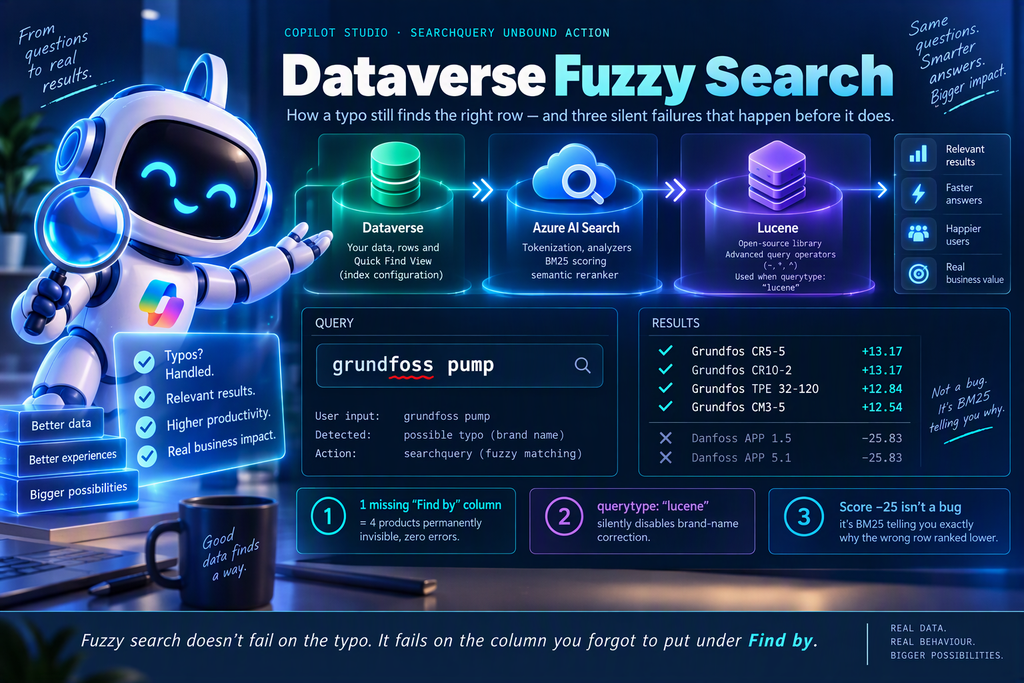
Ask a Copilot Studio agent for a “grundfoss pump”, let it run a plain equality filter against Dataverse, and you’ll get nothing back. No error. No hint. Just zero rows, while four Grundfos pumps sit right there in the table. Dataverse fuzzy search is how you close that gap inside Copilot Studio (Microsoft’s low-code platform for building conversational agents) on top of Microsoft Dataverse, the business database underneath Power Apps and Power Automate.
Everything in this post comes from a working lab: a small parts catalog with 18 products, an internal agent that searches it, and the raw responses we captured along the way. You’ll see how a row turns into searchable terms, what Dataverse quietly does to a misspelled query before it runs it, exactly how the tool has to be configured in Copilot Studio, and three things that broke in the lab that no documentation page had warned us about.
The screenshots come from that lab. Microsoft updates the Copilot Studio and Power Platform interfaces regularly, so a button may move or get renamed by the time you read this; the steps and settings themselves stay the same.
Why an Exact Match Fails Without Telling You
An exact lookup compares characters. That works when a program writes the query. People don’t search like programs, though: they misspell brand names, abbreviate (“pmp” for pump), or describe a category loosely. An equality filter written in OData (the URL-based query language Dataverse’s Web API understands) needs every character right. The classic Quick Find search is a little more forgiving, but it still wants every word of the query to show up in the same column.
Miss once, and the agent receives an empty list. It can’t tell “the product doesn’t exist” apart from “the user typed it badly”, so it says the only thing it can: nothing found.
What you actually want is the search Microsoft calls Dataverse search (older pages still say relevance search): it forgives typos, expands synonyms and abbreviations, and returns rows ranked by how well they match instead of in whatever order they were stored. It’s the same engine behind the global search box in model-driven apps (the form-and-view business apps built directly on Dataverse), and an agent can call it directly.
Three Ways to Give an Agent Dataverse Data, and the One That Does Fuzzy Matching
Copilot Studio gives you three distinct ways to connect an agent to Dataverse. They look similar in the UI and behave very differently, so it pays to pick deliberately.
- Quick Find search. The traditional Dataverse search: all the words in the query have to appear in the same indexed column. No typo tolerance at all.
- Dataverse as a knowledge source. The agent indexes your rows and answers in natural language. Good for open questions, but you don’t control which columns are searched, which ones come back, or how results are filtered and paged.
- The unbound
searchqueryaction. An unbound action is a Dataverse operation that isn’t tied to one specific record. Called through the “Perform an unbound action” tool of the Dataverse connector (a connector is Power Platform’s prebuilt bridge to a service), it runs the same engine as the global search box, but as a function call with explicit parameters. This is the one we use.
One trap if you’re coming from Power Automate: Power Automate has a friendly, dedicated “Search rows” action. In our Copilot Studio environment it simply wasn’t offered, so the generic unbound action is the way in. It means a bit more configuration by hand. It also means you see every parameter the engine accepts.
Under the Hood: How a Row Becomes Searchable Terms
Dataverse search isn’t an engine Microsoft wrote from scratch. Per Microsoft’s documentation, it’s built on the analyzers of Azure AI Search, Microsoft’s cloud search service. By default it uses the Microsoft language analyzer that matches your organization’s base language, and falls back to a generic Lucene analyzer if no Microsoft one exists for that language (Apache Lucene is the open-source search library Azure AI Search is built on).
An analyzer is the component that turns text into tokens, the individual terms the index actually stores. For an English organization, it splits the text on spaces, hyphens and punctuation, lowercases everything, drops stop words (very common words like for, in and with, listed in Microsoft’s stop-word reference), and reduces each word to its base form. That last step is called lemmatization: applications is stored as application.
And here’s the part that explains most of the “why did that match?” moments: the same analysis runs twice. Once when a row is indexed, and again on whatever the user types. Matching happens between tokens, never between raw strings, which is also why capital letters never matter.
The animation below follows one real row from the lab catalog through the analyzer, step by step. It plays on its own; click it to open it fullscreen.
That last detail in the animation is something we observed directly: searching for burkert, with no accent, matched the Bürkert products. You never have to type the umlaut.
Codes with punctuation get chopped into pieces
Splitting on punctuation is great for prose and awkward for product codes. Microsoft's own documentation gives two examples of what happens when a code is tokenized like a sentence:
| You search for | You expect | What actually comes back |
|---|---|---|
AB-84(q)(1)(c) | One exact code | Records that contain only AB, or only (1), or only (c), because every piece became its own token |
2.2.3.1 | One exact version | Matches on 2.2, 2.3.1 and .2 as well |
The fix is a per-column analyzer. Dataverse has a system table called SearchAttributeSettings where you register a row with the table's logical name, the column's logical name and a small JSON setting. The keyword analyzer treats the whole value as a single token, which is what an item code usually needs:
{"analyzer": "keyword"}Three constraints from the same page: it only applies to text columns, it can't be set on a table's primary name column (copy the value into a separate text column if you need it there), and a change can take 15 minutes or more to reach the search service. We didn't need it for the tests below, but if your users search by codes like PMP-100-A, this is the knob you'll end up reaching for.
What "Fuzzy" Actually Covers
"Fuzzy" gets used as a single label, but Microsoft's user documentation describes several separate behaviors. Knowing which one you're counting on helps a lot when something doesn't match:
- Word splitting: a multi-word query is split into individual search terms.
- Spelling correction: common typos are forgiven. Microsoft's example: william conatc still finds contacts named William.
- Synonyms, acronyms, abbreviations: Bob and Robert are treated as the same name, and active accts is read as active accounts.
- Natural language understanding: contact missing email is read as a condition (an empty email field), not as a search for the word "missing".
- Common knowledge: places, dates and numbers are recognized, so account in WA resolves to the US state of Washington.
⚠ Two conditions before you promise this to anyone
First, Microsoft documents all of this "intelligent search" as available only in public cloud environments with English as the base language. Other languages still get their language analyzer, but not the correction and understanding layer above. Second, something we found in the lab and haven't seen documented anywhere: the moment the tool asks for the Lucene query syntax (querytype: "lucene"), the automatic correction stops running altogether. More on that, with numbers, further down.
The Lab: An Internal Parts Catalog Agent
Meridian Supply Co. is a fictional industrial distributor. Its warehouse and procurement staff are already signed in to the company's Microsoft tenant (its own organization in Microsoft's cloud), and they need an agent, Meridian Parts Assistant, that answers things like "find me a grundfoss pump" (typo intended) with the right products, codes and prices.
The lab has two linked Dataverse tables: a Brand table (vinc_brand) that lists the four manufacturers, and a Product table (vinc_product) with 18 rows linked to it by a lookup. The search runs on the Product table — here are its five columns:
| Column | Logical name | Type | Role in search |
|---|---|---|---|
| Product Name (primary name) | vinc_name | Text | Searched, and returned |
| Description | vinc_description | Text | Searched, and returned |
| Item Code | vinc_itemcode | Text | Returned; searched only if you add it to Find by (see below) |
| Category | vinc_category | Choice (a fixed dropdown of values such as Pump and Valve) | Returned |
| List Price | vinc_listprice | Currency | Returned and filterable, never searchable |
One detail about the data sets up the most instructive bug of the whole lab. The word "pump" appears in 6 of the 18 rows, but not in the same place: the two Danfoss pumps have it in their product name, while the four Grundfos pumps only mention it in the description ("Vertical multistage centrifugal pump…"). Hold on to that.
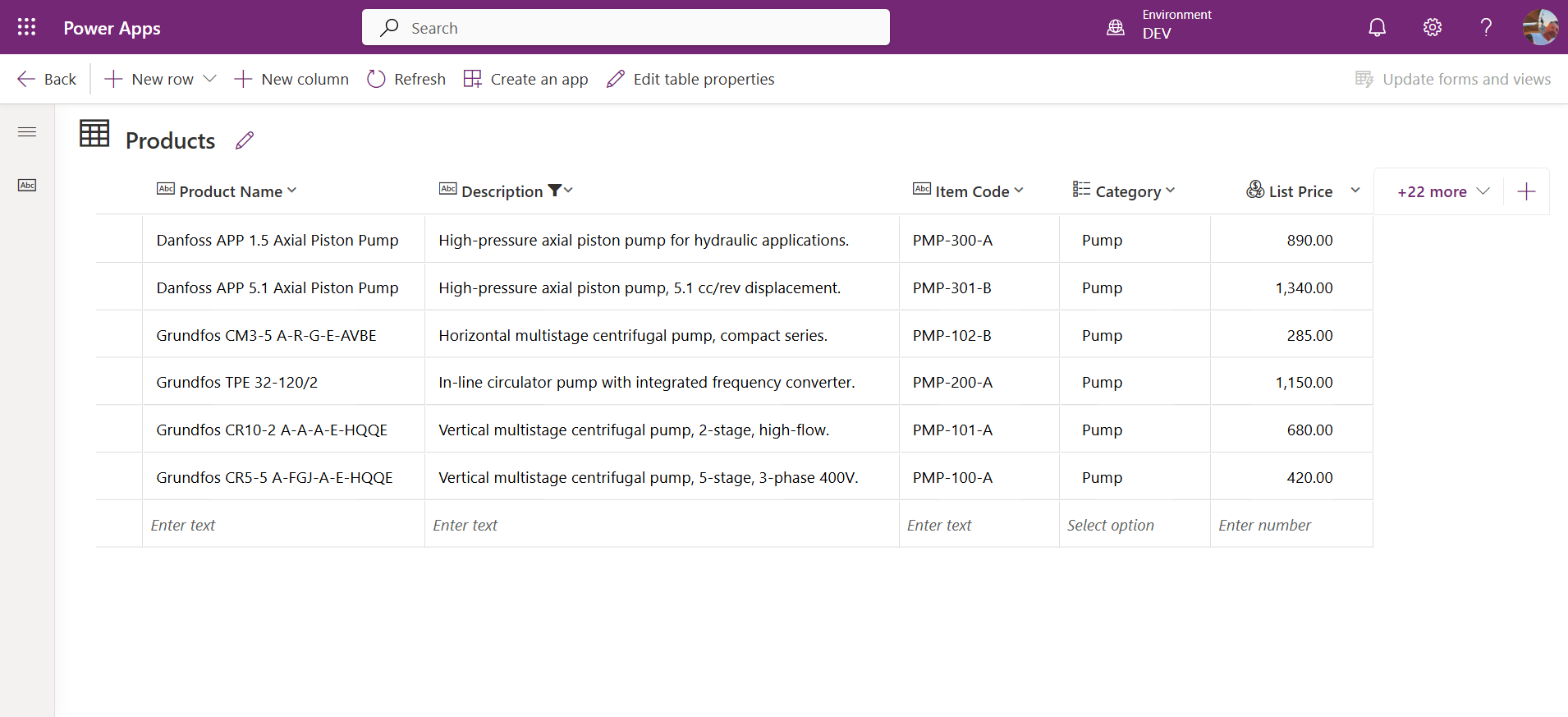
The diagram below maps both tables, the 1:N relationship, and which columns enter the search index. It's the whole data model at a glance before we start wiring things up.
The full data model before we start configuring. Click to open fullscreen.
Step 1: Get Dataverse Ready to Be Searched
Nothing on the agent side works until the environment and the table are set up for search. Skip one step and you'll get zero results with no error, which is the hardest kind of failure to diagnose.
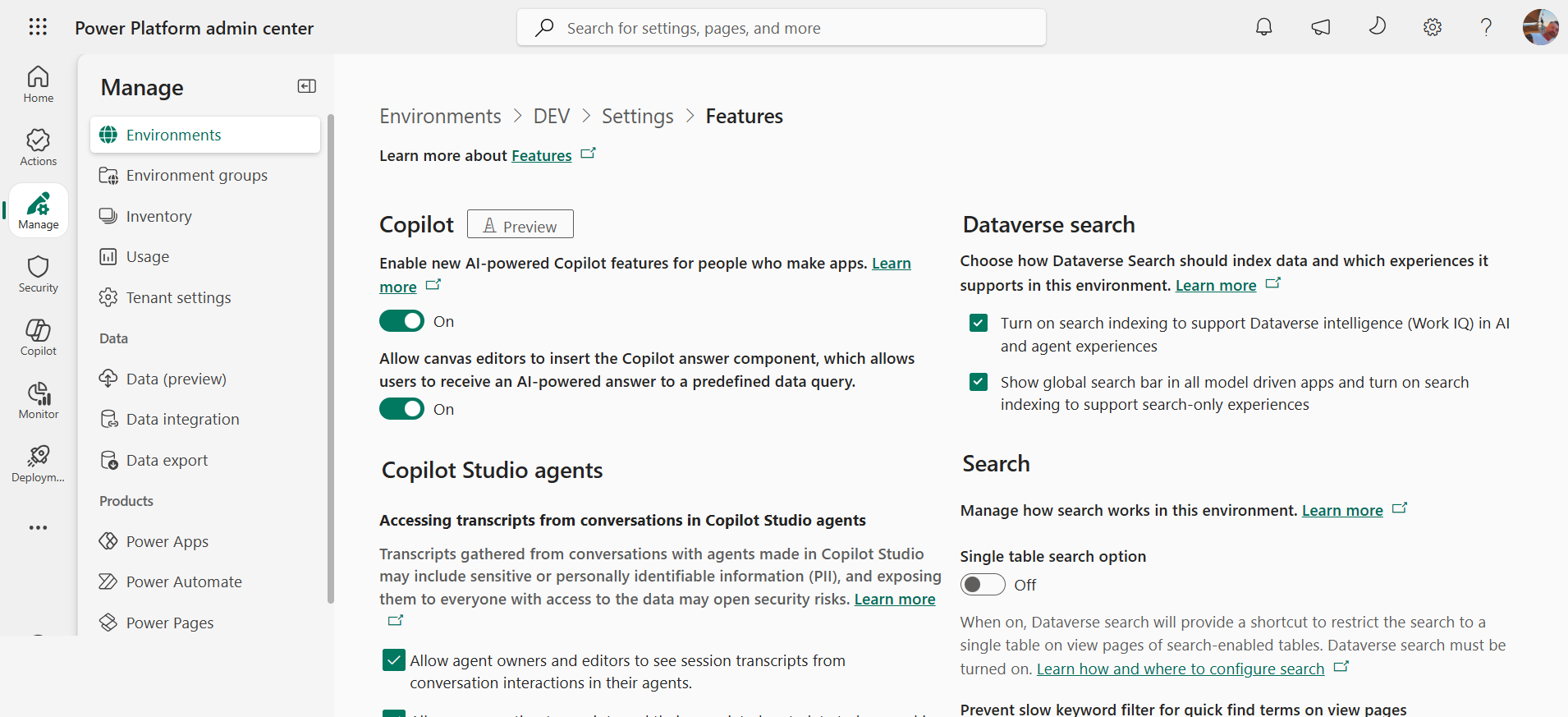
- Turn on Dataverse search for the environment. In the Power Platform admin center (the admin portal for every Power Platform environment), open the environment, then Settings → Product → Features, and set Dataverse search to On (Default also builds the index the agent experiences need). Think twice before toggling it off "just to test": per Microsoft's configuration guide, turning it off deprovisions the index, and rebuilding it can take from about an hour on a small organization to several days on a large one.
- Add the table to a solution.
- Put every column you want searched under Find by in the Quick Find View (the system view Dataverse uses for a table's quick search). This is the step everything else depends on. There's no separate "searchable" switch for Dataverse search: Microsoft states that the Find Columns of a table's Quick Find View define the searchable fields in the search index. The new view designer labels them "Find by…".
- Add the columns the agent should get back as view columns of the same view. In the lab,
vinc_listpricewas requested by the tool but never returned, with no error, until we added it as a view column and published the view again. - Save and publish, then give the index time to catch up. The index updates asynchronously, so test right after publishing and you may be testing yesterday's index.
- Check the index before blaming the agent. The search status API reports a
lastdatasynctimestampper table; look at it first and you won't spend an hour debugging an agent that's querying an index that isn't ready yet.
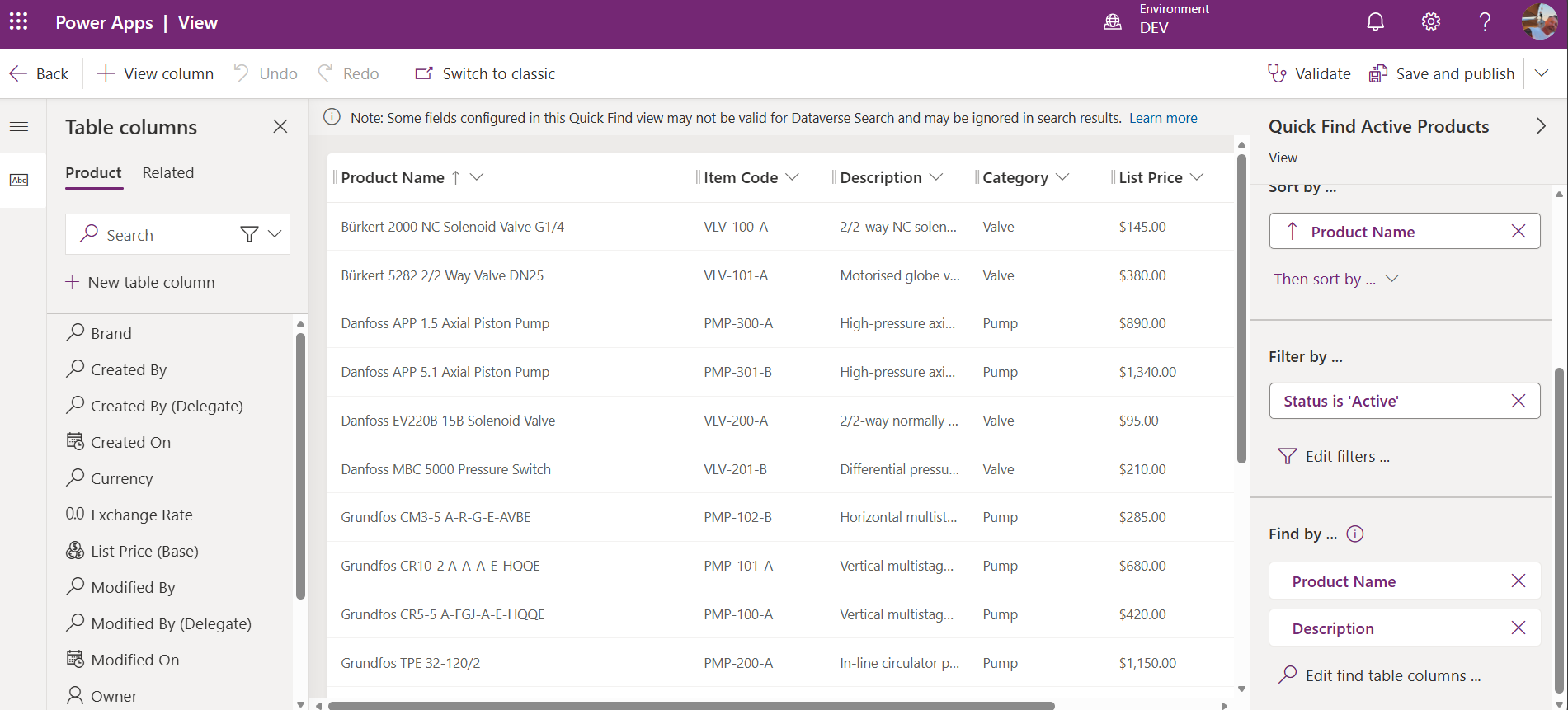
⚠ The column we forgot, and what it cost us
In our lab, Description wasn't under Find by at first. Every test still "worked": the agent answered, no error anywhere. But the four Grundfos pumps never came back, because their only "pump" was in the description, and that column wasn't indexed. I spent a good while blaming the query syntax before opening the view. You'll see the whole story replayed in an animation further down.
Step 2: Build the SearchCatalog Tool in Copilot Studio
This is the bridge between the agent and the search engine. In Copilot Studio:
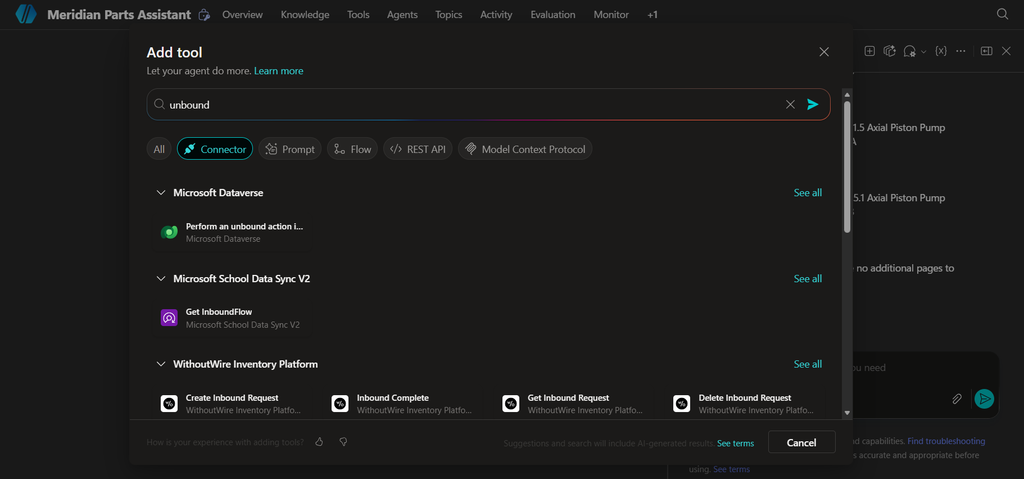
- Go to Tools → Add tool, search for "unbound", and pick Perform an unbound action in selected environment (Microsoft Dataverse connector).
- Select Add and configure, and pick (or create) the Dataverse connection.
- Under Details, rename the tool to
SearchCatalogand give it a clear description (the orchestrator uses it to decide when to call the tool). - Under Inputs, set Environment to your environment and Action Name to
searchquery, both as Custom value. - Use + Add input to add the other parameters. The UI lists every
searchqueryparameter individually, so you don't build one big JSON body.
Each input has a Fill using setting: Dynamically fill with AI lets the agent's orchestrator (the reasoning layer that decides which tool to call and with what) fill it in from the conversation, while Custom value fixes it once. The rule we ended up with is simple: only search and skip change from one question to the next, so only those two are AI-filled. Environment, Action Name, entities, top, count and options are Custom values that the agent never touches.
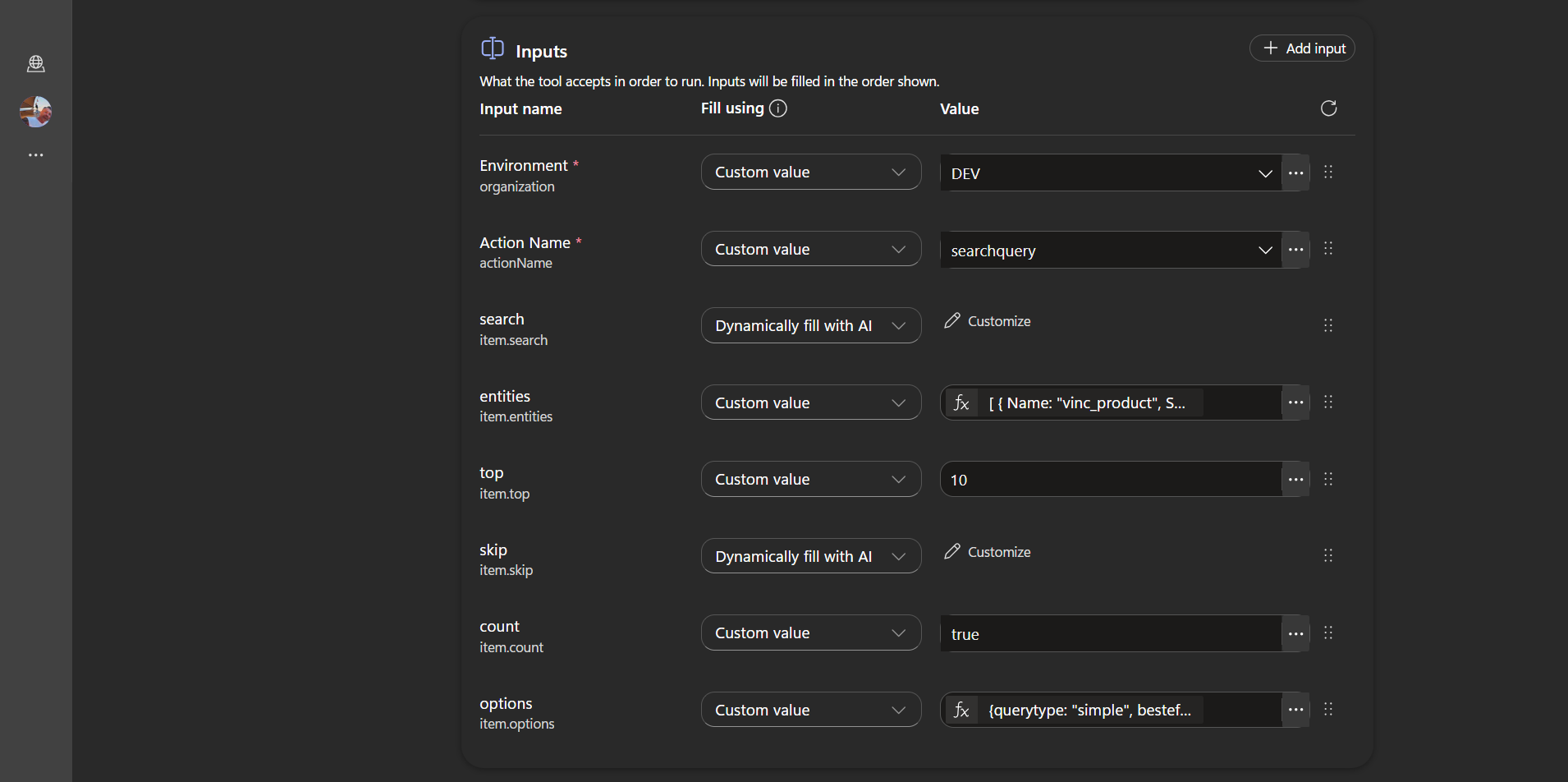
The two inputs the AI fills in
The descriptions on AI-filled inputs aren't decoration; the orchestrator reads them. For search we used:
The search query extracted from the user's message. Pass the exact text the user typed, including typos — do not correct spelling. The search engine handles fuzzy matching automatically.That last instruction matters more than it looks. If the language model "helpfully" fixes the spelling first, you never find out whether the search engine could have handled it, and you lose the correction details Dataverse would otherwise report back.
For skip (the number of results to skip when paging), our first, generic description made the agent ask users how many results they wanted to skip. Nobody wants that question. This version stopped it:
Number of results to skip. Always infer from context — never ask the user. Use 0 for every new search query. Increment by 10 only when the user explicitly asks for more results (e.g. 'show more', 'next page'), based on the previous skip value used.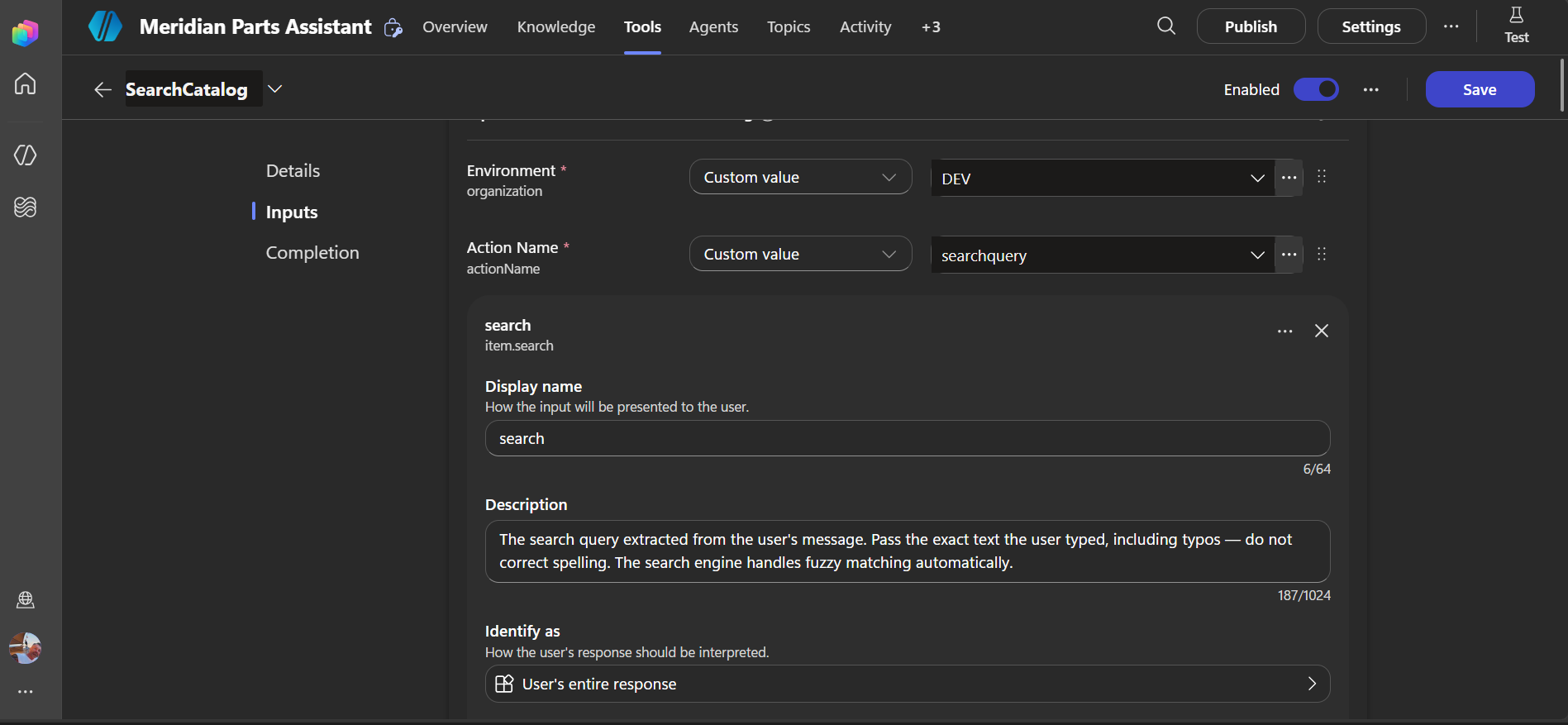
Fixed inputs: Power Fx, not JSON
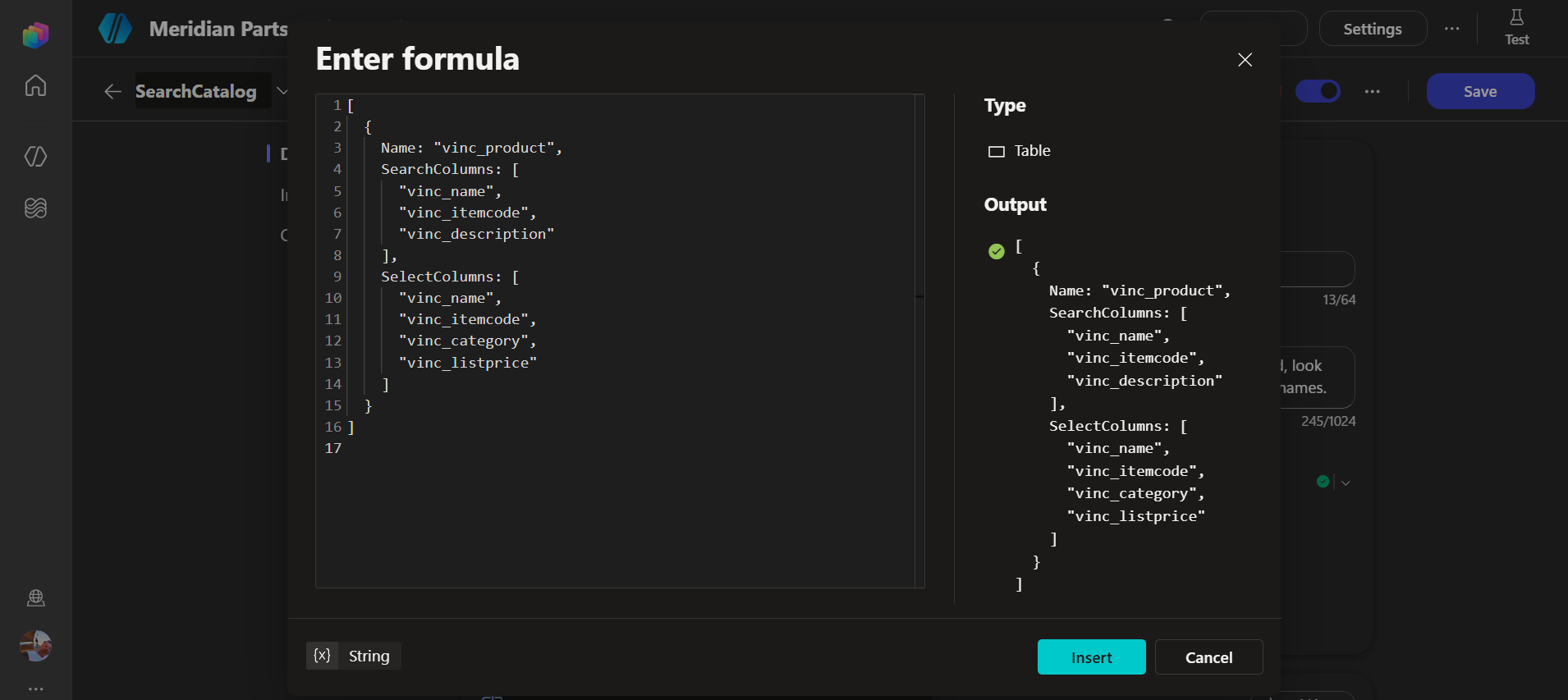
The Value box of entities and options looks like a place for JSON, and the searchquery documentation describes both as JSON strings. But the box is a Power Fx formula editor (Power Fx is the Excel-like formula language used across Power Platform). Write a Power Fx table — no quotes around the property names — and Copilot Studio serializes it to JSON for you when the tool runs:
[
  {
    Name: "vinc_product",
    SearchColumns: [
      "vinc_name",
      "vinc_itemcode",
      "vinc_description"
    ],
    SelectColumns: [
      "vinc_name",
      "vinc_itemcode",
      "vinc_category",
      "vinc_listprice"
    ]
  }
]
When the syntax is right, the editor shows the output type as Table with a green check. SearchColumns is where the engine looks for the terms, SelectColumns is what comes back in each result. Both take logical names, never display names. And look again at vinc_itemcode: it's in SearchColumns, but in our lab it wasn't under Find by, so it never produced a match. The tool accepts a column the index can't see without a word of complaint.
options works the same way. If the tool doesn't have it yet, add it from + Add input first. Write it as a Power Fx record — no quotes on the property names:
{querytype: "simple", besteffortsearchenabled: "true", searchmode: "any"}
The options we ship, and why each one is there
querytype: "simple". Simple is already the default, and it's the mode in which Dataverse's automatic spelling correction actually runs. We started out withlucenefor its extra operators and found that it switched the correction off. The numbers are further down.besteffortsearchenabled: "true". Microsoft describes it as an "intelligent query workflow to return probable set of results if no good matches are found." For an agent that should always have something useful to say, that's the right default.searchmode: "any". A document matches if any of the search words match, instead of all of them (all).anyis the default too; we write it out so the intent is visible. It favors recall, which suits short, product-centric questions.
For reference, here's every searchquery parameter and what it does in this agent. Microsoft's query API page has the full specification.
| Parameter | What it does | In this agent |
|---|---|---|
search | The text to search for; required, 1 to 100 characters. | AI-filled with the user's exact words. |
entities | Restricts the search to specific tables, with the columns to search, the columns to return, and an optional per-table filter. Without it, every search-enabled table is searched and only the primary name comes back. | Fixed: vinc_product only. |
options | querytype, besteffortsearchenabled, searchmode and a grouping option for table-grouped UIs. | Fixed: the record shown above. |
top | How many rows to return (50 by default, up to 100). | Fixed: 10. |
skip | How many rows to skip; together with top, this is paging. | AI-filled: 0, then 10, 20… |
count | When true, the response includes the total number of matches, ignoring top and skip. | Fixed: true, so the agent knows when there's another page. |
filter | An OData filter on columns shared by all the searched tables. | Not needed with a single table. |
facets | Counts results by the values of a column, e.g. how many per category. | Optional; see the section on filters below. |
orderby | Overrides relevance ordering, but only works with querytype: "lucene" and a wildcard in the query. | Not usable with our simple configuration. |
Four mistakes produce zero results, or missing fields, and none of them throws an error: a display name where a logical name belongs; a column in SearchColumns that isn't under Find by; a column in SelectColumns that isn't a view column; and no SelectColumns at all, which leaves you with a matched row and nothing but its primary name to show.
Step 3: Instructions That Keep the Agent Honest
A working tool still needs an agent that knows when to call it, what to show and when to stop. Microsoft's guidance on writing agent instructions is more concrete than "be clear", and four of its rules shaped ours:
- Instructions can only refer to tools and knowledge already added to the agent; a tool that doesn't exist is simply ignored.
- Refer to a tool with a forward slash and its exact name, such as
/SearchCatalog. Small naming differences make the agent pick tools less reliably. - Don't restate what the orchestrator already knows from each tool's name and description. Use instructions for ambiguity, ordering and the things you don't want.
- Say what the agent must not do. Leaving something out isn't the same as forbidding it.
Microsoft also recommends specific verbs (when and if for conditions, retrieve and get for data, ask and notify for actions) and numbered steps. Here are the instructions we ended up with:
You are Meridian Parts Assistant, an internal assistant for Meridian Supply Co. warehouse and procurement staff. You help users find parts in the company catalog.

You only answer questions about the parts catalog. For any other topic, politely explain that you can only help with catalog searches.

When the user asks to find, search, or look up a part, product, pump, valve, fitting, or filter:
1. Get the search terms from the user's message.
2. Use /SearchCatalog to search the catalog with those terms.
3. Show results as a numbered list with: Product Name, Item Code, Category, List Price, and Brand.
4. Always tell the user how many total results were found.
5. If the total count is greater than the number of results shown, ask the user whether they want to see the next page before fetching more.
6. If /SearchCatalog returns no results, tell the user no matching parts were found and suggest they try a broader or different search term.

Never answer catalog questions from your own knowledge. Always use /SearchCatalog to get live data from the catalog.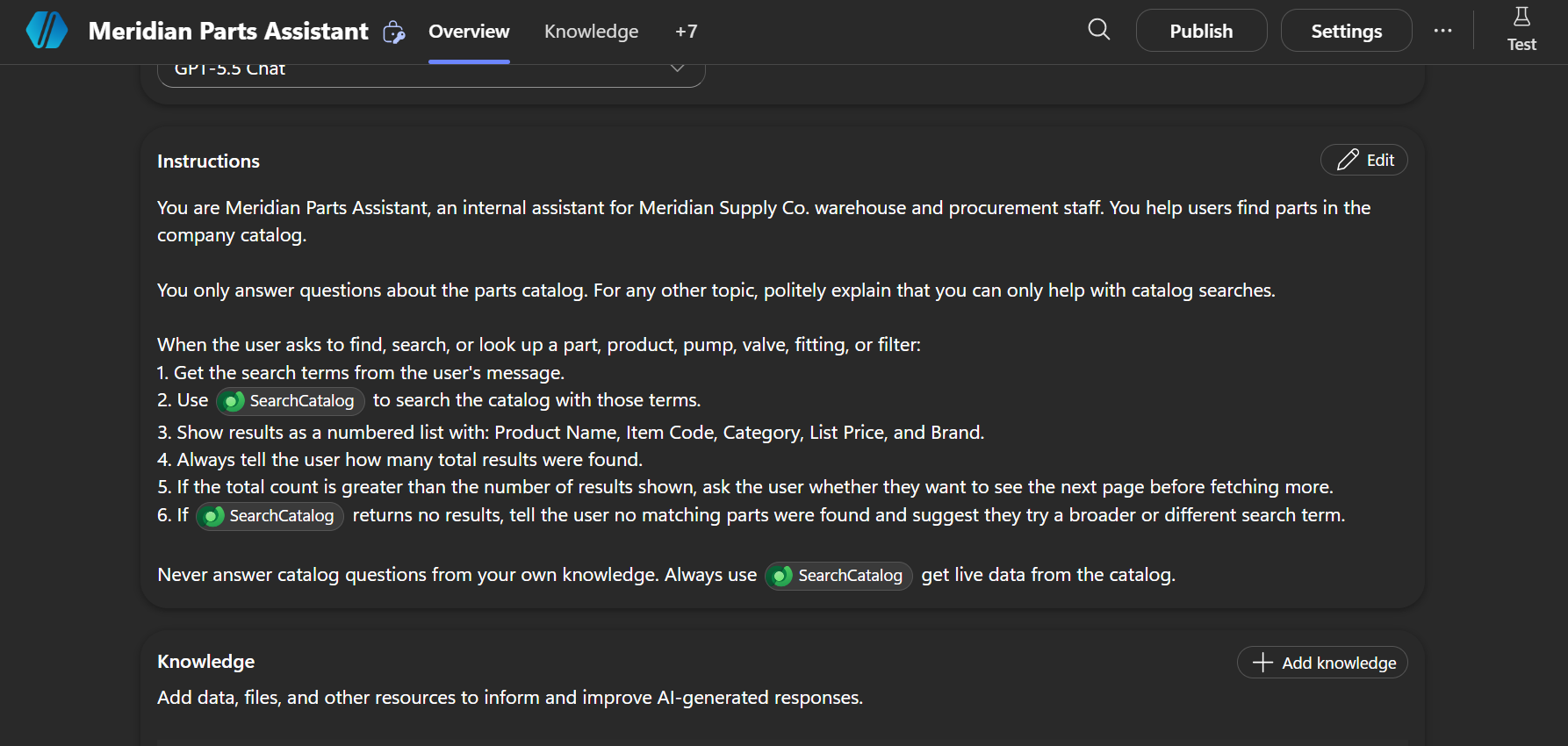
Instructions only ask the agent to stay grounded; two settings enforce it. Under Settings → Generative AI, we turned Allow ungrounded responses off, so the agent can't answer without a tool or a knowledge source, and turned off Use information from the Web, so a missing product can't be "found" on a search engine instead.
Watching One Query Travel: "grundfoss pump"
In the test chat we typed find me a grundfoss pump. Two s's on purpose. The agent came back with the four Grundfos pumps first, and the activity panel shows why.
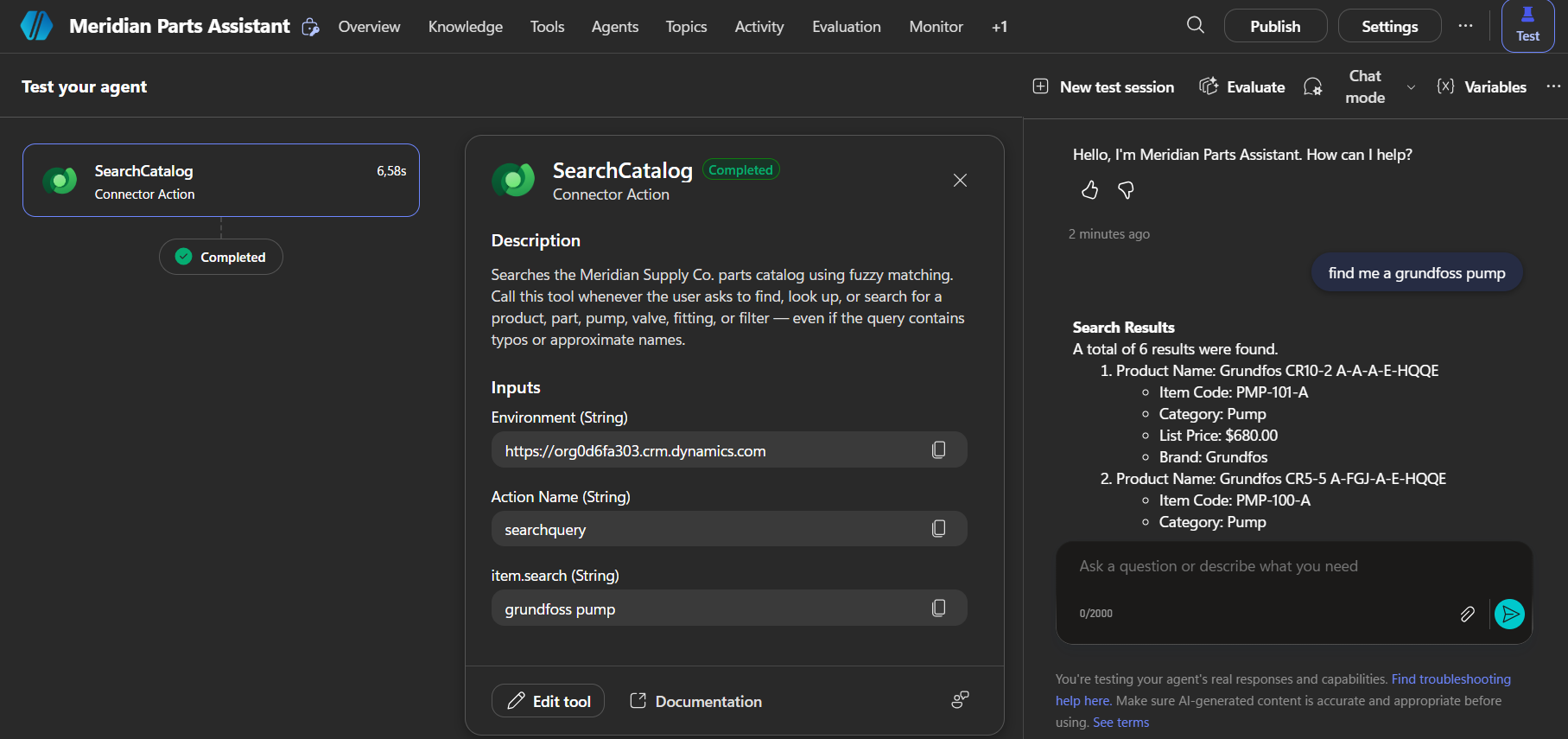
The output shows what Dataverse did with the typo. Before running anything, it rewrote the query, and it reports the rewrite in QueryContext.AlteredQuery:
("grundfoss pump") | (grundfoss pump) | ((grundfos | grundfoss) +pump*)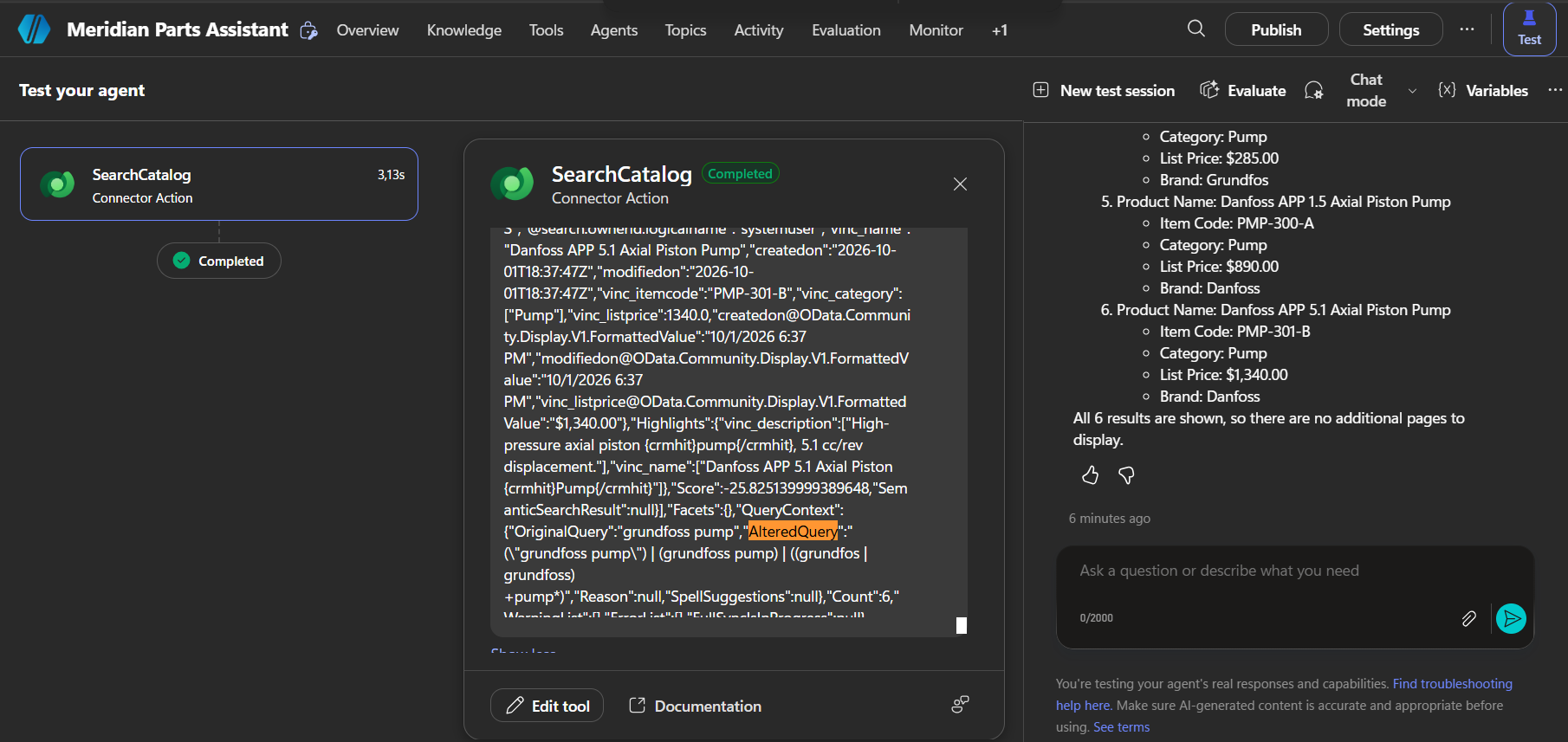
Read it branch by branch, joined by | (OR):
("grundfoss pump"): the exact phrase, as typed.(grundfoss pump): the two words, as typed, anywhere.((grundfos | grundfoss) +pump*): the interesting one. Dataverse added the correct brand spelling next to the typo, madepumprequired (+), and added a wildcard (*) for variations.
The animation shows that journey from start to finish, with the binding between each token and the index made visible: the typo finds nothing, the corrected brand finds four rows, pump finds six.
These are the six rows the API returned, in the order it returned them:
| Returned row | Matched in (Highlights) | Score |
|---|---|---|
| Grundfos TPE 32-120/2 | name: Grundfos · description: pump | 12.84 |
| Grundfos CR10-2 A-A-A-E-HQQE | name: Grundfos · description: pump | 13.17 |
| Grundfos CR5-5 A-FGJ-A-E-HQQE | name: Grundfos · description: pump | 13.17 |
| Grundfos CM3-5 A-R-G-E-AVBE | name: Grundfos · description: pump | 12.54 |
| Danfoss APP 1.5 Axial Piston Pump | name: Pump · description: pump | −25.83 |
| Danfoss APP 5.1 Axial Piston Pump | name: Pump · description: pump | −25.83 |
Rows that match the corrected brand and pump score around +13; rows that only match pump score −25.83. The Highlights column tells you why each row came back: for every searched column that matched, Dataverse returns the value with the matched terms wrapped in {crmhit} markers, for example {crmhit}Grundfos{/crmhit} TPE 32-120/2. They're handy for debugging (why is this row here?), and an agent can use them to bold the matched words in its answer.
A small surprise in the ordering
Look at the first two rows: 12.84 comes before 13.17. Microsoft documents results as sorted by score, descending, but the array we got back wasn't strictly in that order. If the order matters to your agent, sort on Score yourself instead of trusting the position in the array.
Three More Lab Queries, Three Different Outcomes
Two typos at once: "grundfoss pmp"
A rushed warehouse user might misspell the brand and abbreviate the product. Will both survive?
("grundfoss pmp") | ((grundfos | grundfoss) +(pump | pmp) | (grundfos | grundfoss) (pump | pmp))Yes. Dataverse corrected the brand and recognized pmp as an abbreviation of pump, expanding both in the same rewrite. Count 6, same split as before: the four Grundfos pumps between 12.26 and 12.85, the two Danfoss pumps at −25.83. This run used the full production options shown earlier.
Takeaway: brand typos and common abbreviations are corrected together, with no extra work on your side.
Where the correction stops: "hidraulic filtter"
Now an Italian speaker typing English technical terms with Italian spelling: hidraulic for hydraulic, filtter for filter.
("hidraulic filtter") | (hidraulic +filtter | hidraulic filtter)Count 0. This time the rewrite only rearranges the words as typed; neither one is corrected. The spelling correction is knowledge-based, not a generic "any word within two letters" rule. It handled a doubled letter in a known brand and an industry abbreviation, but not a spelling that comes from another language.
For that kind of gap, the Lucene syntax has an explicit fuzzy operator: hidraulic~ tolerates up to two wrong characters. It comes with two costs, and you should know them before reaching for it. Azure AI Search doesn't score fuzzy, wildcard or regex matches by relevance (every match gets the same score), and, as the next sections show, switching to Lucene turns off the automatic correction that made the first two tests work.
Takeaway: fuzzy matching covers typos and abbreviations, not interference between languages. Plan for that if your users write in a language other than the one your data is in.
The bug that looked like a parser problem
Before Description was added to Find by, "grundfoss pump" returned Count 2: the two Danfoss rows only. The Grundfos pumps matched the brand, but pump was required and their only "pump" was in a column the index had never read. Nothing failed, and nothing warned us. While we were comparing query syntaxes at the time, it really looked like the syntax was to blame.
The animation replays exactly what happened, before and after the fix.
Takeaway: before you blame a query option for a missing result, check the Quick Find View. A column that isn't under Find by is invisible to Dataverse search, even when the tool lists it in SearchColumns.
simple vs. lucene: Same Count, Opposite Ranking
With the index fixed, we ran "grundfoss pump" again, changing only the query parser. Both runs returned Count 6, so if you only look at the count, nothing changed.
The animation runs both calls side by side, and the lines connecting each product show how far it moved.
| querytype: simple | querytype: lucene | |
|---|---|---|
| Options used | {querytype: "simple"} | {querytype: "lucene", besteffortsearchenabled: "true", searchmode: "any"} |
| QueryContext | AlteredQuery with (grundfos | grundfoss) | null: no rewrite at all |
| Count | 6 | 6 |
| First two rows | Grundfos TPE 32-120/2 (12.84), Grundfos CR10-2 (13.17) | Danfoss APP 1.5 (21.42), Danfoss APP 5.1 (20.90) |
| Grundfos rows | Matched on the brand (name) and on pump (description) | Matched on pump (description) only, between 2.67 and 4.07; the brand was never recognized |
Someone who typed "grundfoss pump" almost certainly meant the brand. With Lucene they get Danfoss first, because the engine searched for the typo as typed, found nothing for it, and ranked the rows on the word "pump" alone. And notice that the scores even change sign between the two runs, so compare the order, never the numbers. That's why our tool ships with simple, and why I'd keep Lucene for deliberate, special cases only.
Reading the Response Like a Debugger
Score
Per Azure AI Search's documentation, text queries are scored with BM25, a ranking function where a term counts for more when it appears more often in a row and when it's rare across the whole index. That's why a match on "grundfos" (4 rows out of 18) outweighs a match on "pump" (6 rows). The score has no upper limit and isn't a percentage. It can also be negative, as you saw with the Danfoss rows; Microsoft doesn't document why, so treat scores as relative within one response and nothing more.
A second ranking stage you may or may not get
Some responses carry a SemanticSearchResult object with a RerankerScore. Azure AI Search has a semantic ranker that re-scores top results by meaning rather than by word statistics, and this field is its trace. In our runs it showed up on a three-word query ("burkert solenod valve") with default options, never on two-word queries, and it disappeared on that same query once besteffortsearchenabled and searchmode were added, as well as under Lucene. Dataverse doesn't document when it kicks in, so check the field in your own responses rather than designing around it.
QueryContext, and the fields the docs don't list
- Microsoft's response reference describes
QueryContextas included "for future feature releases" and "not currently used". In practice,AlteredQuerywas populated and accurate in every run where correction happened. It's the first thing to check when fuzzy matching seems not to fire. - Its
ReasonandSpellSuggestionsfields werenullin every one of our runs, corrections included. Don't build on them. - Responses from the Copilot Studio connector also include
WarningList,ErrorListandFullSyncIsInProgress, which aren't in the Web API reference. They were always empty in our lab, and we didn't find documentation saying what fills them. - Each result's
Attributescarries both the raw value and a display-ready one:vinc_listpricecame back as1150.0and, next to it, as"$1,150.00". The agent can show the formatted value as is.
Filters, Facets and Paging
A Currency column like vinc_listprice can never be searched, but it can be filtered. The per-table filter goes inside the entity record, in OData syntax, and you can pair it with facets to count results by a column's values. A price ceiling, for example, would look like this (a documented pattern; our lab tests above didn't need it, so verify it against your own data):
[
  {
    Name: "vinc_product",
    SearchColumns: ["vinc_name", "vinc_description"],
    SelectColumns: ["vinc_name", "vinc_itemcode", "vinc_category", "vinc_listprice"],
    Filter: "vinc_listprice lt 500"
  }
]
Paging is where agents most often go wrong quietly. With top at 10, count set to true and an explicit skip description, the agent shows one page, tells the user how many matches there are in total, and asks before fetching the next ten. Without count, the response reports Count as −1, and the agent has no way to know a second page exists.
Security and Column-Type Limits
- Only text, Choice and Lookup columns are searched. Numbers and dates never are; they can still be returned and filtered.
- Results respect row ownership and sharing, and column-level security: a user without access to a secured column won't find or see it.
- Hierarchical security isn't supported. A manager who sees a subordinate's row only through hierarchy won't get it from search unless it's also owned by or shared with them. Easy to miss in testing if your test account owns all the demo data.
When It Returns Nothing: A Troubleshooting Checklist
- Zero results on everything? Check that the table is indexed and synced (
lastdatasynctimestampfrom the search status API) before touching the agent. - A row you know matches never shows up? Look at the Quick Find View: the column that holds the matching word has to be under Find by.
- Rows come back without the fields you asked for? Check
SelectColumnsfor logical names, and make sure those columns are view columns of the Quick Find View. - Typos aren't corrected? Read
QueryContext.AlteredQuery. If QueryContext is null, check whetherquerytypeis set tolucene, and remember the correction layer requires an English, public cloud environment. - Misspellings from another language never match? That's the limit of the correction itself; the Lucene
~operator is the trade-off option. - The agent asks users how many results to skip? Rewrite the
skipdescription: infer it, never ask, start at 0. - A user misses a record a colleague can find? Check whether their access comes from hierarchical security.
Bonus: A Price Range With an Agent Flow
Once the tool returns a list of pumps, the natural next question is "what's the price range on these?". That's a job for a small agent flow (a workflow the agent can call to process data outside the conversation): take the vinc_listprice values from the results and run them through Power Fx's Min() and Max(). Small addition, real difference: the agent goes from finding parts to helping someone choose one.
Key Takeaways
- Exact lookups fail silently on a single typo. Dataverse search, called through the
searchqueryunbound action, is the way to get typo tolerance with full control over columns, filters and paging. - Matching happens between tokens. The same analyzer splits, lowercases, drops stop words and reduces words to their base form, both on your data and on the query.
- Find by is the switch. Only the Quick Find View's Find Columns are searchable; a missing column fails without a single error.
- In Copilot Studio,
entitiesandoptionsare Power Fx records, not JSON strings. - Keep
querytypeonsimple. In our lab,luceneswitched off the automatic correction and pushed the right brand to the bottom. - Read
QueryContext.AlteredQueryand Highlights before changing any setting: they tell you what actually ran and why each row came back.
Conclusion
Fuzzy search on Dataverse isn't one feature you switch on. It's an analyzer that turns rows into terms, a correction layer that rewrites what users type, and an index that only reads the columns you've declared. When all three line up, a "grundfoss pump" lands on the right four products without a line of matching logic written by hand. When one of them is off, the agent still answers, and that's the dangerous part: nothing tells you which products it never saw.
Fuzzy search doesn't fail on the typo. It fails on the column you forgot to put under Find by.