


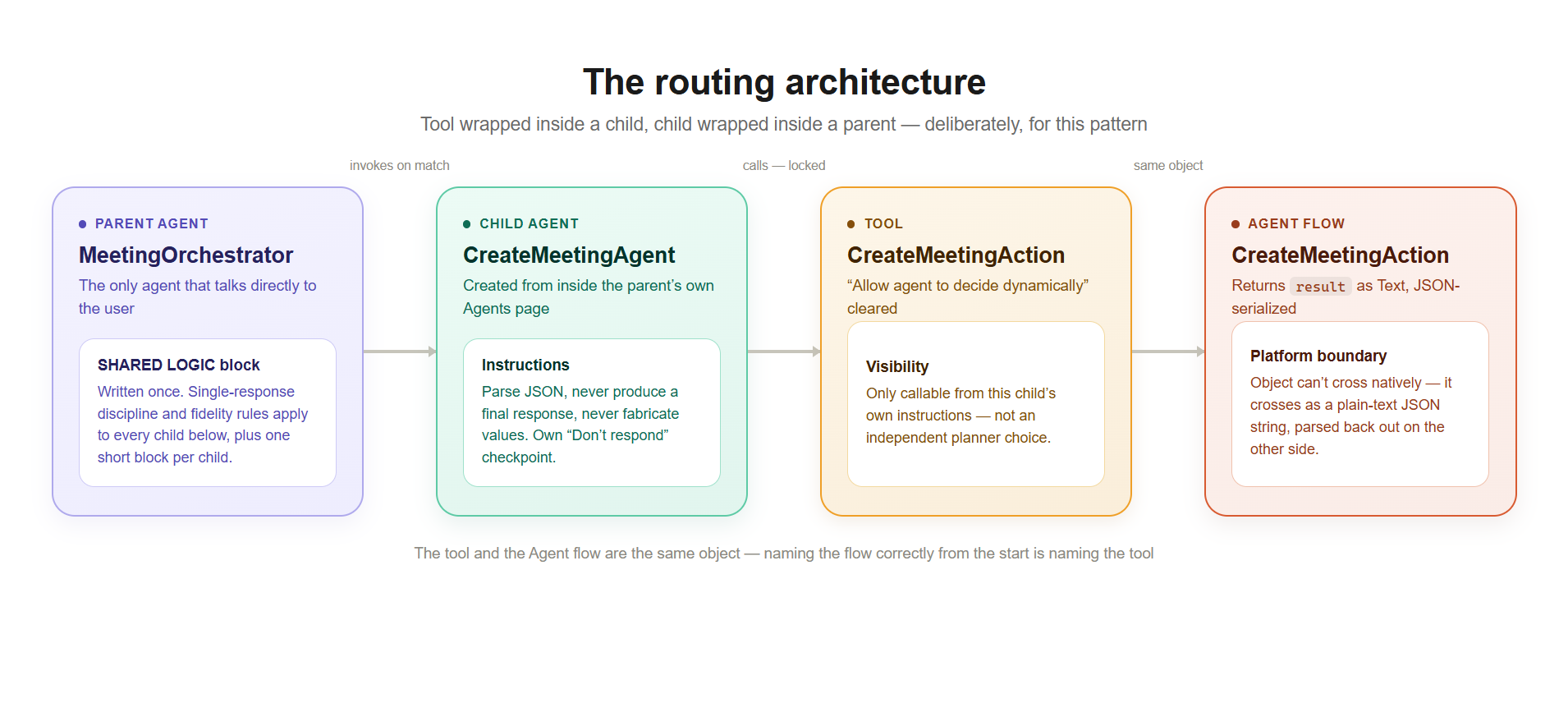
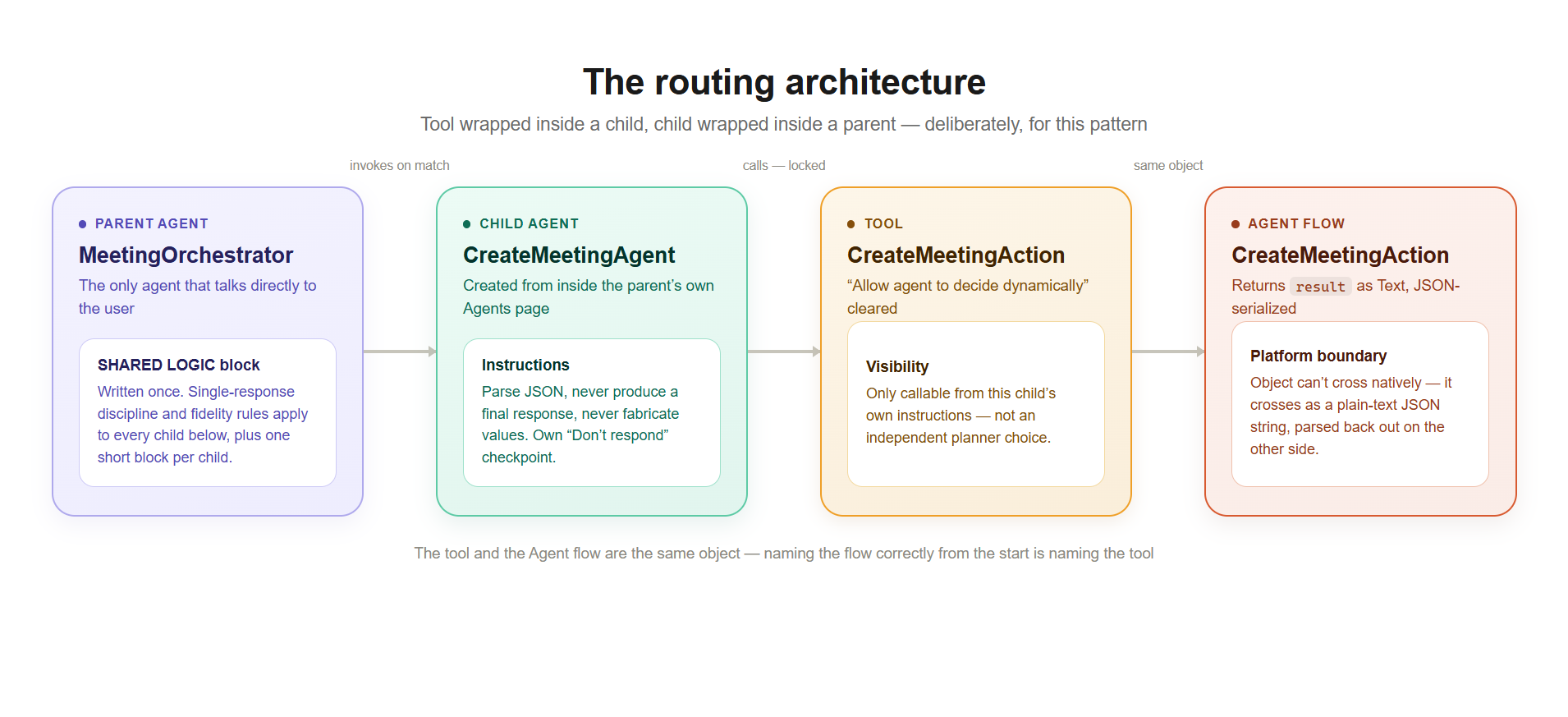
This is the build. One parent, one child, one tool — wired with every countermeasure the diagnosis article called for, and tested until the double message and the fabricated error are both gone for good.
This is the second of three linked articles. The first, Why Your Copilot Studio Agent Talks Twice, covers the diagnosis. This article is the first hands-on build. The third extends the same pattern to a list.
What this build assumes
Three things from the diagnosis article, compressed to what’s needed here: setting a child’s “After running” to “Don’t respond” is necessary but not sufficient, because the parent’s response-generation step runs regardless and re-narrates whatever the plan gathered. An Agent flow wired up as a tool can only return Number, Text, or Boolean — never a structured Object or List — so any real result has to be serialized to a JSON string and parsed back out. And the actual fix is instructional, not a single setting: a consistent success/error schema, explicit JSON-parsing and fidelity instructions, a guardrail that locks each tool to its owning child, and a single shared instructions block in the parent that enforces one-message discipline and bans fabricated detail. This article builds all four for a single object.
This document assumes no prior experience with Copilot Studio. Every UI element is explained the first time it’s used. In Copilot Studio, a child agent can’t be created standalone and attached later — it’s created from inside a parent agent’s own Agents page — so this build starts with an empty parent.
The scenario
This exercise is built around a small fictional scenario — an operations team that needs an agent able to schedule meetings. The bug being fixed doesn’t care about the business domain; this is just the vehicle for building the pattern.
It’s worth being upfront about one design choice: a single tool with no required input could just as easily attach directly to the parent agent, skipping the child entirely, and in a real production agent with only one or two actions, that’s often the simpler, better choice. This exercise doesn’t take that shortcut on purpose — the double-response bug only shows up in its full form once a tool sits inside a child that sits inside a parent, and several of the specific checkpoints this build covers (the three separate places “Don’t respond” needs checking, the JSON-parsing handoff happening twice instead of once) only exist in that shape. Anyone adapting this to a simpler real-world case can fold everything here into a single agent’s instructions instead.
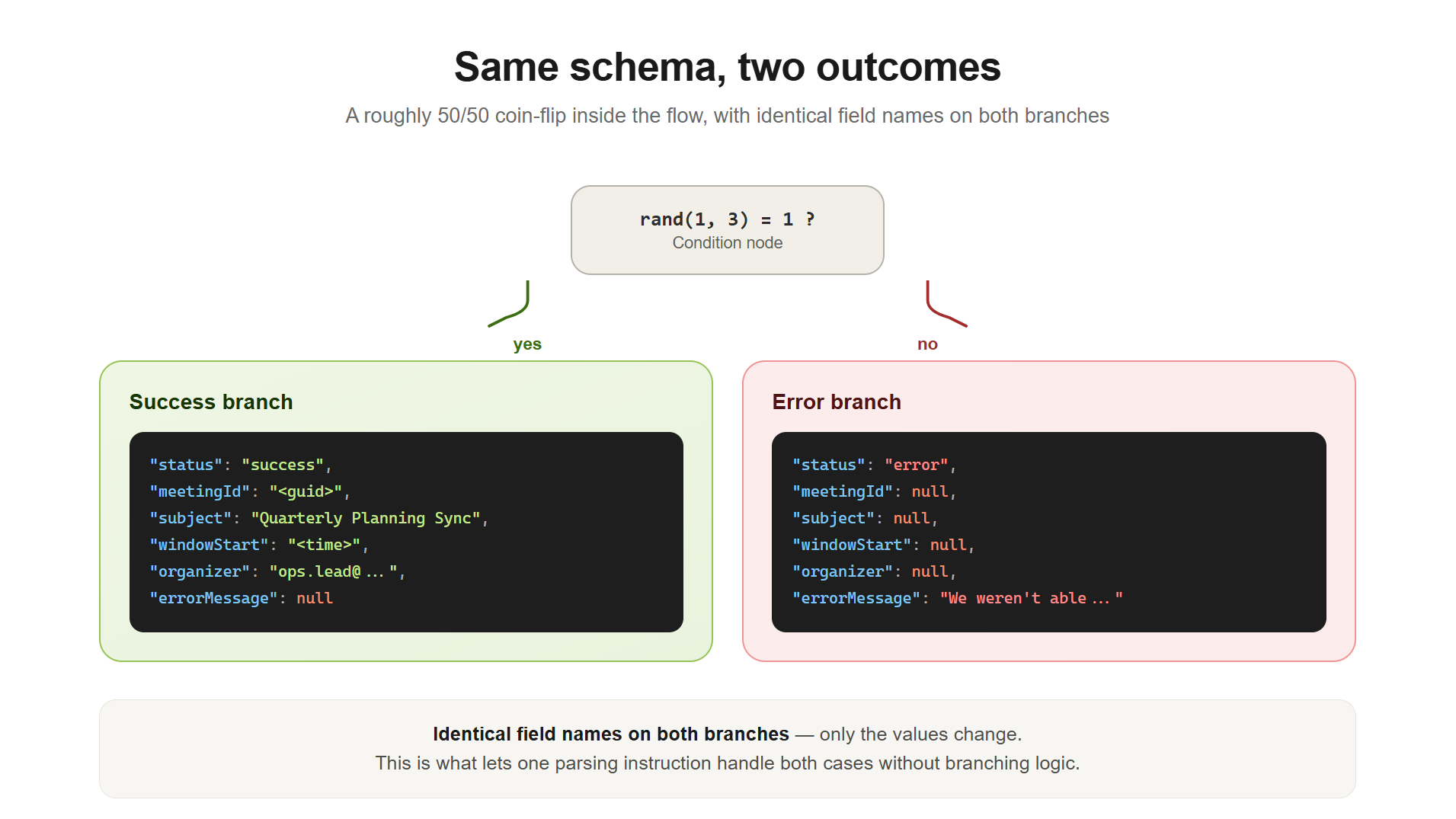
One more thing worth knowing before building the first flow: nothing here calls a real calendar or backend. The flow uses a random number to simulate a roughly 50/50 split between success and failure, returning a fixed, fictional payload either way. That’s deliberate — the two bugs being fixed live entirely in how the orchestrator handles whatever data a child returns, regardless of where that data actually came from, and simulating both outcomes on demand makes them reproducible in the same test session. Swapping the simulation for a real backend call later changes nothing else in this pattern.
Names used throughout this build
| Element | Name |
|---|---|
| Flow / tool | CreateMeetingAction |
| Child agent | CreateMeetingAgent |
| Parent agent | MeetingOrchestrator |
Starting with an empty parent
Create a new agent and name it exactly MeetingOrchestrator. Leave its instructions as they are for now — whether that’s blank or some auto-generated starting text, it gets replaced later, once the child that will actually do the work exists and there’s something concrete to write. Don’t publish yet either.
Building the child agent
From inside MeetingOrchestrator, go to its Agents page and select Add an agent → New child agent — this is the only way a child agent gets created, always from inside the parent that will own it.
Replace the generic placeholder name with CreateMeetingAgent, then write a description:
Handles meeting scheduling requests. Calls a backend flow that attempts
to schedule a meeting and returns either a success result with meeting
details, or an error result with a failure reason. Use this agent
whenever the user wants to schedule, book, or arrange a meeting.
Then the instructions — this is the longest single piece of text in the build, so copy it exactly:
You are a subagent operating inside a multi-agent system. You never
communicate directly with the end user — the parent agent handles
all user-facing communication, always.

Your only responsibility is to call the CreateMeetingAction tool
when asked to schedule or test-schedule a meeting.
IMPORTANT — the tool returns a field called "result" as a
JSON-formatted string (plain text containing JSON), not as a
structured object. You must always parse this string as JSON
before using any of its values. After parsing, it always contains
these fields: status, meetingId, subject, windowStart, windowEnd,
organizer, errorMessage.Pass the parsed fields to the parent agent exactly as received,
without modification, paraphrasing, or added commentary — this
rule applies identically whether status is "success" or "error".
Do not treat the error case with less rigor than the success case.Do not generate explanations, greetings, confirmations, or
summaries of any kind. Do not apologize, do not hedge, do not
describe what you're doing. Call the tool, parse the result,
return the parsed fields unchanged.
If status is "success", do not rephrase any field value. If
status is "error", do not rewrite, soften, embellish, or omit
the errorMessage — pass it through exactly as received.CRITICAL — FIDELITY IS MANDATORY, NO EXCEPTIONS: never
fabricate, guess, embellish, or substitute any value that is not
literally present in the parsed JSON. If a field is null, pass it
through as null. Never invent a plausible-sounding value to fill
a gap. If errorMessage is vague or generic, pass it through
exactly as vague and generic as it actually is — do not make it
sound more specific than it is.
You must never produce a final response message to the user
under any circumstance.💡 What this is already doing
Three things in there are already doing real work: “IMPORTANT” addresses the JSON-string constraint head-on, “CRITICAL — FIDELITY” is the direct countermeasure to the fabricated-error problem, and “never produce a final response message” reinforces the silence about to be configured formally on the tool itself.
✅ Don’t respond checkpoint #1 of 3
The child’s Outputs section is where the first of three “Don’t respond” checkpoints lives — despite the name, this is also where the child shows its attached tools and its own Completion settings with an After running dropdown. Confirm it reads Don’t respond (default). This is the child’s own copy of the setting, distinct from the tool’s copy (built next) and the copy the parent sees when looking at the child (built later) — all three need to read “Don’t respond.”
Click Save to commit the identity, description, instructions, and this setting together.
Building the flow that backs the tool
An Agent flow is Copilot Studio’s name for a sequence of automated steps, built on the same engine as Power Automate but surfaced under its own name inside Copilot Studio.
From inside CreateMeetingAgent, go to Tools, click Add, and under Create new select Agent flow. Building it this way — from the child’s own Tools page — means the tool comes out already attached to the right agent, with no separate search-and-attach step needed. The designer opens with two starter steps already correctly positioned: a trigger labeled When an agent calls the flow, and a Respond to the agent action beneath it.
⚠️ Name it before anything else
Click Save draft immediately — the rename field only becomes editable after that first save — and name the flow CreateMeetingAction right away, its final name. There’s no reason to use a placeholder and rename it later.
Add an Initialize variable action, name it MeetingResult, type Object, value empty for now. This comes immediately after the trigger, before any branching logic — a habit worth carrying into any flow: declare what you’ll need before deciding what to do with it, so nothing stays undeclared if a different branch runs first.
Next, add a Compose action, name it OutcomeSeed, with the expression rand(1, 3) — picking a random whole number, but not quite the range it looks like: the upper bound of rand() is exclusive, so rand(1, 3) only ever returns 1 or 2, never 3. Writing rand(1, 2) by mistake, expecting that same two-value range, silently returns 1 every time and produces an “error” branch that never fires.
Branch on that number with a Condition action, named IsScheduleSuccessful, testing whether outputs('OutcomeSeed') equals 1. On the success side, a Set variable action named SetSuccessResult writes this into MeetingResult:
{
  "status": "success",
  "meetingId": "@{guid()}",
  "subject": "Quarterly Planning Sync",
  "windowStart": "@{addHours(utcNow(), 2)}",
  "windowEnd": "@{addHours(utcNow(), 4)}",
  "organizer": "ops.lead@meetingorchestrator.test",
  "errorMessage": null
}
On the failure side, another Set variable action, named SetErrorResult, writes a different shape into the same variable:
{
  "status": "error",
  "meetingId": null,
  "subject": null,
  "windowStart": null,
  "windowEnd": null,
  "organizer": null,
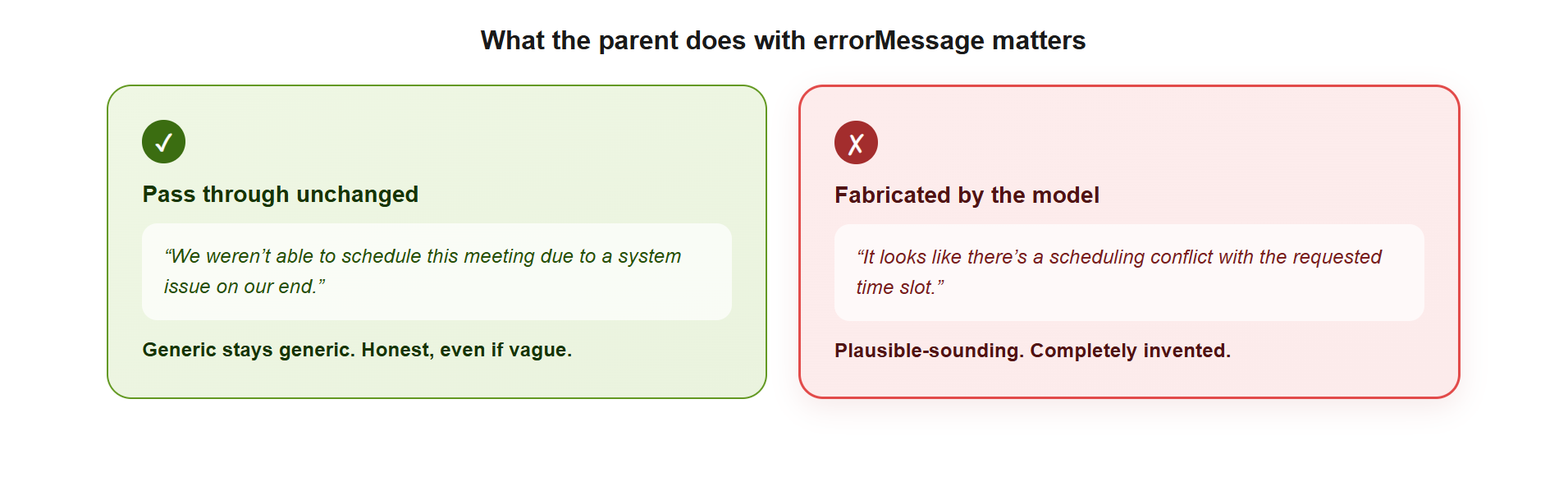
  "errorMessage": "We weren't able to schedule this meeting due to a system issue on our end."
}
🎯 Why this exact shape matters
Both branches return identical field names — only the values change, with null standing in for “not applicable.” That consistency is what lets one parsing instruction handle both cases without branching logic of its own, and errorMessage is already phrased as something safe to show a real user — the seed of the fix for the fabricated-error problem.
Rename Respond to the agent to RespondWithMeetingResult, confirm it sits after the condition closes, and add an output named result. The type selector shows only Text, Yes/No, File, Email, Number, Date — no Object, confirming the platform constraint covered in the diagnosis. Choose Text, and set its value to @{variables('MeetingResult')}. The designer serializes the object into a JSON string on its own.
Click Publish, then go straight back to CreateMeetingAgent — the flow designer doesn’t return there automatically.
Configuring the tool itself
Back on CreateMeetingAgent, select Tools, click Add, use the Flow filter, and search for CreateMeetingAction by name — it appears under Related, since that’s the exact name just published. Select it, then click Add and configure to go straight into its setup.
The Name field already reads CreateMeetingAction — nothing to rename, the whole point of naming it correctly from the start. The Description field defaults to something generic, so replace it:
Attempts to schedule a meeting via backend flow. Takes no required
input. Returns a "result" field as a JSON-formatted string (plain
text containing JSON, not a structured object). Always parse this
string as JSON before use. The parsed object has a "status" field
("success" or "error"). On success, it also contains meetingId,
subject, windowStart, windowEnd, and organizer. On error, those
fields are null and "errorMessage" contains the failure reason.
⚠️ Lock the tool to its child
Under Additional details, clear Allow agent to decide dynamically when to use this tool, switching it to Only when referenced by topics or agents. This is the guardrail that stops the planner from ever treating this tool as a choice of its own — from here on, it only runs through the child’s own instructions calling it. Without this, the planner can pick it up directly on a description match alone, which works fine with one tool in play and stops being reliable the moment a second, similarly-described tool exists.
✅ Don’t respond checkpoint #2 of 3
Completion holds the second of the three “Don’t respond” checkpoints: confirm After running reads Don’t respond (default) — the tool’s own copy, distinct from the child’s copy already verified.
Under Advanced, click the gear icon next to the result output to open its description field, and set it to:
This is a JSON-formatted string (plain text containing JSON, not
a structured object). Always parse it as JSON before use. After
parsing, it contains: status ("success" or "error"), meetingId,
subject, windowStart, windowEnd, organizer, errorMessage. When
status is "success", meetingId/subject/windowStart/windowEnd/
organizer contain the scheduling details and errorMessage is
null. When status is "error", those fields are null and
errorMessage contains the failure reason. Treat both cases with
equal fidelity — never omit or alter errorMessage when status is
"error".
Click Save to lock in the description, the visibility guardrail, and the output description together. The child agent is now fully built, tool included.
Writing the parent’s instructions
Back on MeetingOrchestrator, write the instructions left for later earlier on — whatever is currently there, blank or auto-generated, gets replaced with this. Either the Overview tab (next to Analytics and Knowledge, with an Edit button) or Settings directly opens the same field:
You are MeetingOrchestrator, the orchestrator agent and the only
agent that communicates directly with the user. You coordinate
one or more child agents and are responsible for producing the
single, final response shown to the user.

Never produce more than one response message per user turn. Do
not add a separate summary, recap, or follow-up explanation after
presenting a result — the result presentation IS the final
response, in full, with nothing appended afterward.

Do not mention the existence of child agents, tools, or backend
flows to the user. Speak as if you performed the action yourself.
SHARED LOGIC block — applies to every child below
# === SHARED LOGIC FOR ALL CHILD AGENTS ===
Every child agent returns a "result" field as a JSON-formatted
string. The child agent has already parsed it for you and passes
you the relevant fields directly. Every result includes a
"status" field ("success" or "error") and an "errorMessage" field.

- If status is "success": open with a ✅ emoji, then present the
  returned fields clearly in a short, natural sentence followed
  by the key details. Never invent or add information beyond
  what was actually returned.

- If status is "error": open with a ❌ emoji, then tell the user
  the action couldn't be completed. The errorMessage field
  already contains the exact, ready-to-show message — present it
  as-is. Never rewrite it, rephrase it, or substitute a different,
  more specific-sounding explanation. Never expose raw error
  codes or technical stack traces.
CRITICAL — FIDELITY TO THE RETURNED DATA IS MANDATORY, NO
EXCEPTIONS: Never fabricate, guess, embellish, or substitute any
detail that isn't literally present in the data you received.
This applies to every field, in every case, success or error,
without exception.
- Never invent a specific cause, scenario, or explanation for an
error that sounds plausible but doesn't match what errorMessage
actually says. A generic or vague errorMessage must be shown as
generic or vague.
- Never invent or assume data values that weren't actually
returned, even if they'd be a reasonable guess.
- If a field is null or missing, simply omit it from your
response — never infer or supply a replacement value.
- When you're torn between sounding more complete/helpful and
staying strictly accurate, always choose accuracy.
# === END SHARED LOGIC ===Child-specific block
# === CHILD: CreateMeetingAgent ===
When the user wants to schedule, book, or arrange a meeting,
invoke the CreateMeetingAgent (runs the CreateMeetingAction
tool). On success, the data fields are: subject, windowStart,
windowEnd, organizer.
# === END ===
💡 Why this scales
The two countermeasures that matter most — single-response discipline and fidelity to the data — are written exactly once, in the SHARED LOGIC block, and apply to every child ever attached to this parent. Adding a second child later means adding one small block underneath, never touching this one. That’s the difference between instructions that scale to five children and instructions that turn into an unmaintainable wall of repeated rules.
⚠️ Turn off web search
One setting worth confirming before publishing: under the agent’s Generative AI settings, Use information from the Web often defaults to On — turn it Off for this exercise. If the parent can browse the web on its own, it has a way to generate an answer with no connection to the child agents built here, which works against the entire point of this pattern: every answer should trace back to a tool call that can be inspected, not a search the orchestrator decided to run by itself.
Click Publish. Publishing MeetingOrchestrator automatically includes CreateMeetingAgent, since it lives inside the parent’s context.
Testing the pattern
Open the test pane on MeetingOrchestrator and type “Schedule a meeting” 6-8 times, since the outcome is roughly 50/50 random.
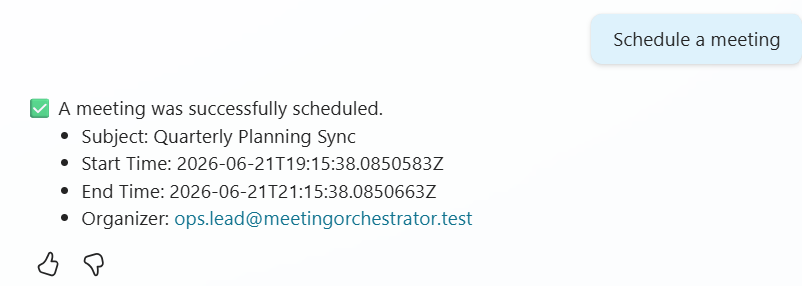
Test 1 — success
One message, opening with ✅, with the correct subject, window, and organizer.
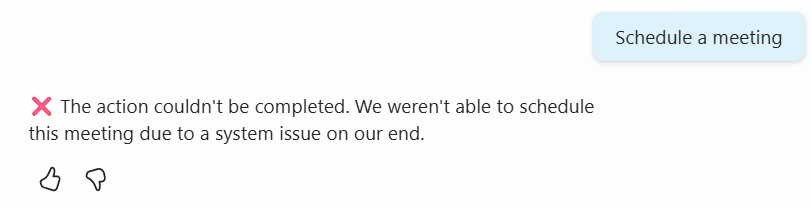
Test 2 — failure
One message, opening with ❌, showing the exact generic errorMessage — nothing more specific invented.
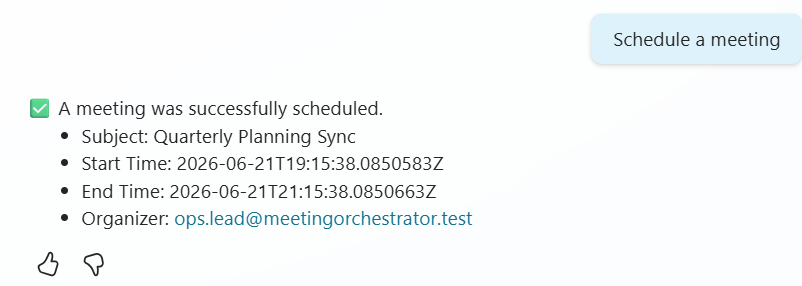
Test 3 — single message
Across every run, on both outcomes, never two message bubbles for one turn.
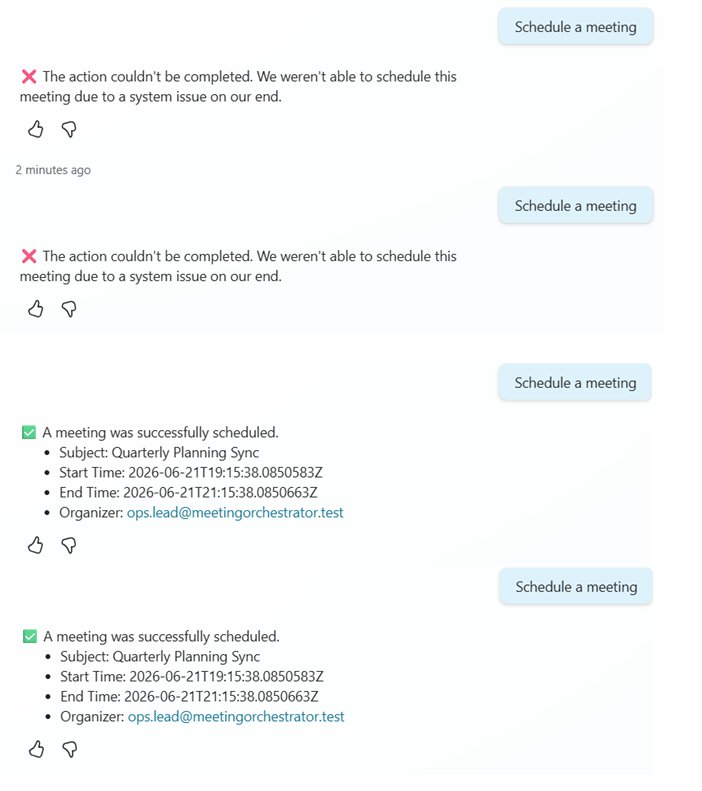
Test 4 — repeatability
Running the same prompt several more times keeps producing the same two clean outcomes, with no third pattern emerging.
If all four hold up, the pattern is validated for a single object. The next article extends it to a list.
From One to Many: Extending the Pattern
One tool, one voice — the rest is just discipline.