


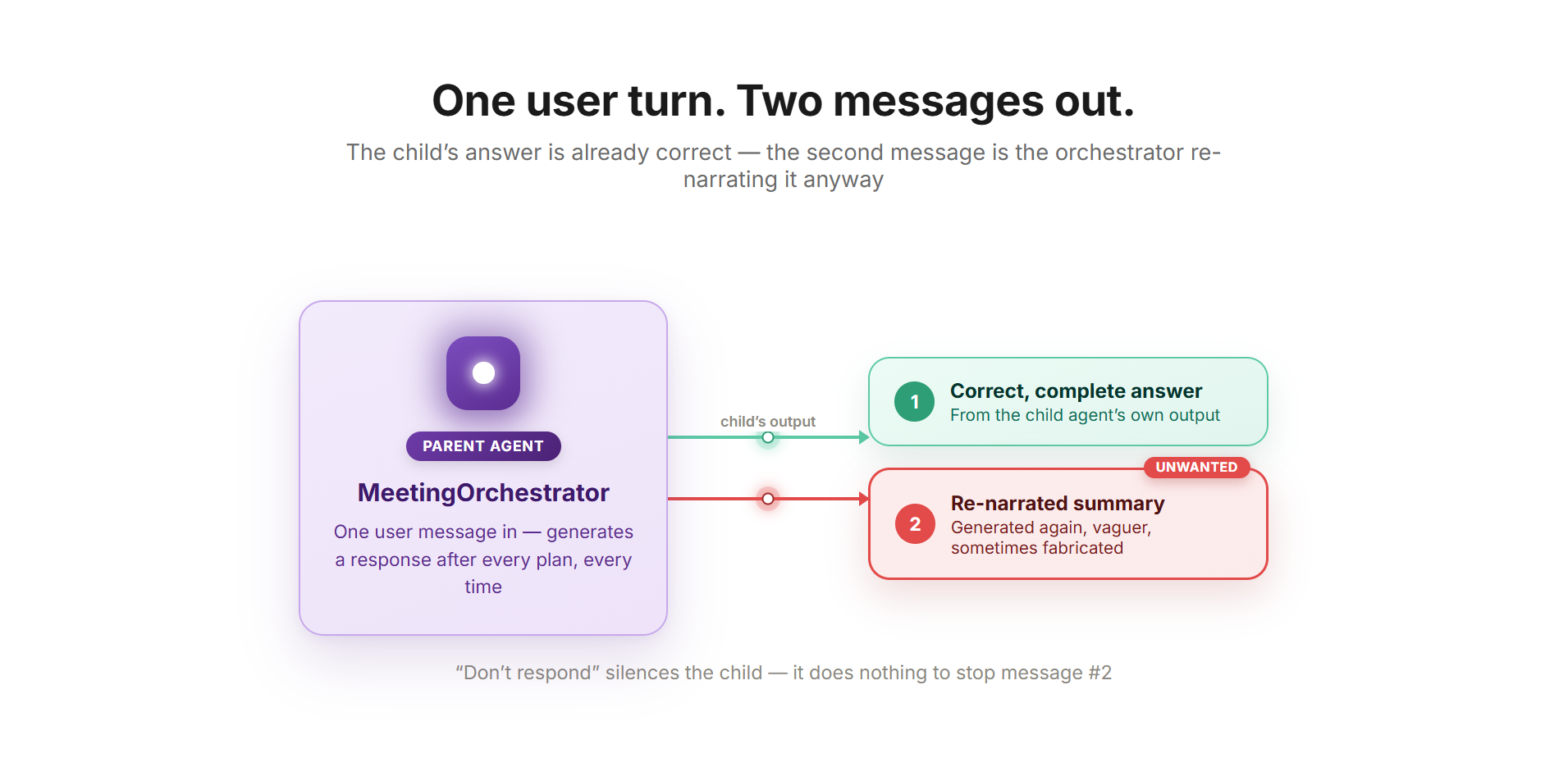
Your Copilot Studio agent answers the user. Then it answers again. Same outcome, two messages — and the second one is usually a vaguer restatement of the first, sometimes worse, with an invented reason for an error that was actually just “something failed.”
Most people fix this by setting the child agent’s “After running” option to Don’t respond and moving on. It helps. It doesn’t solve it. This article is the diagnosis: what the bug actually is, why “Don’t respond” only ever controls one stage of an eight-stage pipeline while the real problem originates two stages later, and the platform constraints that shape any real fix.
This is the first of three linked articles. This one covers the diagnosis. The next two, “The Single Meeting: Building the Pattern from Scratch” and “From One to Many: Extending the Pattern,” cover the hands-on build — a complete walkthrough that constructs the pattern from scratch, first for a single object, then for a list. Each article stands on its own, but they’re designed to be read in order.
Technologies covered in this guide
- Microsoft Copilot Studio (Agents, Child Agents, Generative Orchestration)
- Agent flows (Copilot Studio’s wrapper around the Power Automate engine)
This article assumes no prior experience with Copilot Studio. Every acronym and platform-specific term is explained the first time it’s used.
What “multi-agent” actually means in Copilot Studio
Microsoft uses two different concepts that look similar in the UI but behave differently underneath. Child agents are lightweight agents that live inside the context of a parent agent — they share conversation history automatically, don’t need separate publishing, and exist to split one big agent into smaller, focused pieces. Connected agents are fully independent: their own orchestration, their own tools, their own authentication, reusable across multiple parents.
The distinction matters for one practical reason: Microsoft recommends child agents for a single use case owned by one team, and connected agents once a single orchestrator passes roughly 30-40 tools, topics, and agents combined and starts struggling to pick the right one. The pattern this series builds is a child-agent pattern — one cohesive scenario, owned by one person, where the subagents exist purely to keep instructions and tools cleanly separated.
Problem #1 — the double message
Picture a parent agent with one child agent attached. The child calls an Agent flow, gets a result back, and is done with its job. What the end user typically sees, unless you intervene, is two messages — one from the child’s completion, then a second one from the parent: a “summary” of what just happened, even though the child’s answer was already complete and correct.
The instinctive fix is to set the child’s After running option to Don’t respond and assume that’s the end of it. It isn’t. “Don’t respond” is the default, it sounds like exactly what’s needed, and it’s necessary — but on its own, it doesn’t reliably stop the second message. Seeing why requires looking at where in the pipeline it acts versus where the second message actually gets generated.
The full turn lifecycle — where “Don’t respond” acts, and where the bug actually lives
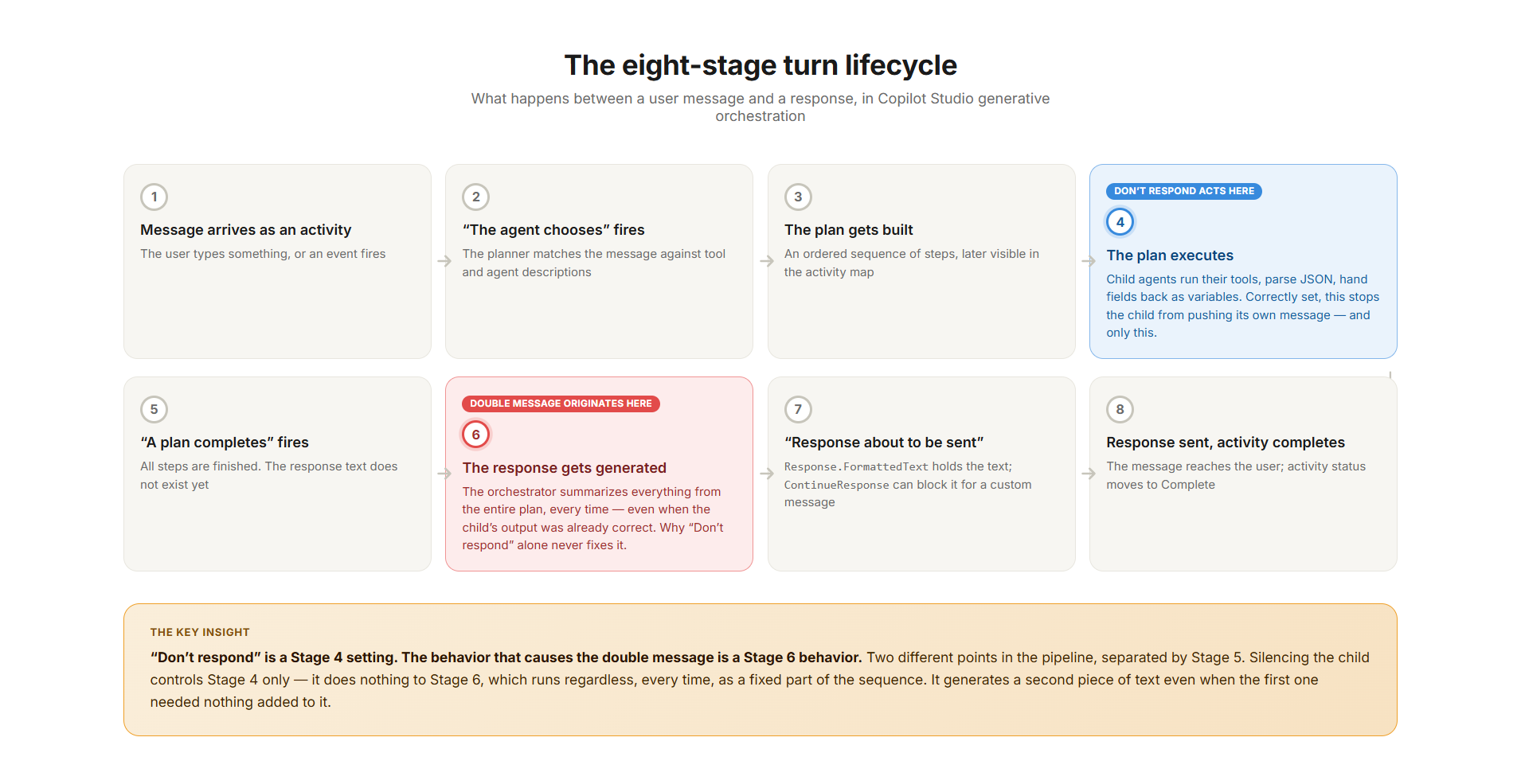
Every Copilot Studio agent defaults to generative orchestration: an LLM-driven planner that turns a message into an ordered plan, decides which tools, topics, or agents to call, executes that plan, and then generates the final reply. The double message isn’t a random glitch — it’s the mechanical consequence of how this orchestrator processes a single turn, stage by stage.
📌 Interface and diagram visuals in this guide are illustrative. Microsoft updates its UI regularly — the actual screens may look slightly different depending on your version or environment. The workflow described here remains accurate regardless of visual changes.
Walking through the stages that matter: a message arrives, the planner matches it against the name and description of every available tool and agent (“the agent chooses” is the actual label Microsoft uses for this matching step), and a plan gets built — possibly chaining several steps if the message implies more than one intent.
⚙️ The plan executes — this is the stage “Don’t respond” controls, and only this stage
Each child agent runs its own internal pass: its own instructions, its own tool, its own decision about whether to call it. The tool calls its backing Agent flow and gets back a result as a JSON string — JSON (JavaScript Object Notation) being a plain-text way of writing structured data, the kind that looks like {"status": "success", "subject": "Team Sync"}. The child parses that string and hands the fields back to the parent as output variables. With “Don’t respond” set correctly, none of this produces a visible message on its own.
That setting lives under each child’s Outputs section, labeled After running, with four choices: Don’t respond (the parent just continues using the child’s output as data), Write the response with generative AI (the parent sends its own message immediately, guaranteeing an early message on top of whatever comes later — avoid this for the pattern in this series), Send specific response (a fixed message regardless of output), and Send an adaptive card (same early timing as the generative option). Only “Don’t respond” is compatible with sending a single message, because it’s the only one of the four that doesn’t push something during plan execution.
🚨 Why “Don’t respond” doesn’t fix it
Once every step in the plan finishes, the orchestrator doesn’t just relay whatever the last child produced. It takes everything gathered across the whole plan and generates a fresh final answer — Microsoft’s own documentation describes this as the agent “summarizing an answer to any originating user query” from everything the plan touched. That generation step happens after every child has already gone silent.
Silencing the child controls one stage. It does nothing to this one, which runs regardless, every time, generating a second piece of text even when the first one needed nothing added to it.
There’s a narrower, surgical alternative for cases where you need to intervene on one specific response: a later trigger exposes the generated text as Response.FormattedText and lets you block it with a flag called ContinueResponse, substituting your own message instead. It’s the right tool for one-off interventions — a documented community pattern uses it to append a feedback card after the real answer — but it isn’t a fix for “stop the parent from re-narrating what the child already said correctly” across every plan. For that, the parent’s own response-generation step has to behave correctly in the first place, which is an instruction problem, not an override problem. That’s exactly what the shared instructions block built in the next article is for.
Copilot Studio’s activity map — in the test panel or the published agent’s Activity page — renders a plan as a graph of nodes with their actual inputs and outputs, and it’s the one tool that matters for this specific bug: open it on a failing run, confirm the child actually executed with a correct output, then check whether the final generated text repeats content already sitting there. That repetition is the fingerprint of the behavior this whole pattern exists to work around.
Recognizing the bug — and three things it isn’t
“My agent sent two messages” is a symptom several different bugs produce, so it’s worth being precise before assuming you’ve found this one. The real fingerprint: the first message is the child’s already-correct, fully-formed answer; the second restates the same outcome in different, often vaguer words — sometimes adding something like “let me know if you need anything else” that was never part of any instructions. The activity map confirms it directly: the correct data is already sitting in the child’s output, well before that second message gets generated.
A variant worth recognizing separately: a message that looks like raw JSON or a system note, something like {"explanation_of_tool_call": "..."}, appended after an otherwise clean response. This is a documented platform quirk that surfaces when the parent has no topics or knowledge sources of its own and relies entirely on subagents — not the same bug, no setting currently eliminates it, and the instructional fix in this series tends to reduce how often it shows up without guaranteeing it disappears.
Three things that aren’t this bug at all
- Teams-channel duplication. Identical messages duplicating specifically in Microsoft Teams, intermittently, with no pattern tied to child agents — that’s a delivery-retry issue at the channel level, a different problem with a different fix.
- A looping child. A child that gets re-invoked in a loop instead of handing control back once — that’s a session/completion-signal problem, not an After-running setting.
- AsyncResponsePayloadTooLarge. An explicit payload-size limit error — it means the agent is failing to send one answer, not sending two.
🎯 The single test that tells you which bug you actually have
Open the activity map and check whether the child’s tool call shows a completed, correct output. If yes, and two messages still appear, this is the bug this series fixes. If the child’s call shows as failed or repeated, the problem is elsewhere, and no amount of rewriting the parent’s instructions will touch it.
Problem #2 — the fabricated error
This one is more dangerous than the double message, because it doesn’t just look messy — it lies to the user.
When a backend flow fails, or returns a generic or vague error, the parent — an LLM generating a “helpful” final response — doesn’t just relay that error as-is. It tends to construct a plausible-sounding explanation, because a flat “an error occurred” doesn’t read as a satisfying answer to a model trained to sound complete. So instead of passing through “we couldn’t process this request,” it might invent “there’s a scheduling conflict with the requested time” — a reasonable-sounding sentence with no connection to what actually happened.
This is a textbook case of a language model filling a gap with the statistically plausible continuation rather than admitting it lacks specific information. It isn’t unique to Copilot Studio, but in a business agent it has real consequences: support tickets get misdirected on a fabricated root cause, and trust erodes the first time someone notices the gap between what happened and what they were told.
Why both problems share one root cause
Both bugs come from the same place: the parent’s generative step treats everything it receives as raw material for a freshly written response, rather than as a final answer that should sometimes simply pass through untouched. Microsoft’s own guidance for generative orchestration warns about a related issue under the heading of avoiding “double-handling” of data — if a tool’s structured output also gets fed into the model as free-text context, you’re inviting the model to re-process and potentially distort content that should have been treated as final.
The fix isn’t a checkbox. It’s an architecture: a consistent data contract between the flow and its child components, explicit fidelity instructions at both levels, and “Don’t Respond” configured correctly everywhere it is available.
— vsgueradev.com
A connector-level constraint that shapes the entire fix
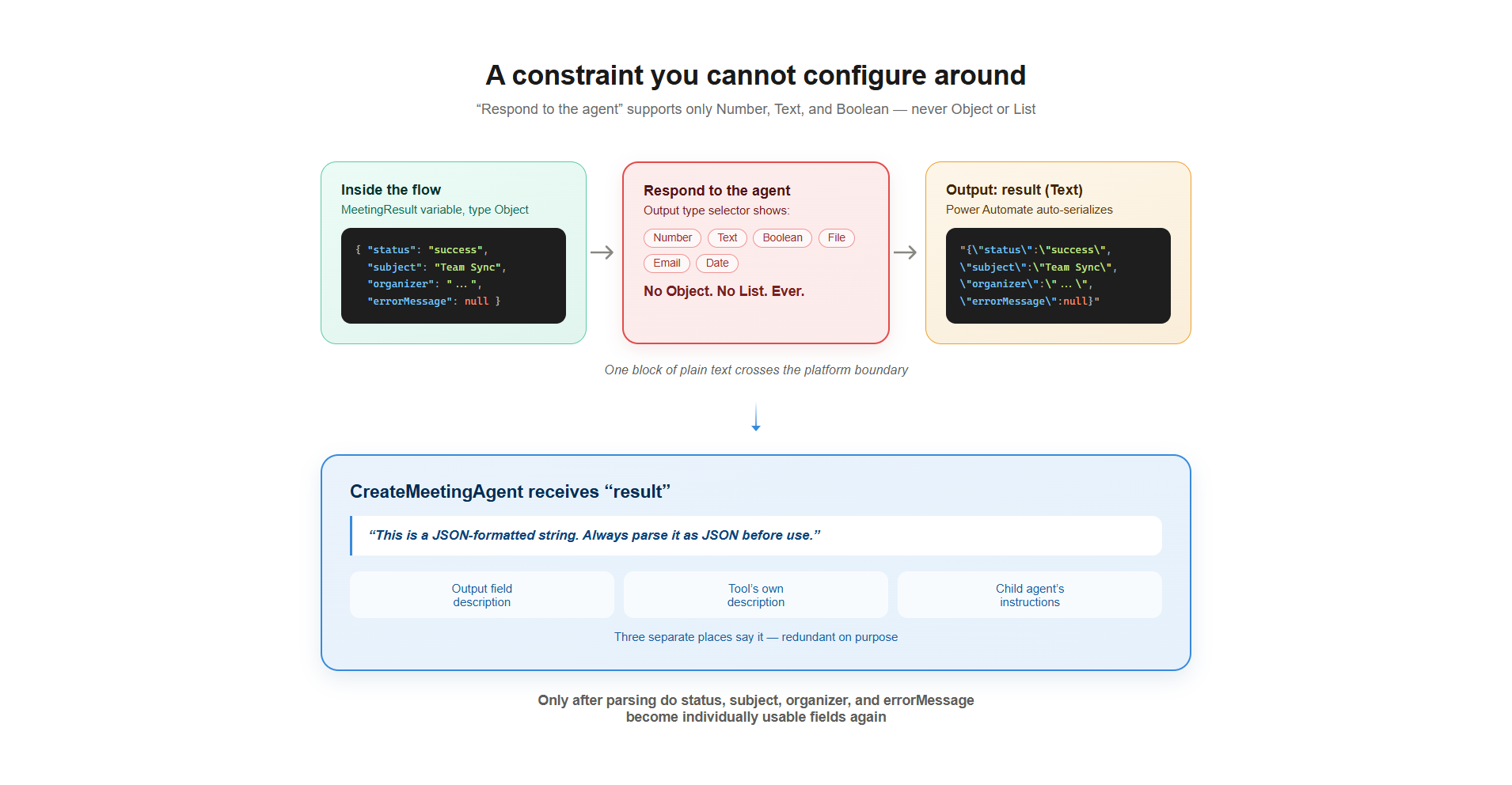
One detail trips up almost everyone building their first Copilot Studio flow, and no clever configuration gets around it: when a flow is wired up as a tool via the “When an agent calls the flow” trigger and the “Respond to the agent” action, the types you can return are restricted to Number, Text, Boolean — notably absent are Object, Date, Timestamp, and any List variant.
⚠️ In plain language
A structured object or array can’t be returned as a native type. If a flow’s actual result is naturally a JSON object — a record with five fields, or a list of records — the only practical option is to serialize it as a JSON string and return it as Text. The receiving agent then has to explicitly parse that string back into structured data. This single constraint is the direct cause of every JSON-parsing instruction in the build that follows — it isn’t a stylistic choice, it’s the only way the data gets through the door.
One more limit worth knowing: an agent can receive up to 1 MB of data per output in a single completion. There’s no documented limit on how many output variables a flow can return, but if a flow might return very large lists, that 1 MB ceiling is a real wall.
Locking a tool to its owning child
One more setting shapes the fix, and it’s easy to miss: when a flow becomes a tool on a child agent, that tool has a property called Allow agent to decide dynamically when to use this tool, on by default. With it on, the tool is visible to the planner as something any agent in the picture could choose to call on its own, based purely on matching its name and description against the user’s message.
For a pattern where each child has exactly one job and exactly one tool, that’s not the behavior wanted. The tool should only ever run as a consequence of its owning child being invoked — not because the planner decided to call it directly. Microsoft’s own guidance is direct about why this matters: leaving similar tools or agents independently callable is exactly what causes “orchestrator confusion,” where the planner occasionally picks the wrong one, or both.
🔧 The fix is a single toggle
Clear Allow agent to decide dynamically when to use this tool, switching it to Only when referenced by topics or agents. The tool becomes invisible to the planner as an independent choice.
This matters more, not less, once a second child with a similarly-described tool enters the picture — which is exactly what happens once this pattern scales past its first action. Lock it down from the start, for every tool, rather than discovering the overlap once it’s already misrouting requests.
What’s next
This article covered the diagnosis: what the double message looks like, why “Don’t respond” alone doesn’t fix it, the exact stage where the real fix has to live, and the two platform constraints — the JSON wall, the tool-visibility guardrail — that shape everything built next.
The next article, The Single Meeting: Building the Pattern from Scratch, builds the complete pattern for a single-object case: one parent, one child, one tool, wired with all four countermeasures and tested until the double message and the fabricated error are both gone. The article after that extends the same pattern to a list.
The tool didn’t fail. It just never learned when to stay quiet.