



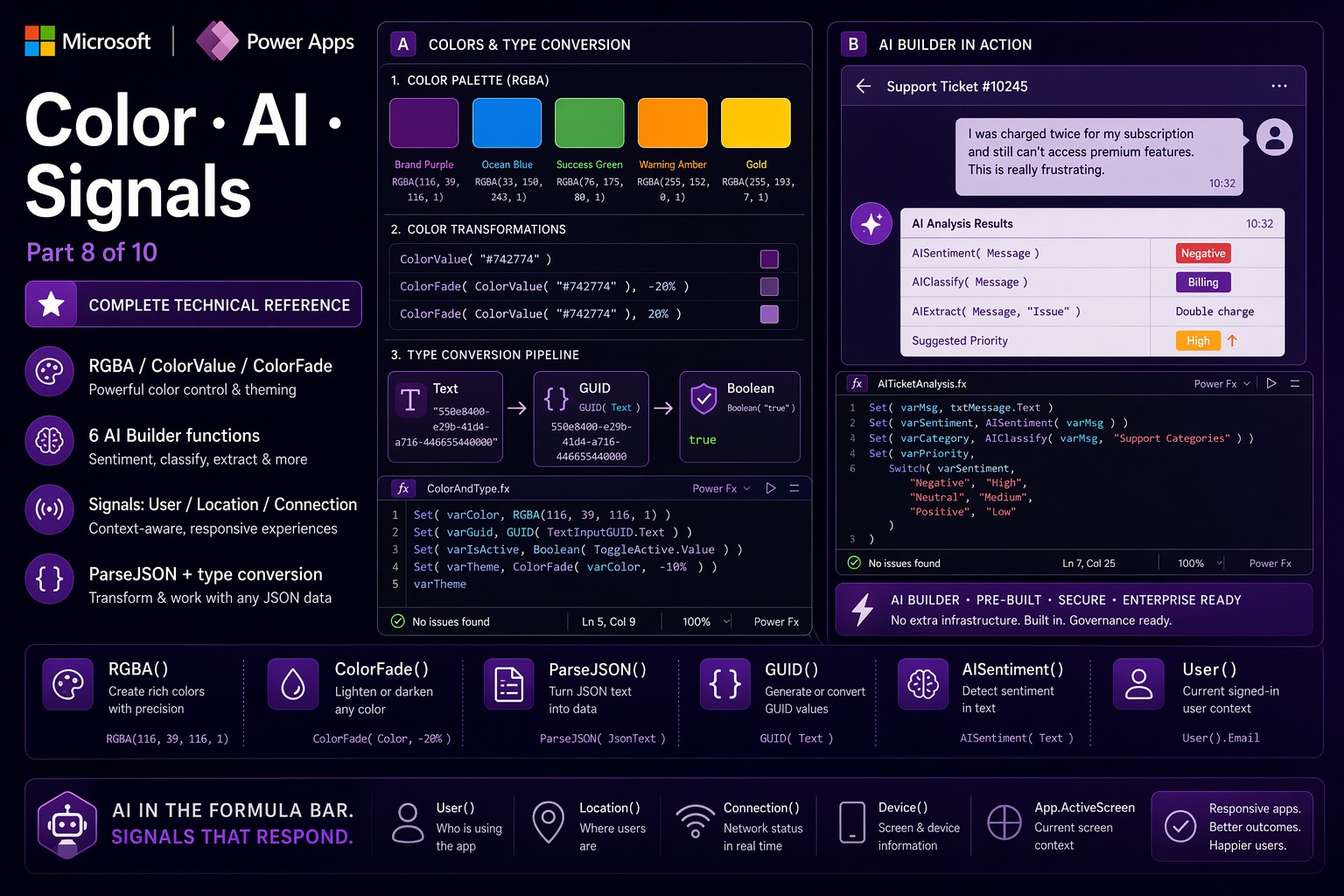
📌 This is Part 8 of the complete Power Apps Canvas Functions series. Screenshots are illustrative.
📚 Power Apps Canvas Functions — Complete Series
- Part 1 — Text Functions
- Part 2 — Number & Math Functions
- Part 3 — Logical & Conditional Functions
- Part 4 — Table & Record Functions
- Part 5 — Date & Time Functions
- Part 6 — Navigation, App Control & Forms
- Part 7 — Variables, Collections & Data Sources
- Part 8 — Color, Type Conversion, AI & Signals (this post)
- Part 9 — Utility, Testing & Context Keywords
- Part 10 — Master Index, Delegation Table & Performance Patterns
Color, Type Conversion, AI & Signals
This section covers four distinct categories that belong together because they all answer the same kind of question: how do you make your app look right, work with data from external systems, speak intelligently about content, and respond to the environment the user is in?
📌 Three things to know before using these functions
Color is a typed value, not a string. Visual properties like Fill, Color, BorderColor expect a Color type — not a hex string. You cannot assign "#742774" directly. Use RGBA(114, 39, 116, 1) or ColorValue("#742774").
ParseJSON returns Untyped. Every field access on a ParseJSON result must be wrapped in a type conversion: Text(obj.name), Value(obj.count), Boolean(Text(obj.isActive)). Without the wrapper, you get an Untyped object — not a usable value. The label shows blank. No error.
AI functions require AI Builder credits — separate from Power Apps licensing. Never call AI functions in continuously-evaluated data formula properties (Text, Fill, Visible). Only in behavior properties like OnSelect.
Color Functions
RGBA
RGBA(red: Number, green: Number, blue: Number, alpha: Number) → ColorConstructs a Color value from four components. Red, green, and blue range from 0 to 255. Alpha (opacity) ranges from 0 to 1 — 0 is fully transparent, 1 is fully opaque. RGBA is the primary way to define precise brand colors in enterprise apps.
RGBA(114, 39, 116, 1)— Power Apps purple, fully opaqueRGBA(0, 120, 212, 1)— Microsoft Blue (#0078D4)RGBA(16, 124, 16, 1)— Microsoft Green (#107C10)RGBA(0, 0, 0, 0.5)— semi-transparent black overlay (50% opacity)RGBA(114, 39, 116, 0.1)— 10% opacity purple tint for hover states
⚠️ Watch out: RGB channels use the 0–255 range, but alpha uses 0–1 — not 0–255 as in CSS. RGBA(114, 39, 116, 255) does not produce an opaque color — it produces a wildly overexposed result. The correct opaque value is RGBA(114, 39, 116, 1). This catches every developer coming from CSS.
🔗 Works well with — RGBA + Set — enterprise color system defined once in App.OnStart
// App.OnStart — define the brand color system:
Set(varColorPrimary,      RGBA(114, 39, 116, 1));   // Power Apps purple
Set(varColorPrimaryLight, RGBA(114, 39, 116, 0.1)); // 10% tint for hovers
Set(varColorSuccess,      RGBA(16, 124, 16, 1));    // green
Set(varColorWarning,      RGBA(255, 185, 0, 1));    // amber
Set(varColorError,        RGBA(164, 38, 44, 1));    // red
Set(varColorNeutral,      RGBA(96, 94, 92, 1));     // gray

// Any button Fill: varColorPrimary
// Status badge Fill:
Switch(
  ThisItem.Status,
  "Active",  varColorSuccess,
  "Warning", varColorWarning,
  "Error",   varColorError,
  varColorNeutral
)
// Change one line when the brand color updates — everything follows
Color (enumeration)
Color.ColorName → ColorA built-in enumeration of approximately 140 named colors based on the CSS specification. Returns a Color value directly — no function needed. Fine for quick prototyping; not for precise brand work.
Color.White— same asRGBA(255, 255, 255, 1)Color.Transparent— same asRGBA(0, 0, 0, 0)Color.Black,Color.Red,Color.Blue,Color.Gray,Color.LightGray
⚠️ Watch out: Color.Green is the CSS named green — #008000 — a dark, murky green that is not Microsoft’s brand green (#107C10). For any professional app, use RGBA with your actual brand values. The Color enumeration is fine for demos; it looks unprofessional in production.
ColorValue
ColorValue(colorText: Text) → ColorConverts a CSS color name or hex string into a Power Fx Color value. The bridge between color strings from data sources or configuration tables and the Color type visual properties require. Accepts named CSS colors ("red", "cornflowerblue"), 6-digit hex ("#742774"), 3-digit hex ("#FFF"), and 8-digit hex with alpha ("#FF742774").
ColorValue("#742774")— Power Apps purple from hex stringColorValue(ThisItem.BadgeColor)— convert a hex color stored in a Dataverse text columnColorValue("#80742774")— 50% opacity purple (80 hex ≈ 50% alpha)
⚠️ Watch out: In the 8-digit hex format, the first two digits are the alpha channel — opposite of CSS’s #RRGGBBAA convention. Power Fx uses #AARRGGBB. ColorValue("#FF742774") is fully opaque (FF = 255 = alpha 1.0). CSS developers always get this backwards on the first try.
🔗 Works well with — ColorValue — admin-configurable color themes from a Dataverse config table
// App.OnStart — load brand colors from a Dataverse settings table:
ClearCollect(colTheme, Filter(AppTheme, AppName = "ProjectTracker"));
Set(varPrimaryColor,
  ColorValue(Coalesce(LookUp(colTheme, Key = "PrimaryColor").Value, "#742774")));
Set(varSecondaryColor,
  ColorValue(Coalesce(LookUp(colTheme, Key = "SecondaryColor").Value, "#0078D4")));

// Admins update the Dataverse config table → the app picks up the new colors without republishing
ColorFade
ColorFade(color: Color, fadeDelta: Number) → ColorLightens or darkens a Color value. fadeDelta ranges from -1 to 1: positive values lighten toward white, negative values darken toward black. ColorFade(color, 0) returns the original unchanged.
ColorFade(varColorPrimary, 0.2)— 20% lighter (hover background)ColorFade(varColorPrimary, -0.2)— 20% darker (pressed state)ColorFade(varColorPrimary, 0.7)— very light tint for card backgrounds
⚠️ Watch out: ColorFade adjusts lightness by mixing with white or black — not HSL hue-preserving lightening. For very saturated colors, heavy positive fading can produce washed-out results. Test the extremes of your fade range.
🔗 Works well with — ColorFade — automatic hover and pressed states from a single base color
// Button Fill:        varColorPrimary
// Button HoverFill:   ColorFade(varColorPrimary, 0.2)   // lighter
// Button PressedFill: ColorFade(varColorPrimary, -0.2)  // darker
// Button DisabledFill:ColorFade(varColorPrimary, 0.5)   // very light

// Change varColorPrimary in App.OnStart → all states update automatically
// No need to update four color values separately
Type Conversion Functions
Boolean
Boolean(value: Text | Number) → BooleanConverts a text string or number to a boolean. Accepts only four valid inputs: the strings "true" and "false" (case-insensitive), and the numbers 1 (true) and 0 (false). Everything else throws an error.
Boolean("true")— returnstrueBoolean("True")— returnstrue(case-insensitive)Boolean(1)— returnstrueBoolean(0)— returnsfalseBoolean(Text(ParseJSON(apiResponse).isActive))— convert a JSON boolean field
⚠️ Watch out: Boolean accepts only "true", "false", 1, and 0. Boolean("yes"), Boolean("1") (the string), and Boolean("on") all throw errors. From ParseJSON, boolean fields are returned as Untyped — use Boolean(Text(parsedObj.field)): wrap in Text() first to get the string representation, then Boolean() to get the typed value.
GUID
GUID(text?: Text) → GUIDConverts a GUID string to the native GUID type required by Dataverse, or generates a new random GUID when called with no argument. A GUID (Globally Unique Identifier) is a 128-bit identifier in the format xxxxxxxx-xxxx-xxxx-xxxx-xxxxxxxxxxxx — the primary key type of every Dataverse table.
Why this matters critically: Dataverse primary key and lookup columns store values as the GUID type — not as plain text strings. Comparing a GUID column against a text string always returns false, even when the values look identical. Always wrap string IDs in GUID() before using them in LookUp or Filter conditions against Dataverse.
GUID()— generates a new random GUIDGUID("a7f3c2d1-8b4e-4f1a-92c3-d6e1b5f0c2a8")— converts string to GUID typeLookUp(Projects, ProjectID = GUID(paramProjectID))— correct lookup with URL parameterPatch(Tasks, Defaults(Tasks), {RelatedProject: GUID(varProjectID)})— write GUID to lookup column
⚠️ Watch out: LookUp(Projects, ProjectID = paramProjectID) where paramProjectID is a text string from Param() will always return blank — even when the string matches a record. This is the most common Dataverse deep-link bug in Canvas Apps. Always wrap: GUID(Param("recordID")).
🔗 Works well with — GUID + Param — launch an app pre-loaded to a specific Dataverse record
// App.OnStart — read record ID from URL and navigate:
If(
  Not(IsBlank(Param("projectID"))),
  IfError(
    Set(varDirectLinkProject, LookUp(Projects, ProjectID = GUID(Param("projectID"))));
    Navigate(
      If(IsBlank(varDirectLinkProject), HomeScreen, ProjectDetailScreen)
    ),
    Navigate(HomeScreen)  // invalid GUID format
  )
)
// URL: https://apps.powerapps.com/play/APP_ID?projectID=a7f3c2d1-8b4e-4f1a-92c3-...
JSON
JSON(value: Any, format?: JSONFormat) → TextSerializes a Power Fx value — record, table, scalar, or collection — into a JSON text string. Used for HTTP connector calls, structured logging, and passing complex data structures via Launch parameters.
JSONFormat options: default (compact), JSONFormat.IndentFour (pretty-printed for debugging), JSONFormat.IgnoreBinaryData (skip attachments), JSONFormat.FlattenValueTables (single-column tables as value arrays instead of [{"Value":1}...]).
JSON({name: "Vincenzo", role: "Architect"})— returns'{"name":"Vincenzo","role":"Architect"}'JSON(colSelectedItems, JSONFormat.IndentFour)— pretty-printed for loggingJSON(Sequence(5), JSONFormat.FlattenValueTables)— returns'[1,2,3,4,5]'not'[{"Value":1}...]'
⚠️ Watch out: JSON serializes Power Fx logical field names — which for Dataverse are the logical column names (cr_title, cr_budget), not the display names. The output will have keys like {"cr_title":"My Project"} — account for this when the JSON is consumed by an API expecting specific field names.
🔗 Works well with — JSON — build a structured payload for an HTTP connector call
// HTTP connector body — no Power Automate flow needed:
JSON(
  {
    requestID:   GUID(),
    submittedBy: User().Email,
    submittedAt: Text(UTCNow(), "[$-en-US]yyyy-MM-ddTHH:mm:ssZ"),
    project: {
      id:       Text(Gallery1.Selected.ID),
      title:    Gallery1.Selected.Title,
      budget:   Gallery1.Selected.Budget
    },
    approvers: JSON(colApprovers, JSONFormat.FlattenValueTables)
  }
)
ParseJSON
ParseJSON(jsonString: Text) → UntypedConverts a JSON text string into an Untyped object navigable with dot notation. Not a typed Power Fx record — every field access must be wrapped in an explicit type conversion before the value can be used.
Type conversion rules after ParseJSON: string fields → Text(obj.field); number fields → Value(obj.field); boolean fields → Boolean(Text(obj.field)); nested objects → navigate with dots then convert; arrays → use ForAll(Table(obj.items), Text(Value.name)).
Text(ParseJSON(httpBody).token)— read a string fieldValue(ParseJSON(configJSON).maxRetries)— read a number fieldBoolean(Text(ParseJSON(webhookBody).isApproved))— read a booleanParseJSON(httpBody).data.user.email— navigate nested objects before converting
⚠️ Watch out: Every field access on ParseJSON output must be wrapped in a type conversion. ParseJSON(body).name in a label’s Text property looks correct but Power Apps cannot display an Untyped value — it shows blank with no error. The correct form is always Text(ParseJSON(body).name). This is the most common ParseJSON bug.
🔗 Works well with — ParseJSON + With — parse once, extract multiple typed fields
// HTTP response: {"token":"eyJ...","expiresIn":3600,"userId":"abc123","isAdmin":true}
With(
  {api: ParseJSON(HTTPConnector.ResponseBody)},
  Set(varAuthToken,   Text(api.token));
  Set(varTokenExpiry, DateAdd(Now(), Value(api.expiresIn), TimeUnit.Seconds));
  Set(varUserID,      Text(api.userId));
  Set(varIsAdmin,     Boolean(Text(api.isAdmin)))
)
// ParseJSON runs ONCE; With() makes api available for all four Set calls
Signal Functions
Signals are read-only properties that return live environmental information — the current user, the device locale, URL parameters, screen dimensions, network status, GPS coordinates. They recalculate automatically when conditions change. They cannot be called like functions (no parentheses for most) — they are properties you reference directly.
User()
User() → RecordReturns information about the currently signed-in user. Three fields: User().FullName (Azure AD display name), User().Email (Azure AD principal name / UPN), User().Image (profile photo URL). The foundation of every personalization and access control pattern.
User().FullName—"Vincenzo Sguera"— for welcome messagesLower(User().Email)— always lowercase before comparing with stored emailsFilter(Tasks, AssignedTo = Lower(User().Email))— current user’s tasks
⚠️ Watch out: User().Email returns the Azure AD UPN — the login email. This may differ from a contact email stored in Dataverse if the user has an alias or data was imported with inconsistent casing. Always Lower() both sides before comparing. For large Dataverse tables, Lower on a column is not delegable — normalize email casing on data entry instead.
🔗 Works well with — User + LookUp — load the full user profile with role, department, manager
// App.OnStart — User() gives name+email+photo only:
Set(varCurrentUser, LookUp(Employees, Lower(Trim(WorkEmail)) = Lower(User().Email)));

// Guard: create a profile if this is the first login:
If(
  IsBlank(varCurrentUser),
  Set(varCurrentUser, Patch(Employees, Defaults(Employees), {
    WorkEmail: Lower(User().Email),
    FullName:  User().FullName,
    AppRole:   "Viewer",
    JoinDate:  Today()
  }))
);
Set(varUserRole, Coalesce(varCurrentUser.AppRole, "Viewer"));
Set(varUserDept, varCurrentUser.Department);
Language()
Language() → TextReturns the BCP-47 language tag of the current user’s device locale — the combination of language and region that determines number formats, date formats, and calendar conventions. Examples: "it-IT", "en-US", "de-DE", "fr-FR".
Language()— returns"it-IT"for an Italian userLeft(Language(), 2)— returns"it"(language code without region)If(Left(Language(), 2) = "it", "Salve!", "Hello!")— language-conditional greetingText(Today(), "[$-" & Language() & "]dd/MM/yyyy")— locale-aware date format
⚠️ Watch out: Language() returns the device/browser locale, not the user’s preferred language for your app. A Spanish user on a US-configured machine returns "en-US". Use Language() for number and date formatting (where device locale is the right signal). For UI language translation, store the user’s language preference in their Dataverse profile and let them choose.
🔗 Works well with — Language — locale-adaptive date and currency formatting
// Date label adapts to user locale:
Switch(
  Left(Language(), 2),
  "it", Text(ThisItem.DueDate, "[$-it-IT]dd/MM/yyyy"),
  "de", Text(ThisItem.DueDate, "[$-de-DE]dd.MM.yyyy"),
        Text(ThisItem.DueDate, "[$-en-US]MM/dd/yyyy")  // default: US
)

// Currency label:
Text(ThisItem.Budget, Switch(
  Left(Language(), 2),
  "it", "[$€-it-IT]#.##0,00",
  "de", "[$€-de-DE]#.##0,00",
  "[$-en-US]$#,##0.00"
))
Param()
Param(parameterName: Text) → TextReads a URL query parameter passed when the app was launched. All values are returned as text strings regardless of their content. Returns Blank() when the parameter is not present. Used for deep links from email notifications, Teams adaptive cards, Power Automate flows, and model-driven app integrations.
Param("projectID")— reads theprojectIDURL parameterGUID(Param("recordID"))— convert text to GUID type for Dataverse lookupValue(Param("amount"))— convert a numeric parameterIf(Param("mode") = "edit", FormMode.Edit, FormMode.View)— mode from URL
⚠️ Watch out: Param always returns text — even if the value looks like a number or GUID. Always convert: GUID(Param("recordID")) for Dataverse IDs, Value(Param("qty")) for numbers. Also guard with IsBlank(Param("name")) before using a parameter that might not be present — a missing parameter returns Blank() silently.
🔗 Works well with — Param — multi-context app launch routing
// App.OnStart — detect launch context and route:
Set(varLaunchMode,   Coalesce(Param("mode"), "standalone"));
Set(varLaunchRecord, Param("recordID"));

If(
  Not(IsBlank(varLaunchRecord)),
    Set(varDirectRecord, LookUp(Projects, ProjectID = GUID(varLaunchRecord)));
    Navigate(If(IsBlank(varDirectRecord), HomeScreen, ProjectDetailScreen)),
  varLaunchMode = "approval",
    Navigate(ApprovalQueueScreen),
  varLaunchMode = "new",
    Set(varEditingRecord, Blank());
    Navigate(EditProjectScreen),
  Navigate(HomeScreen)
)
App signal
App.ActiveScreen — currently visible screen
App.Width — canvas width in pixels
App.Height — canvas height in pixels
App.DesignWidth / App.DesignHeight — design-time target dimensions
The App object provides live information about the running app. Properties recalculate automatically. Used for responsive layouts that adapt to actual device dimensions, and for navigation highlighting based on the active screen.
App.Width— current canvas width at runtime (depends on device and window size)App.ActiveScreen.Name— returns"HomeScreen","ProjectDetailScreen", etc.App.Width / App.DesignWidth— responsive scaling ratio
⚠️ Watch out: App.Width and App.Height reflect the actual rendered canvas at runtime — not the design-time dimensions. On a 27″ monitor the values will be different from a 13″ laptop. Always use App.Width ratios (App.Width * 0.6) rather than hardcoded pixels for any layout that must work across devices.
🔗 Works well with — App.Width — responsive gallery and sidebar layout
// Gallery occupies 60% of screen width:
// Gallery Width property:
App.Width * 0.6

// Sidebar that scales proportionally from design width:
300 * (App.Width / App.DesignWidth)

// Nav button Fill — highlights the active screen:
If(
  App.ActiveScreen.Name = "HomeScreen",
  varColorPrimary,
  RGBA(0, 0, 0, 0)  // transparent when not active
)
Connection signal
Connection.Connected → Boolean
Connection.Type → Text
Connection.Connected is true when the device has network access, false when offline. Connection.Type returns the connection type: "wifi", "mobile", "ethernet", or "none". Both recalculate automatically when connectivity changes.
Connection.Connected— gate any network-dependent actionNot(Connection.Connected)— offline banner Visible propertyIf(Connection.Connected, Refresh(Products), Notify("Offline — showing cached data.", NotificationType.Warning))
⚠️ Watch out: Connection.Connected is a signal — it recalculates when connectivity changes. But Power Apps does not fire an event on connectivity change — there is no OnConnectionChanged. The update is picked up the next time a formula referencing it is re-evaluated. For continuous monitoring, use a Timer control.
Location signal
Location.Latitude → Number
Location.Longitude → Number
Location.Accuracy → Number
Location.Altitude → Number
Location.Speed → Number
Location.Heading → Number
Returns the device’s current GPS position. Requires explicit user permission — the OS shows a prompt on first use. Available on iOS, Android, and modern web browsers. Used in field service, asset tracking, check-in, and geofencing apps.
Location.Latitude— decimal latitude, e.g.,41.9028Location.Longitude— decimal longitude, e.g.,12.4964Location.Accuracy— accuracy radius in metersPatch(Visits, Defaults(Visits), {Lat: Location.Latitude, Lng: Location.Longitude, Time: Now()})
⚠️ Watch out: Accessing Location starts GPS tracking — which drains battery significantly. Use Enable(Location) and Disable(Location) to control the sensor lifecycle explicitly. Enable just before capturing, disable immediately after. GPS accuracy varies: indoors may be off by hundreds of meters; outdoors typically 5–10 meters.
🔗 Works well with — Location + Enable/Disable — battery-efficient field visit stamp
// "Stamp location" button OnSelect:
Enable(Location);
Patch(
  FieldVisits,
  Defaults(FieldVisits),
  {
    Latitude:  Location.Latitude,
    Longitude: Location.Longitude,
    Accuracy:  Location.Accuracy,
    RecordedAt:     Now(),
    TechnicianEmail: User().Email
  }
);
Disable(Location);
Notify(
  "Location recorded ±" & Text(Location.Accuracy, "0") & "m",
  NotificationType.Success
)
AI Functions
Six AI Builder-powered text processing functions available directly in Power Fx. All perform NLP (Natural Language Processing) tasks and require AI Builder credits — separate from Power Apps licensing. Never call them in continuously-evaluated data formula properties. Only in OnSelect behavior formulas, always with a loading indicator.
| Function | Returns | Use when |
|---|---|---|
| AIClassify(text, categories, multi?) | Text | Route tickets to teams, categorize feedback, tag content |
| AIExtract(text, entities) | Table | Extract emails, phone numbers, names from free text |
| AIReply(message) | Text | Draft reply suggestions for customer service agents |
| AISentiment(text) | Text | Classify as Positive/Negative/Neutral — flag for review |
| AISummarize(text) | Text | Condense long transcripts, reports, email threads |
| AITranslate(text, language) | Text | Translate to a BCP-47 target language code |
⚠️ Watch out: AI functions are slow — 2–10 seconds per call is normal. Never place them in Text, Fill, Visible, or any continuously-evaluated data property. Always call from OnSelect. Show a loading indicator while waiting: UpdateContext({locProcessing: true}) before the call, UpdateContext({locProcessing: false}) after. AI outputs are probabilistic — the same input may produce slightly different results on different calls. Do not use them for deterministic business logic.
🔗 Works well with — AISentiment + AIClassify — automated support ticket routing on submission
// Support ticket submit button OnSelect:
UpdateContext({locProcessing: true});
With(
  {
    sentiment: AISentiment(DescriptionInput.Text),
    category:  AIClassify(DescriptionInput.Text, ["Billing", "Technical", "Account", "General"])
  },
  IfError(
    Patch(
      SupportTickets,
      Defaults(SupportTickets),
      {
        Title:        TitleInput.Text,
        Description:  DescriptionInput.Text,
        SubmittedBy:  User().Email,
        SubmittedAt:  UTCNow(),
        Sentiment:    sentiment,
        Category:     category,
        Priority:     If(sentiment = "Negative", "High", "Normal"),
        AssignedTeam: category
      }
    );
    Notify("Ticket submitted — " & category, NotificationType.Success);
    Navigate(ConfirmationScreen),
    Notify("Submission failed: " & FirstError.Message, NotificationType.Error)
  )
);
UpdateContext({locProcessing: false})
Quick Reference
Color Functions
| Function | Returns | Use when |
|---|---|---|
| RGBA(r,g,b,a) | Color | Precise brand colors — r/g/b: 0–255, a: 0–1 (not 0–255) |
| Color.Name | Color | Quick named colors — not for brand work |
| ColorValue(“#hex”) | Color | Convert hex string — #AARRGGBB order (not #RRGGBBAA) |
| ColorFade(color, delta) | Color | Lighten (+) or darken (–) — delta: –1 to 1 |
Type Conversion Functions
| Function | Returns | Use when |
|---|---|---|
| Boolean(text/number) | Boolean | “true”/”false”/1/0 only — anything else throws |
| GUID(text?) | GUID | Convert string to Dataverse GUID type — always wrap Param() IDs |
| JSON(value, format?) | Text | Serialize to JSON — uses logical column names for Dataverse |
| ParseJSON(text) | Untyped | Parse JSON — every field access needs Text()/Value()/Boolean() |
Signals
| Signal | Key fields | Use when |
|---|---|---|
| User() | .FullName, .Email, .Image | Current user — foundation of personalization and access control |
| Language() | Text (BCP-47 tag) | Device locale — for date/number format adaptation |
| Param(name) | Text (always) | URL launch parameters — always convert before use |
| App | .ActiveScreen, .Width, .Height | Active screen name and canvas dimensions for responsive layouts |
| Connection | .Connected, .Type | Network status — gate Refresh calls and show offline banners |
| Location | .Latitude, .Longitude, .Accuracy | GPS — Enable/Disable explicitly to save battery |
| Acceleration | .X, .Y, .Z | Device tilt and motion in g-force units |
| Compass | .Heading | Magnetic bearing 0–360 degrees from north |
What’s Next
Part 9 covers Utility, Testing & Context Keywords — ThisItem, ThisRecord, Self, Parent, the in and exactin operators, Copy, Hash, EncodeHTML, Relate, Unrelate, Enable, Disable, BarcodeReader, Trace, and Assert. Plus Part 10 with the complete Master Index, delegation table, and performance patterns cheat sheet.
