



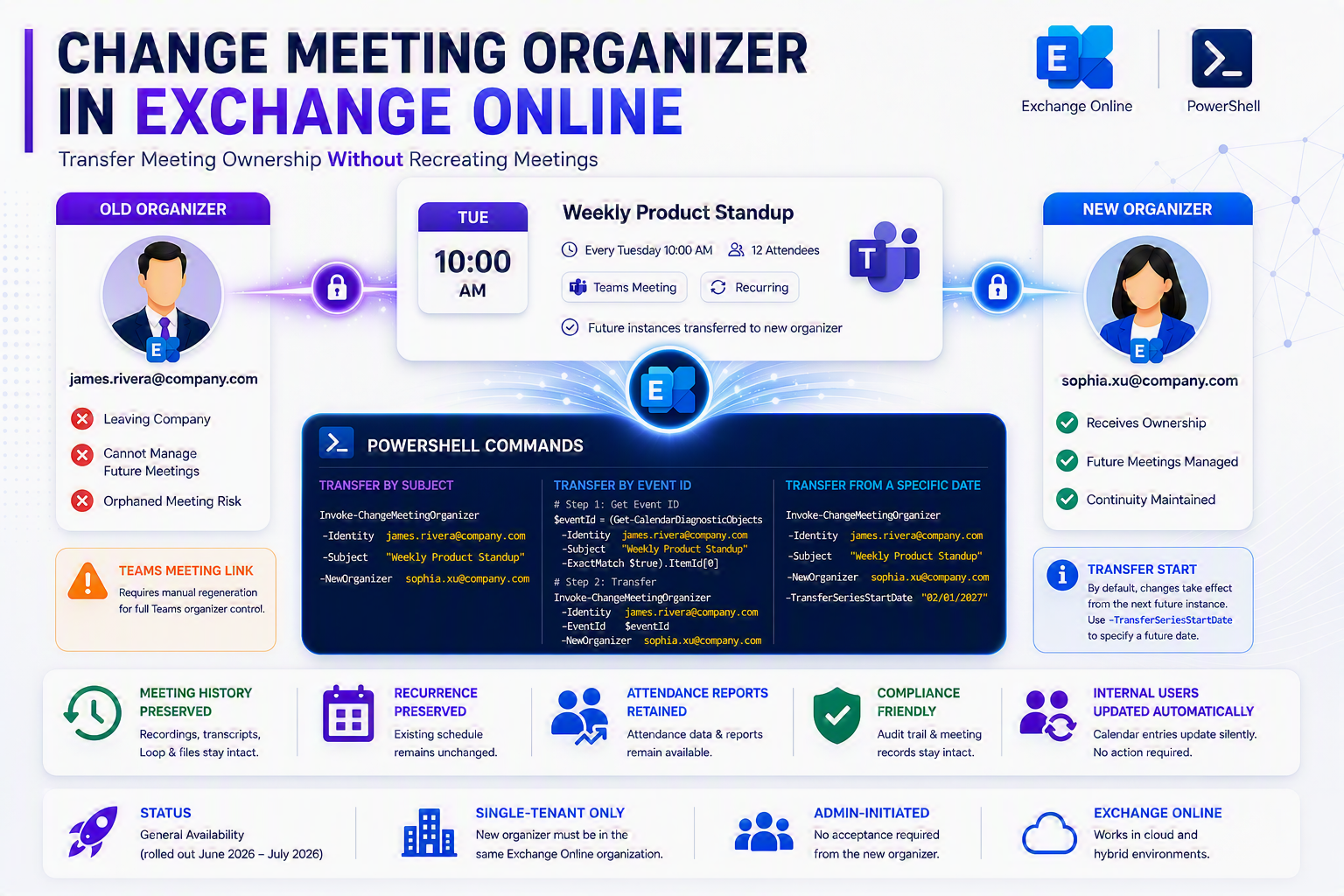
A meeting organizer in Microsoft 365 is locked in at creation time. Once set, that relationship is permanent — until the organizer deletes the event or their mailbox is deleted. This creates an operational headache when people change roles, transition to new teams, or leave the organization. Orphaned meetings pile up: stranded on attendees’ calendars, their history unreachable, and their details unchangeable by anyone else.
Until mid-2026, there was no supported way to change it. Admins had three bad choices: cancel and recreate (losing history and attendee responses), delegate permissions (awkward and limiting), or wait for mailbox deletion (leaving it broken). Now Microsoft provides a fourth option: the Invoke-ChangeMeetingOrganizer cmdlet, a PowerShell tool that transfers meeting ownership directly and cleanly, preserving history, attendee data, and compliance records.
⚡ General Availability: June–August 2026
Rolled out in June 2026, available to all Exchange Online tenants by August 2026. Requires ExchangeOnlineManagement PowerShell module v3.0 or later.
How Meeting Transfer Works
When you run the cmdlet, the meeting organizer property changes at the mailbox data layer. The transfer takes effect from the next future instance of a recurring series by default — or from a date you specify using the -TransferSeriesStartDate parameter.
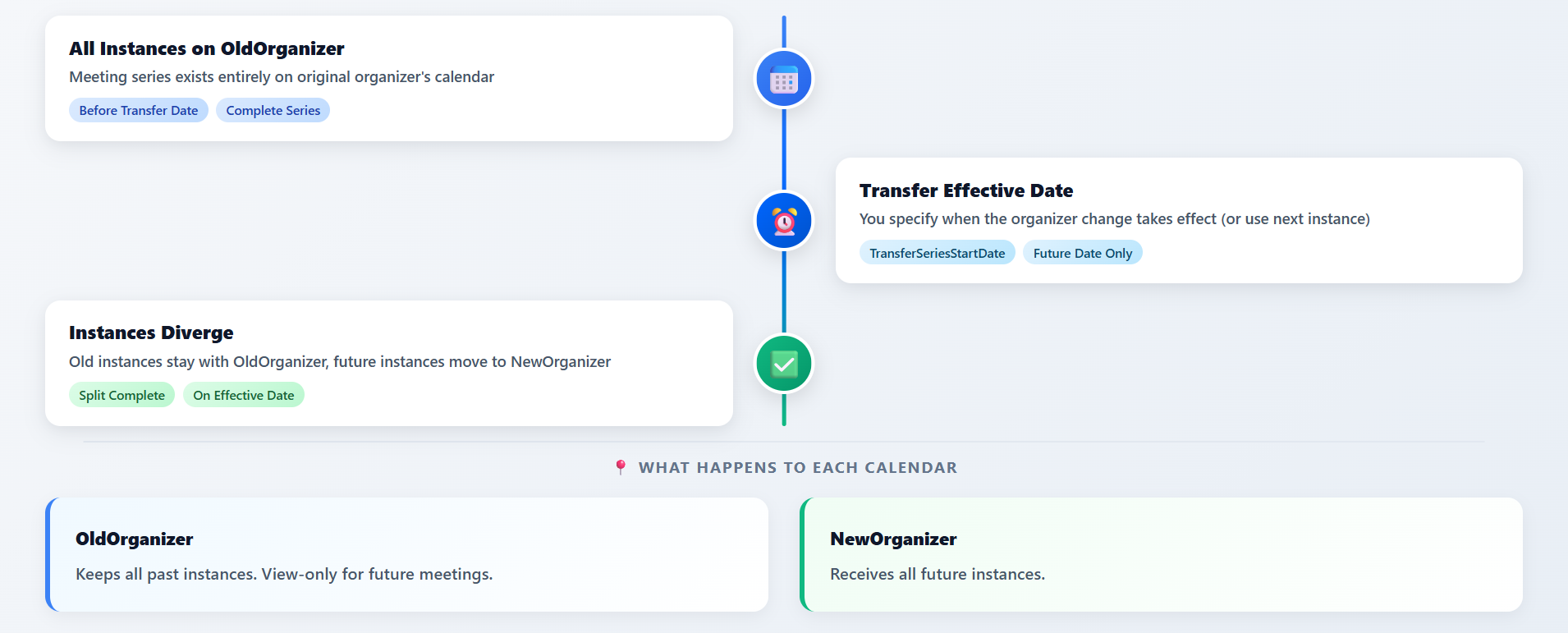
Past instances stay on the original organizer’s calendar — complete with recordings, transcripts, and attendance reports. Future instances move to the new organizer. This clean division preserves audit trails while enabling continuity.
Attendee Impact: Internal vs. External
Not all attendees experience the transfer the same way. The key difference: internal attendees (same tenant) receive a silent update; external attendees (other tenants, hybrid) receive formal messages and must re-accept.
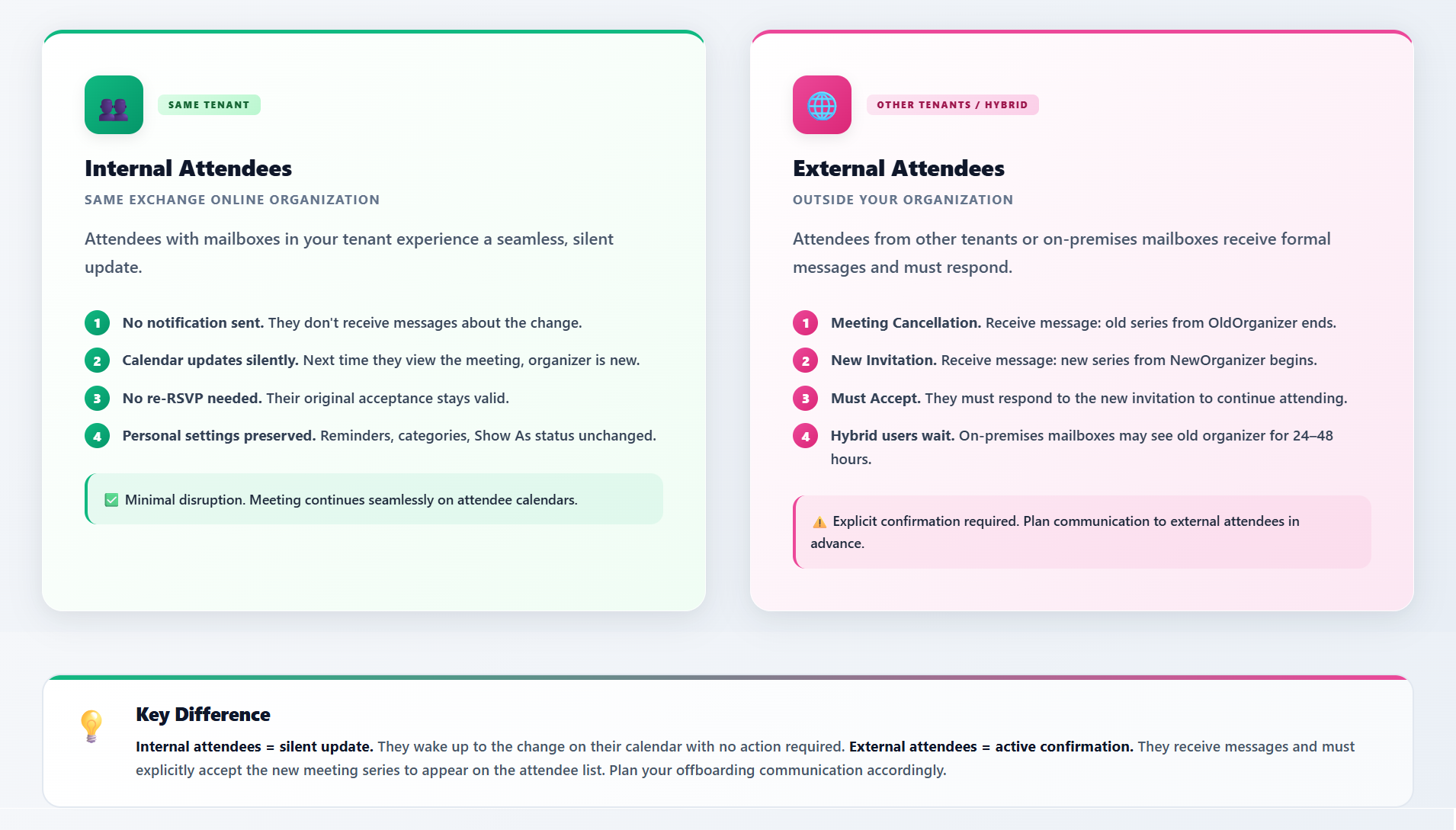
Internal attendees wake up to the change on their calendar with their personal settings (reminders, categories, Show As status) intact — no re-RSVP needed. External attendees receive two messages: a cancellation notice for the old series and an invitation to the new one, requiring explicit acceptance to appear on the attendee list.
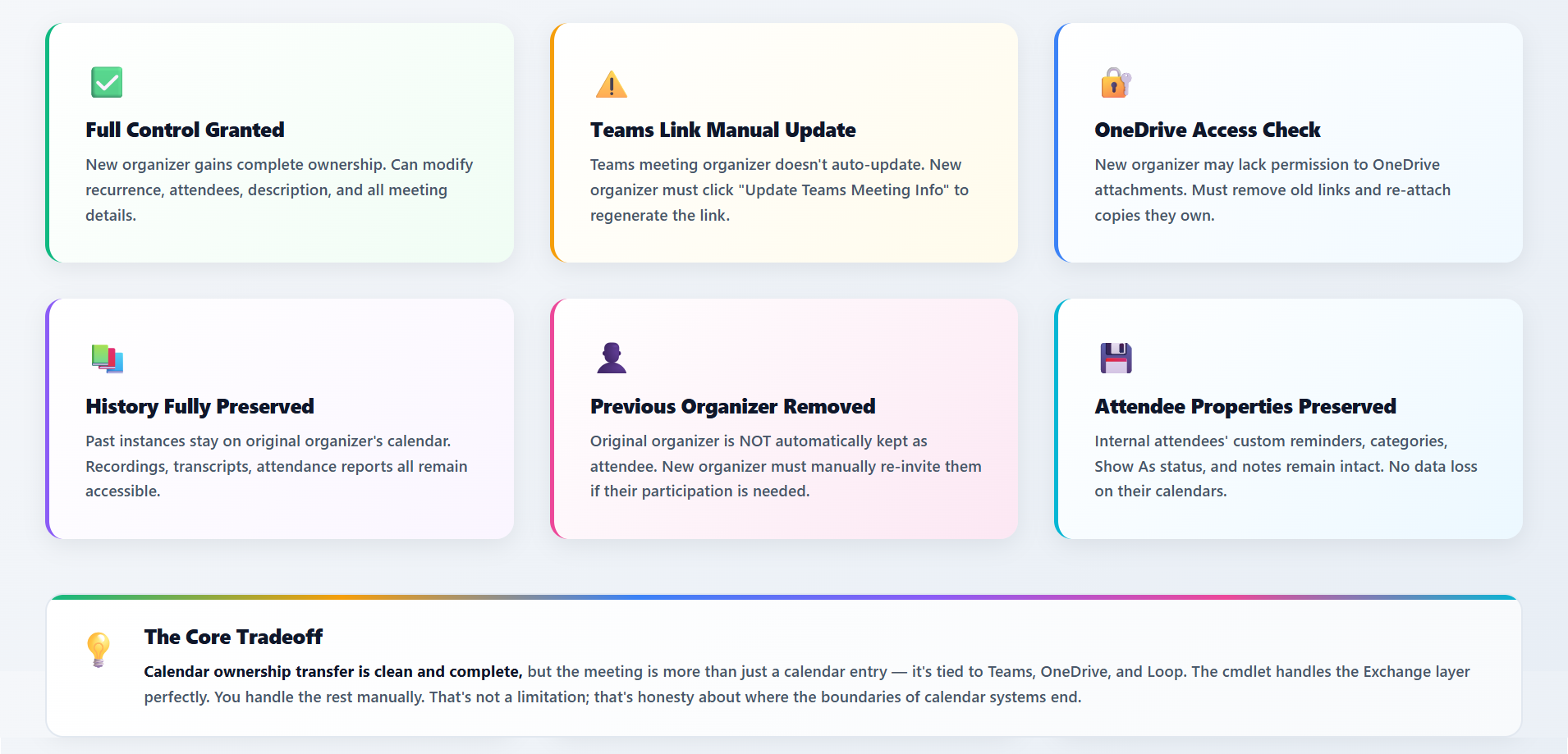
What Happens When Transfer Completes
Six key outcomes to expect when the cmdlet runs successfully. Understanding these consequences helps you plan the transfer and communicate expectations to stakeholders.
Prerequisites and Permissions
To run Invoke-ChangeMeetingOrganizer, you need:
- Exchange Online PowerShell module v3.0 or later. Install with
Install-Module -Name ExchangeOnlineManagement -Force - Connected to Exchange Online. Run
Connect-ExchangeOnline -UserPrincipalName admin@company.com - Exchange Administrator role or equivalent permissions (Recipient Management + Mailbox Import Export)
- Original organizer’s mailbox must exist during the transfer — do not delete it beforehand
- New organizer must have an active mailbox in the same tenant. Cross-tenant transfers are not supported; resource/shared mailboxes are not eligible
PowerShell Cmdlet Syntax
Basic Syntax: Transfer by Meeting Subject
Generic template:
Invoke-ChangeMeetingOrganizer -Identity  `
  -Subject "" `
  -NewOrganizer
Real-world example:
Invoke-ChangeMeetingOrganizer -Identity james.rivera@company.com `
  -Subject "Weekly Product Standup" `
  -NewOrganizer sophia.xu@company.com
Parameter reference:
- -Identity: Email or UPN of the current meeting organizer
- -Subject: Exact subject line of the meeting (case-insensitive)
- -NewOrganizer: Email or UPN of the new organizer
- -TransferSeriesStartDate (optional): Specific date from which transfer takes effect (e.g., “2027-01-15”)
- -EventId (alternative): Use instead of -Subject if the subject is ambiguous or matches multiple meetings
- -WhatIf: Validate syntax without executing
Advanced: Transfer When Subject Is Ambiguous
If multiple meetings share the same subject, use the -EventId parameter instead. First, find the Event ID:
Get-CalendarDiagnosticObjects -Identity james.rivera@company.com `
  -Subject "Weekly Product Standup" | Select-Object ItemId, Subject, Organizer
Then transfer using the ItemId:
Invoke-ChangeMeetingOrganizer -Identity james.rivera@company.com `
  -EventId "AAMkADg2NzgyMzQ4LWRjZmItNDc4YS1hYTM4LWQ3NTc5NWEzN2UyOABGAAAAAAA=" `
  -NewOrganizer sophia.xu@company.com
Real-World Scenarios
Offboarding with Meeting Continuity
A product manager who coordinated the quarterly business review is leaving. The meeting includes internal attendees, external partners, stored recordings, and collaborative Loop notes. Before this feature, IT would recreate the entire series, breaking the link to historical recordings. With the cmdlet:
Invoke-ChangeMeetingOrganizer -Identity margaret.torres@company.com `
  -Subject "Q1 2026 Business Review" `
  -NewOrganizer david.ng@company.com
The meeting continues seamlessly. Internal attendees see the new organizer on their next calendar refresh. External partners receive two messages (cancellation, new invitation) but the time and details stay unchanged. David can now modify the meeting and manage attendees. All historical recordings remain linked and accessible.
Leadership Change
A VP of Sales gets promoted to SVP. Their old team needs a new VP who should own the recurring meetings (regional manager syncs, sales forecasting). Without this feature, you’d recreate each meeting. With it, batch-transfer in one PowerShell run:
$oldVP = "sarah.johnson@company.com"
$newVP = "michael.chen@company.com"
$meetings = @("Regional Manager Sync", "Quarterly Sales Forecast")
foreach ($meeting in $meetings) {
  Invoke-ChangeMeetingOrganizer -Identity $oldVP -Subject $meeting -NewOrganizer $newVP
}
Best Practices
Batch Transfers During Planned Offboarding
Don’t transfer one meeting at a time over weeks. Instead, collect all meetings the departing person organizes, then transfer them in a single PowerShell script run during a maintenance window. This minimizes disruption and keeps communication focused.
Notify External Attendees in Advance
External attendees will receive two automatic messages, but give them context beforehand. Send an email one week before: “Sarah’s moving to a new role. Her recurring meetings will continue under Michael’s leadership. You’ll receive updated invitations — please accept them.”
Pre-Brief the New Organizer
If the meeting has a Teams component, tell the new organizer: “Before the first meeting, open it and click ‘Update Teams Meeting Info’ to regenerate the Teams link under your credentials.” This ensures the Teams meeting isn’t stuck under the old organizer.
Document in Your Change Log
For compliance and audit trails, log the transfer: original organizer, new organizer, meeting subject, effective date, and business reason. This supports future audits and governance reviews.
Test with a Low-Impact Meeting First
Before transferring critical meetings (executive briefings, board calls), test with a recurring internal standup. Use -WhatIf to validate, then run the actual transfer. Confirm a few attendees see it correctly before proceeding to high-stakes meetings.
The Bottom Line
The Invoke-ChangeMeetingOrganizer cmdlet closes a gap in Exchange Online meeting management. It allows admins to transfer ownership cleanly, preserving history, minimizing attendee disruption, and maintaining compliance records. Use it during offboarding, role transitions, reorganizations, and compliance audits where meeting continuity matters.
Understand the key limitations: single-tenant only, Teams meeting component requires manual update, and external attendees must re-accept. With those guardrails in place, you have a powerful tool for meeting continuity that was simply not possible before mid-2026.
Meeting ownership was locked in. Now you hold the key.