


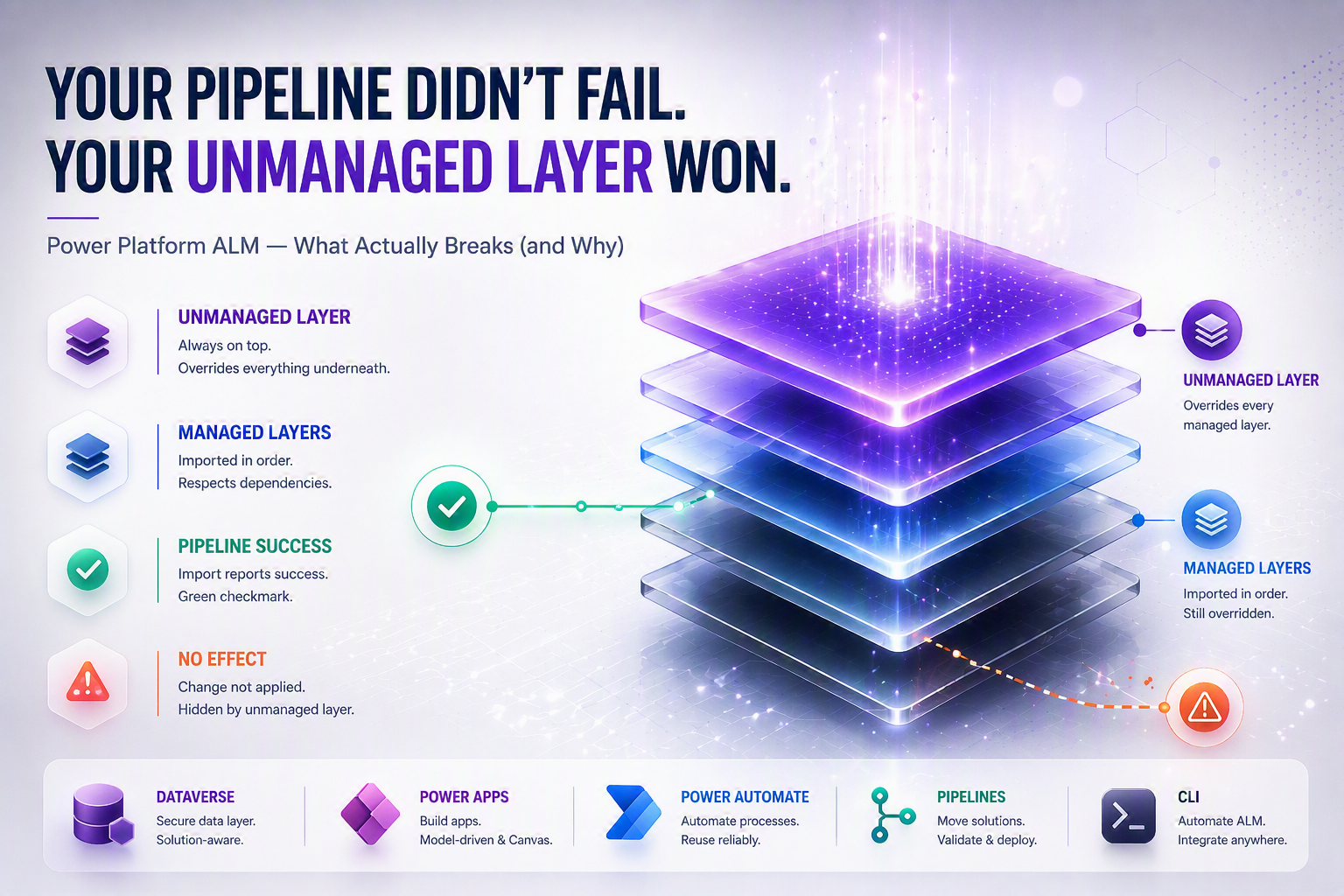
A managed solution import reports success. The pipeline log is clean. And yet the value your test team is staring at is exactly the one your last release was supposed to fix. If you have worked in Power Platform ALM (application lifecycle management) for more than a few months, this has probably happened to you — and the instinct is almost always to blame the pipeline. It is almost never the pipeline.
This article walks through what actually breaks in Power Platform ALM, why it breaks, and what the fix looks like in practice — using one running scenario instead of a checklist. The scenario is a fictional retail operations company, Northwind Field Services, moving from a single shared environment to a proper multi-environment strategy. Two people show up repeatedly: Priya, a citizen developer, and Marco, a platform admin trying to do the right thing under time pressure. Their mistakes are the kind every Power Platform team eventually makes — and the platform actually has good answers for all of them, once you know where to look.
The problem ALM actually solves
Before talking about solutions, environments, or pipelines, it’s worth being precise about what Application Lifecycle Management is actually protecting you from.
ALM is the set of practices and tooling that controls how an application moves from “someone is building it” to “the business depends on it” — and how it keeps changing safely after that point. In Power Platform terms, that means controlling how Dataverse tables, columns, and relationships, Power Apps (both canvas and model-driven), Power Automate cloud flows, security roles, Copilot Studio agents, and plugins all move between environments without breaking each other or losing data along the way.
Here’s the failure mode that shows up in real projects, almost word for word. Priya, a citizen developer at Northwind Field Services, builds a canvas app and three flows directly in the org’s single Dataverse environment — no solution, no separation between her work and anyone else’s. Six months later, two more makers are building in that same environment. A flow update from one maker silently changes a choice column that another maker’s app depends on. Nobody knows who changed what, because nothing was ever tracked in a container.
This isn’t a hypothetical edge case. It’s the default outcome of skipping solutions entirely — and it’s precisely the failure mode ALM exists to prevent.
Solutions: the only mechanism that makes ALM possible
A solution is the packaging mechanism for every Power Platform component you build: tables, columns, relationships, forms, views, canvas apps, model-driven apps, cloud flows, security roles, plugins, web resources, environment variables, connection references — and yes, Copilot Studio agents and Dataverse–Finance & Operations dual-write mappings too. If it’s a customization, it belongs in a solution. There is no parallel mechanism for moving customizations between environments. Solutions are it.
This is worth stating plainly, because new makers often assume solutions are optional packaging reserved for “advanced” projects. They are not. Anything built outside a solution lands in the environment’s default solution — a shared bucket that every maker in that environment dumps into. The default solution has no owner, no clean export path, and no way to know which components belong to which project. Working outside a solution isn’t a simpler version of ALM. It’s the absence of ALM.
Managed vs. unmanaged — what the words actually mean
Every solution is either unmanaged or managed. The distinction governs what you’re allowed to do with the components inside it.
Unmanaged solutions
Editable containers. This is what you work in while building. Components inside can be added, modified, or removed freely — the correct thing to have open in your development environment.
Managed solutions
Sealed packages, generated by exporting an unmanaged solution with the “managed” option. You cannot edit components inside directly — change the unmanaged source and re-export. This is what you deploy to test, UAT, and production.
A rule that trips up almost every team coming from a “just get it working” mindset: you cannot import a managed solution into the same environment that contains its unmanaged source. If Priya builds {nf_FieldOpsCore} unmanaged in Dev, she cannot also import a managed version of {nf_FieldOpsCore} into that same Dev environment to “test the managed package.” Testing a managed export requires a genuinely separate environment. This single constraint is why a minimum of two environments — Dev plus somewhere that isn’t Dev — is the absolute floor for any real ALM process, not a nice-to-have.
⚠️ Watch out
Deleting a managed solution is destructive in a way unmanaged deletion is not. Removing an unmanaged solution only deletes the container — customizations inside stay active, now belonging to the default solution. Removing a managed solution deletes the components themselves, including any data stored in custom tables or custom columns that belonged exclusively to that managed solution. This is not a UI confirmation dialog you skim past in production.
Solution publishers and prefixes
Every solution has a publisher, and every publisher has a prefix — for example, {nf_} for Northwind Field Services. The prefix exists purely to prevent naming collisions when multiple solutions, from your team, from a partner, from an ISV, coexist in the same environment.
Here’s the operational catch: once a component is created under a given publisher, you cannot change which publisher owns it later. If Priya creates the {nf_workorder} table under the “Northwind Field Services” publisher and the team later decides to consolidate under a new corporate publisher, that table cannot simply be reassigned — it stays tied to its original publisher permanently. This is why solution architects insist on deciding the publisher and prefix on day one, before the first table or flow exists. There usually isn’t a clean way to fix it later.
— Microsoft’s own ALM guidance
Solution layers: the mechanism almost nobody fully understands
This is the part of ALM that causes the most production incidents, and it’s rarely explained well. If you only take one section of this article seriously, take this one.
The two layer types
Inside a Dataverse environment, every customizable component sits on a stack of layers:
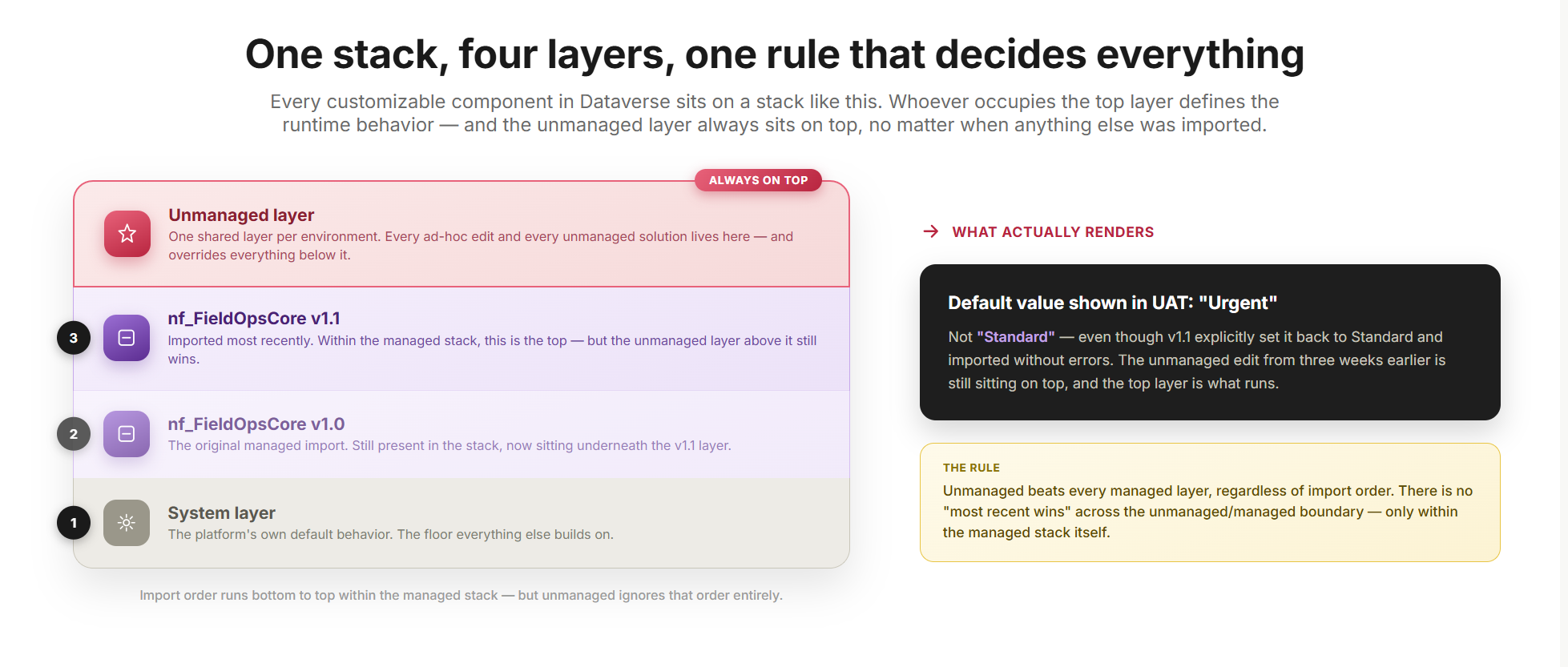
- The unmanaged layer — a single, shared layer. All unmanaged solutions and all ad-hoc customizations made directly in the environment, through the maker portal, without going through any solution, live here. There is only one unmanaged layer per environment, no matter how many unmanaged solutions exist.
- Managed layers — sit below the unmanaged layer. Each managed solution you import adds a layer. If you import managed solution A and then managed solution B, B sits above A, meaning B can override properties A set on the same component — but only within the managed stack. At the very bottom is the system layer, containing the platform’s own default behavior.
The rule that actually matters: unmanaged always wins
Here’s the part that catches teams off guard, every single time: the unmanaged layer always takes precedence over every managed layer, regardless of which managed solution was imported most recently.
Walk through what this means with a concrete number. Suppose the {nf_workorder} table has a {nf_prioritylevel} choice column. The base managed solution, {nf_FieldOpsCore} version 1.0, sets its default value to “Standard.” Six months later, Marco — the platform admin — is troubleshooting a UAT issue and makes a quick, well-intentioned edit directly in the UAT environment: he changes the default to “Urgent” to unblock a tester, planning to “fix it properly later.” That edit, made outside any solution, creates an unmanaged layer on top of {nf_prioritylevel} in that environment.
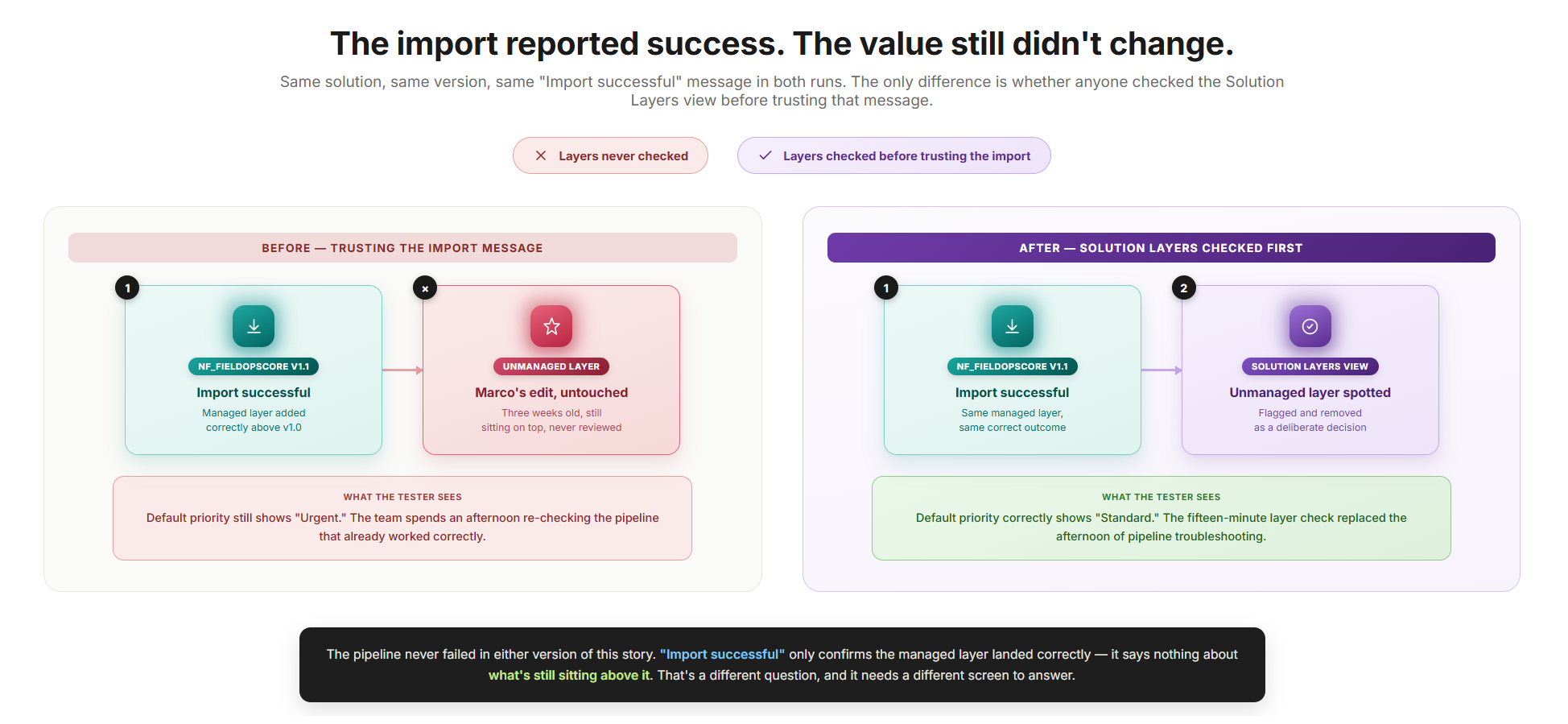
Three weeks later, the team ships {nf_FieldOpsCore} version 1.1 — a properly tested managed update that changes the default back to “Standard” and adds new validation logic. The import reports success. The new managed layer sits correctly in the stack, right above version 1.0. And the default value in UAT is still “Urgent.” Not because the deployment failed — it didn’t — but because Marco’s unmanaged edit from three weeks earlier is still sitting on top of the entire managed stack, and the unmanaged layer always wins regardless of import order.
This is the single most common “why didn’t my deployment take effect” support case in Power Platform ALM, and it has nothing to do with the pipeline, the connection, or the solution packaging. It is the layering model working exactly as designed. The fix is to open the component’s Solution Layers view — available from Advanced settings on most components in the maker portal — and explicitly remove the unmanaged layer. That action is irreversible and discards whatever the unmanaged change was protecting, so it has to be a deliberate decision, not a reflex.
Merge behavior: most components don’t merge at all
Most component types don’t blend their properties across layers — the runtime uses a strict “top layer wins” rule, full stop. The only exceptions are model-driven app definitions, forms, and site maps, which do merge content from multiple layers (a form can show fields added by two different managed solutions at once). Everything else — column properties, choice definitions, flow logic, security role privileges — is winner-takes-all. Don’t expect Dataverse to intelligently combine a managed update with an unmanaged tweak on a column’s max length. It won’t.
Patches and upgrades
Shipping a small fix to an already-deployed managed solution means choosing between two mechanisms that behave differently in the layer stack:
- A patch contains only the specific changes you’re shipping — a focused hotfix, stacking on top of the base managed layer with the newest patch above older ones. Patches can be uninstalled independently, which is exactly why they exist.
- An upgrade (a staged or “Upgrade” import) replaces the base layer once applied, flattening the base plus any patches into a single new base layer.
Microsoft’s own guidance is blunt: prefer upgrades over patches for anything beyond a genuine emergency hotfix. Each patch is one more layer to reason about; upgrades collapse everything back to a clean single layer instead.
Closing the door before it opens: Block Unmanaged Customizations
Everything above was a story about cleanup after the fact. There’s a better option for test, UAT, and production: prevent the unmanaged edit from ever being possible in the first place.
Block unmanaged customizations is an environment-level setting, off by default, found under Features in the environment settings. Once enabled, it refuses unmanaged solution imports, blocks creation of new components directly in the environment, and stops unmanaged changes from landing on top of an existing managed component — with a plain error message telling the user the admin disabled it. Had this been active on Northwind’s UAT environment, Marco’s quick default-value edit simply wouldn’t have happened; he’d have been redirected back to making the change in Dev, the way every other change is supposed to flow.
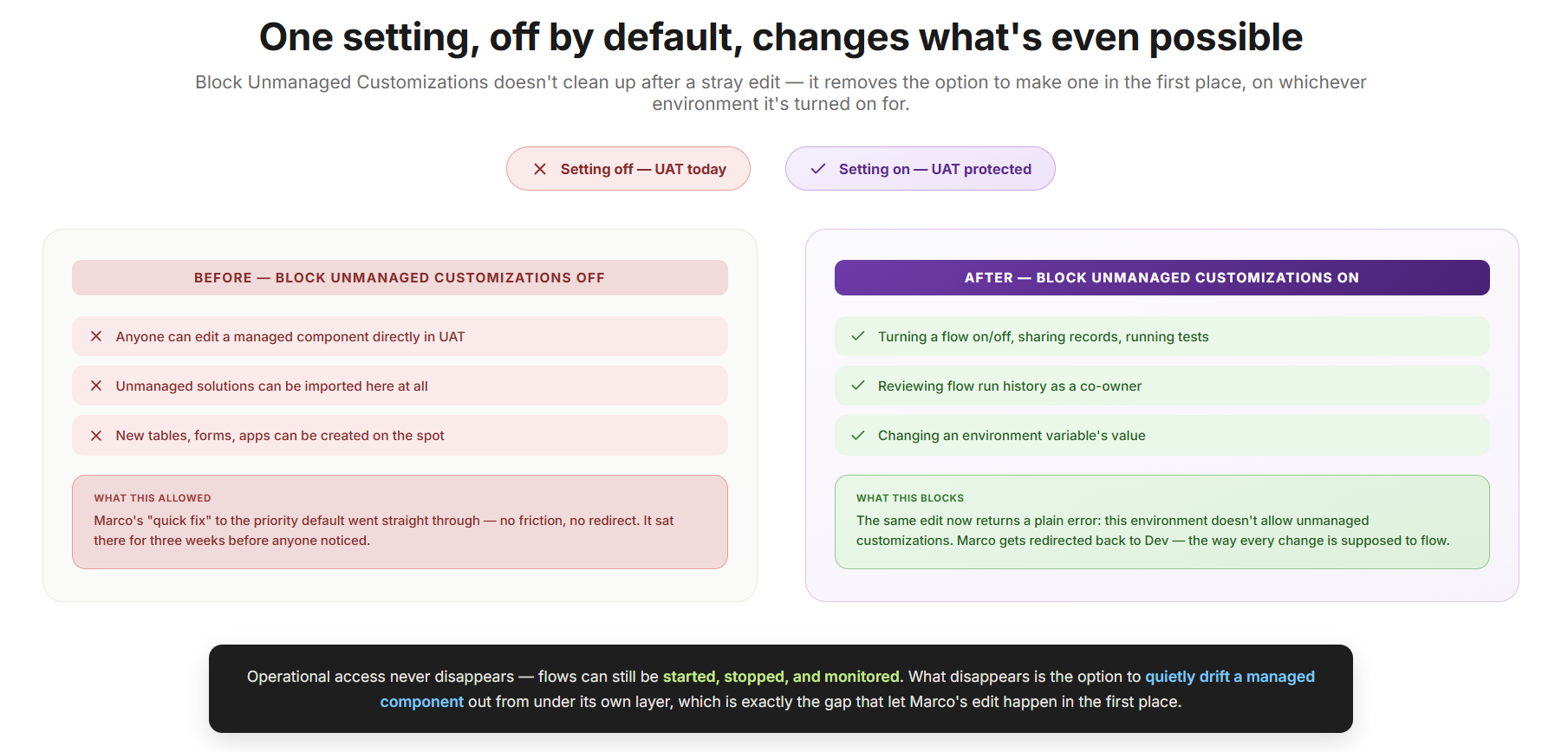
The setting stays narrow about what it blocks: turning a flow on or off, changing an environment variable’s value, sharing record ownership, and reviewing or running a flow all still work. That’s deliberate — it lets a support engineer hold co-owner access on a flow in UAT or production, enough to monitor and diagnose, without ever being able to drift the component out from under the managed layer.
💡 Pro tip
Check the known limitations before flipping this on for an environment already in active use. A handful of features — Resource Scheduling Optimization installs, legacy workflow enable/disable, SLA activation, Copilot Studio agent publishing, among others — simply don’t work with the block enabled. Microsoft’s guidance is to temporarily disable it if a project genuinely needs one of those specific operations.
Environments: the container strategy
Solutions need somewhere to move between. That’s what environments are: isolated containers, each with at most one Dataverse database, holding apps, flows, and data separately from other environments.
The minimum viable environment strategy
Microsoft’s own guidance, and every credible community voice, converges on the same floor: development and production alone is the bare minimum, and it is not actually recommended. A separate test environment — distinct from both Dev and Production — is what allows genuine end-to-end validation: importing the actual managed solution package and testing it before it ever touches production data and production users. Without that middle environment, your “testing” is really just testing in Dev, which tells you nothing about whether the managed export will behave the same way once sealed and imported elsewhere.
Larger organizations layer in UAT (user acceptance testing, where business stakeholders sign off) and SIT (system integration testing, where you validate behavior against other connected systems) as the project’s complexity demands. There’s no fixed number that’s correct for every org — but “Dev and Prod, nothing in between” is consistently flagged as the riskiest viable setup, not a clever shortcut.
Managed Environments — a feature, not a synonym
Here’s a naming collision that confuses even experienced makers, so it’s worth being explicit: “Managed Environments” and “an environment containing managed solutions” are two completely unrelated concepts that happen to share a word.
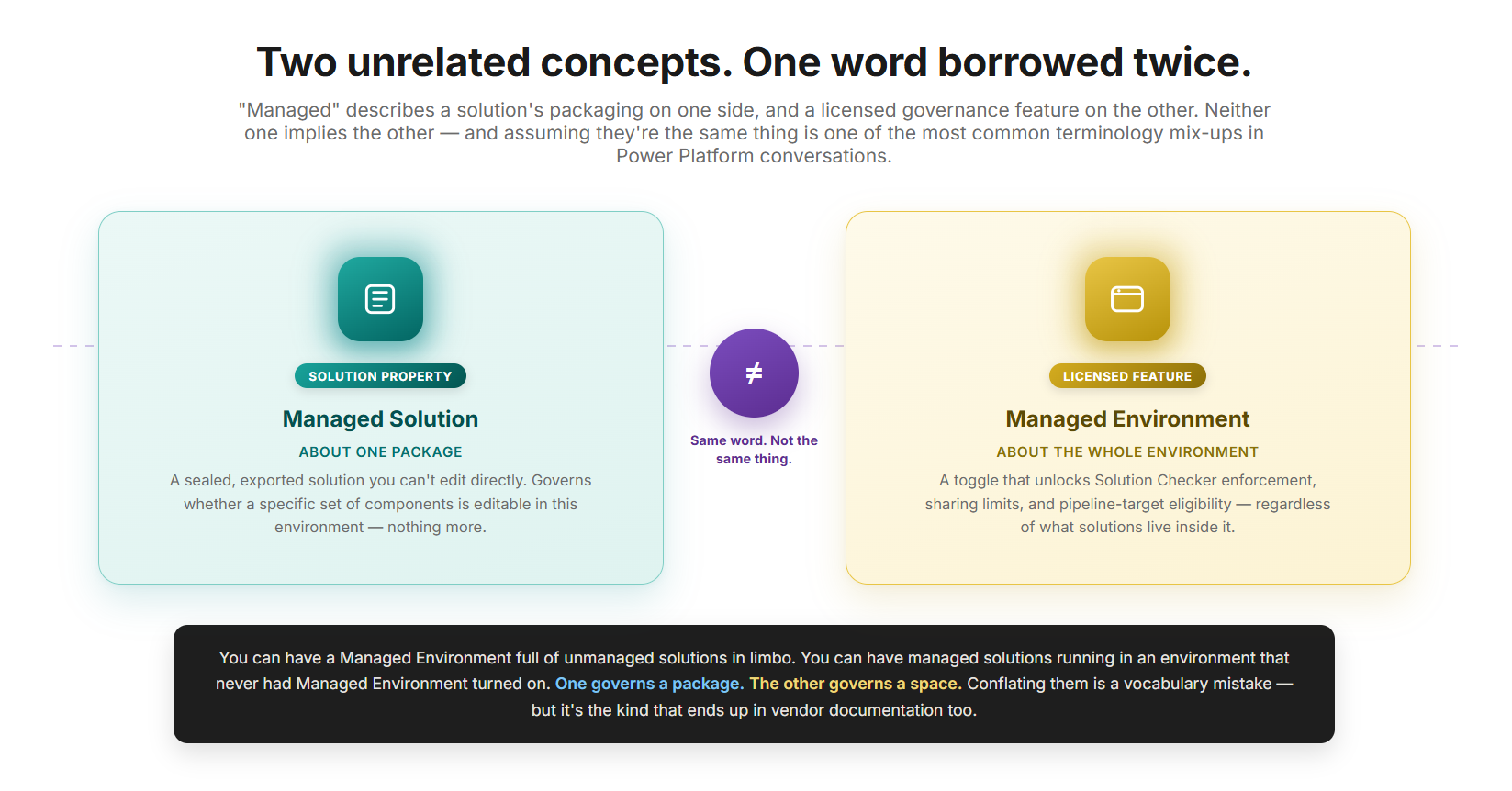
A managed solution, as covered above, is about the packaging and editability of a specific solution.
A Managed Environment is a separate, licensed Microsoft Power Platform feature — a suite of governance capabilities an admin can toggle on for any environment, of any type, regardless of whether that environment happens to contain managed or unmanaged solutions. Turning it on unlocks things like enforced Solution Checker validation on import, sharing limits for canvas apps, usage insights, and — under current Pipelines requirements — eligibility to act as a pipeline deployment target. It requires premium licensing and is configured from the Power Platform Admin Center, under Environments → (select environment) → Details, or via the newer Deployments → Settings area for pipeline-related configuration.
You can absolutely have an environment that is a Managed Environment and still contains only unmanaged solutions sitting in development limbo — though that’s an unusual, not-recommended combination. You can equally have an environment full of properly managed solutions that has never had the Managed Environment feature turned on at all. The two concepts are orthogonal. Conflating them is one of the more common terminology mistakes in Power Platform conversations — including, occasionally, in vendor documentation that should know better.
Settings you cannot change after the fact
A handful of environment-level settings are fixed at creation and survive only by recreating the environment from scratch: base language, currency, and whether Dynamics 365 first-party apps (Sales, Customer Service, Field Service) get installed. Same story as the publisher prefix covered earlier — decide before you build, because there’s no clean fix later.
⚠️ Important
The geographic region setting carries a sharper, ALM-specific consequence: you cannot reliably import a solution into an environment running an older platform version than the one it was exported from. For organizations running production across multiple regions, the development environment’s region needs to stay at or ahead of every production region it feeds — not behind any of them. Get this backwards, and a solution exported from a newer Dev can fail to import into an older Production, for reasons that have nothing to do with the solution’s actual content.
Structuring solutions across a real project
Knowing what a solution is doesn’t tell you how many solutions a given project should have, or how they should relate to each other. This is where teams either keep things sane or build themselves a maintenance nightmare.
The default: one unmanaged solution per development environment
For most projects, the right starting point is exactly one unmanaged solution per development environment, containing everything that environment is building. Splitting components across multiple unmanaged solutions in the same Dev environment — for no structural reason — creates cross-solution dependencies that turn into upgrade and deletion headaches downstream, for very little benefit. If two solutions both contain tables, and those tables end up related to each other, you’ve manufactured a dependency between solutions that didn’t need to exist.
There are a small number of legitimate exceptions where splitting is the correct call, not an accident:
- A custom connector plus the flows that consume it are best kept in two separate solutions. The connector has a different lifecycle and different ownership concerns than the flows built on top of it.
- Service Level Agreement (SLA) definitions, in Dynamics 365 contexts, deactivate automatically after the solution containing them is imported — easier to manage when SLAs live in their own dedicated solution.
- Automatic Record Creation rules, similarly, behave more predictably when isolated in their own solution rather than bundled with general customizations.
The layered architecture pattern for genuinely large projects
For enterprise-scale projects — multiple application teams, strict governance requirements, CI/CD pipelines as a hard requirement rather than an aspiration — a different structure earns its complexity: a base/extension layering pattern.
Here’s how it plays out at Northwind Field Services as the org scales past a single team: a base solution ({nf_FieldOpsCore}) contains shared foundational components — the core {nf_workorder} and {nf_fieldteam} tables, shared security roles, common business logic. This base solution is built and deployed as managed into every downstream environment first.
Each application team then gets its own isolated development environment, into which the managed base layer is imported, and on top of which the team builds an app-specific unmanaged solution — say, {nf_DispatchExtensions} for the team handling field dispatch scheduling, or {nf_BillingExtensions} for the billing team. Each extension solution is exported as managed and depends explicitly on the base layer underneath it. In production, you import the base managed solution first, then each extension managed solution on top, creating exactly the dependency chain you intended — rather than an accidental one.
This pattern is deliberately reserved for genuinely large, multi-team, governance-heavy projects. For a single team building a departmental app, it’s substantial unnecessary process. Microsoft’s own guidance is explicit that organizations should keep the total number of solutions as small as the project genuinely requires — layering is a tool for managing real complexity, not a default architecture to reach for on every project regardless of size.
What belongs in your solution — and what doesn’t
A question worth asking before every export: does this component actually need to be here?
Solutions quietly bloat over time when makers add more than what’s strictly needed. Your project needs one extra column on an out-of-the-box table? Then the solution should contain that table and that column — not every other column, view, and form pulled in because the maker portal made “select the whole table” the easy option. Over-inclusion creates implicit dependencies that make layering issues considerably harder to troubleshoot later, since the solution now claims ownership of properties it never intended to manage.
The inverse failure is just as real and harder to catch: a flow quietly comes to depend on a column nobody added to any solution, and the gap surfaces only when that flow ships without it. This needs to be a continuous discipline, checked before every export — not a box ticked once at kickoff and forgotten.
One habit worth building early: use “Set as Preferred Solution” for your project’s primary unmanaged solution in each environment. It tells the maker portal where new components land by default, which keeps a maker from accidentally creating something in the wrong solution — or worse, in the shared default solution.
Dependency tracking enforces the order you intended
Go back to the base/extension pattern above: {nf_FieldOpsCore} as the base, {nf_DispatchExtensions} layered on top of it. That dependency isn’t just a design intention the architecture diagram captures — Dataverse tracks it as an actual, enforced relationship between the two managed solutions.
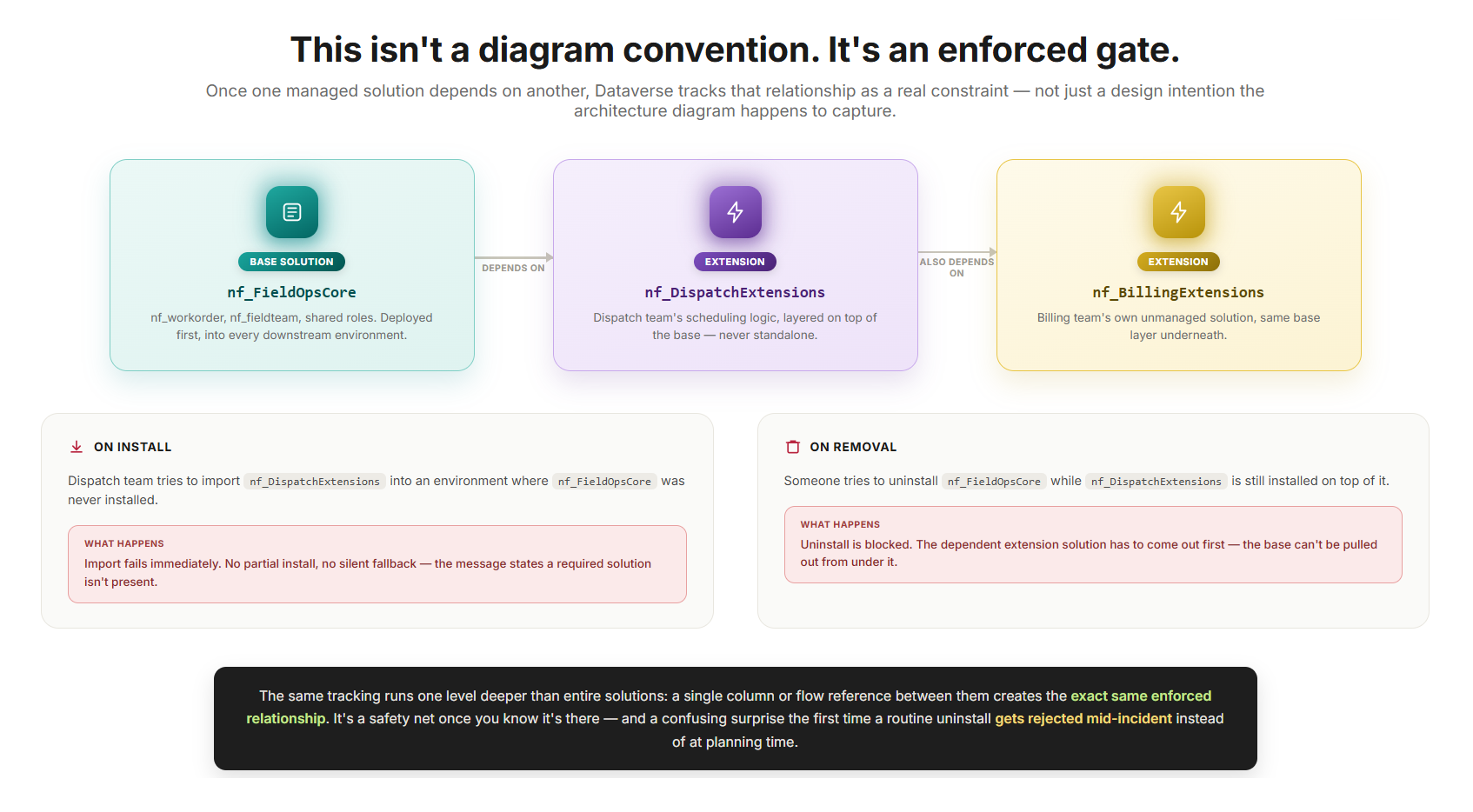
⬇️ On install
If someone on the dispatch team tries to import {nf_DispatchExtensions} into an environment where {nf_FieldOpsCore} was never installed, the import simply fails — a message states a required solution isn’t present. No partial install, no silent fallback.
🗑️ On removal
As long as {nf_DispatchExtensions} remains installed, {nf_FieldOpsCore} cannot be uninstalled out from under it. The dependent solution has to come out first.
This same tracking operates one level deeper, at the level of individual components rather than entire solutions: a column added to {nf_workorder} that a flow elsewhere depends on creates that same enforced relationship. It’s the platform refusing to let you pull the foundation out from under something still standing on it — genuinely useful once you know it’s there, considerably more confusing the first time you hit it without warning. Better to know about the mechanism before a routine uninstall gets rejected than to discover it during the incident call.
Connection references and environment variables: why they exist at all
A solution that hardcodes a SharePoint site URL or a specific database connection will work flawlessly in Dev and then fail, confusingly, the moment it’s imported into Test. This is close to a rite of passage in Power Platform development — nearly every team learns this lesson in production at least once before adopting the fix properly.
Connection references
Decouple a flow’s reference to a connector from the actual authenticated connection. The reference travels inside the solution. The actual connection — the live, authenticated link to a SharePoint site, mailbox, or SQL server — never travels with it, because credentials don’t move between environments. On import, every connection reference arrives unbound and has to be bound to a connection that already exists in the target environment.
Environment variables
Solve a related but distinct problem: configuration values that genuinely differ between environments but aren’t connection credentials — a SharePoint site URL, an API base address, a notification distribution list, a feature toggle. The definition travels with the solution; the value is set per environment, interactively or pre-populated via a deployment settings JSON file generated through {pac solution create-settings}.
Which mechanism to use isn’t always obvious: a connector authenticating through Microsoft Entra ID only knows “this is an authenticated user,” with no inherent concept of which SharePoint site or list that user means — an environment variable supplies that missing context. Older connection-string-style authentication, like classic SQL Server connections, already bundles server and database into the connection itself, making a separate environment variable redundant there.
🎯 Key takeaway
A secret-type environment variable masks its value in the standard maker UI, but it is not equivalent to a secrets vault — admins with elevated privileges can still see it, and it isn’t intended as the long-term home for sensitive runtime secrets shared across many components. For anything genuinely sensitive at scale, pair environment variables with a proper secret store (commonly Azure Key Vault), with the variable holding a reference to the vault entry rather than the secret itself.
From manual exports to pipelines: the automation spectrum
Everything described so far works whether you’re exporting and importing solutions by hand or running a fully automated pipeline. But “works” and “scales” are different claims, and this is where ALM maturity becomes a genuine spectrum rather than a binary.
| Approach | Best fit | Trade-off |
|---|---|---|
| Manual export/import | A single maker on a low-stakes departmental app | Zero traceability, no approval gate, depends entirely on a human doing every step in order |
| Power Platform Pipelines | Most teams without an existing Azure DevOps investment | In-product, low-friction, no YAML — but every target environment must be a Managed Environment |
| Build Tools / GitHub Actions | Organizations with real DevOps capability already in place | Full CI/CD and code-first scenarios — overkill as a first step for a team new to CI/CD |
| Dataverse Git Integration | Teams ready to treat the repository as the source of truth | Inverts the traditional flow — actively evolving, not yet a finished standard |
Manual export/import — the floor, not a destination
Manually exporting a managed solution and importing it into the next environment is the simplest possible ALM process — adequate, maybe, for a single maker on a low-stakes departmental app. It’s also zero traceability, no enforced approval gate, and total dependence on a human doing every step correctly, in order, every time. Add more makers and more environments, and “someone forgets a step” stops being a risk and starts being a certainty.
Power Platform Pipelines — the built-in, low-friction path
Pipelines are Microsoft’s native, in-product answer to structured deployment, and for most teams that haven’t already invested heavily in Azure DevOps, they’re the sensible default starting point rather than something to grow into eventually.
A pipeline links a development environment to one or more downstream stages — test, then production, for example — and lets a maker initiate a deployment directly from inside the maker experience: no separate DevOps tooling, no YAML, no prior ALM expertise required. Connections and environment variables are validated and surfaced before the deployment actually runs, missing dependencies are caught up front rather than discovered mid-import, and the exported solution artifact is protected against tampering once it’s in the pipeline.
⚠️ Important — effective February 2026
The pipeline host environment must be a production-type environment, though it doesn’t itself need the Managed Environment feature turned on. Every other environment the pipeline deploys into does need Managed Environment enabled — and this is no longer just a recommendation. Starting February 2026, Microsoft began automatically enabling Managed Environments on any pipeline target environment that wasn’t already configured that way, notifying affected tenants through the Microsoft 365 Message Center. Treat “every pipeline target is a Managed Environment” as the current baseline, not a future hardening step.
Power Platform Build Tools and GitHub Actions — for teams with DevOps already in place
For organizations with an existing Azure DevOps or GitHub investment, Power Platform Build Tools and GitHub Actions for Power Platform extend the native pipeline concept into full CI/CD: solutions get version-controlled in Git as unpacked source via Solution Packager, code-first scenarios become possible, and elevated downstream permissions for individual makers are no longer required because a service principal handles deployment instead.
This path demands real DevOps capability: someone who can build and maintain YAML pipelines, manage service connections, and troubleshoot failures that have nothing to do with Power Platform and everything to do with how Azure DevOps or GitHub Actions work generally. The right call when that capability already sits unused, or when a hard requirement — code review gates, specific compliance trails — native Pipelines doesn’t yet satisfy. Overkill as a first step for a team that’s never run CI/CD before.
A note on the ALM Accelerator
Teams researching Power Platform ALM will inevitably run across the ALM Accelerator for Power Platform — historically a popular open-source canvas app sitting on top of Azure DevOps pipelines. As of current Microsoft guidance, the ALM Accelerator is deprecated: no new features, no issue review beyond security reports. Microsoft’s explicit direction is to use native Pipelines instead, extending into Build Tools or GitHub Actions when more control is genuinely needed. If older documentation, a course, or a colleague’s notes reference the ALM Accelerator as the recommended path, treat that as outdated — it described the right answer for its time, not for now.
Dataverse Git Integration — the newer, source-first option
A more recent addition worth knowing about, even if it isn’t yet the default for most teams: Dataverse Git Integration lets a development environment sync directly with a Git branch, treating the repository — rather than the environment itself — as the authoritative source of a solution’s components. This inverts the traditional flow into something closer to standard software engineering practice, where the environment reflects what’s in source control rather than the other way around. It’s actively evolving rather than a finished, universally-adopted standard, so current official documentation is the right place to check before committing a project’s entire workflow to it.
Staying current: why ALM guidance has a shelf life
Notice the phrasing above: Dataverse Git Integration is “actively evolving,” not a settled standard. That’s not hedging — it points to a broader truth about everything in this article.
Which Power Platform features are “solution-aware” — packageable into a solution, movable between environments — isn’t fixed. It changes with every release wave, Microsoft’s twice-yearly rollout cycle. A feature that ships experimental and environment-bound in one wave may become fully solution-aware later. Or it may not; some stay tied to their originating environment indefinitely, by design.
🎯 Key takeaway
Never assume a brand-new feature has a complete ALM story just because it’s generally available. GA describes functional readiness, not packaging readiness — not whether it survives a managed solution upgrade cleanly. Verify solution-awareness against current Microsoft documentation rather than reasoning by analogy from an older, similar feature. Analogy is a reasonable starting guess. It has also burned more than one architect who assumed too quickly.
Closing the loop: what “good” actually looks like
Pull the threads together, and a coherent ALM setup for a team like Northwind Field Services looks almost boring: one publisher and prefix, decided before anything existed. One unmanaged solution per Dev environment, deliberately scoped. Three environments minimum, with test doing real validation instead of standing in as a second Dev. Managed solutions deployed downstream, never hand-patched in place — and Block Unmanaged Customizations on, so the drift Marco introduced earlier can’t happen there again. Connection references and environment variables carrying everything that legitimately changes between environments. A pipeline, scaled to the team’s actual DevOps maturity, replacing manual export/import as the stakes grow.
None of it is exotic. Every piece is documented and exactly how Microsoft intends the platform to be used. The teams that get hurt aren’t the ones working with unfamiliar tools — they’re the ones who never built the habit of checking the layer stack before assuming the pipeline is broken.
Your pipeline didn’t fail. Your unmanaged layer won.