



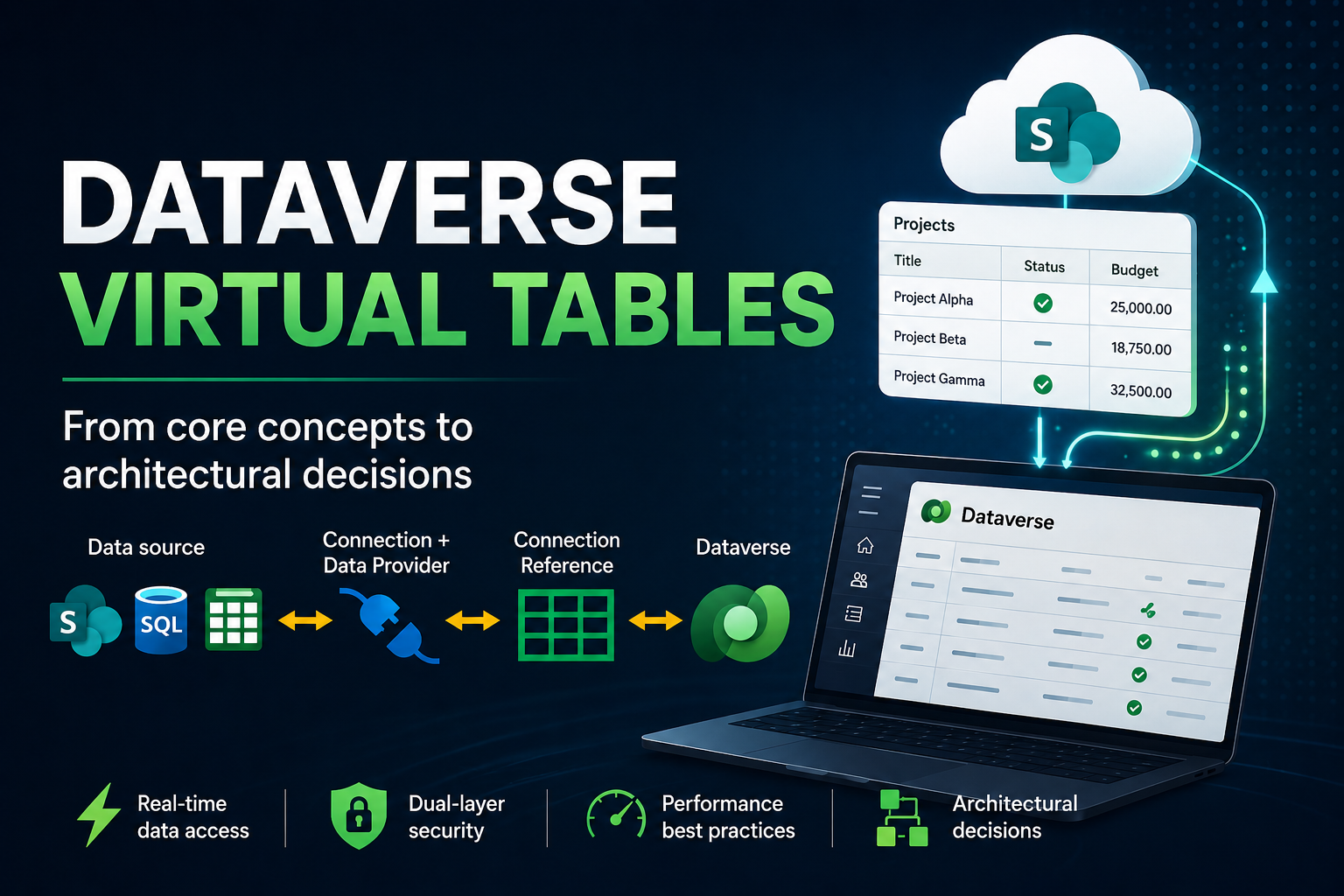
📌 The interface screenshots in this guide are illustrative simulations. Microsoft ships platform updates multiple times a year — button labels, wizard steps, and layout details can change without notice. What you see in your environment may look different. The concepts, configuration steps, and architectural decisions described in this guide are stable and apply regardless of UI changes.
At some point in almost every Power Platform project, you hit the same wall: the data you need is somewhere else. A SharePoint list the operations team has been using for years. A SQL Server database on-premises. A Snowflake data warehouse. And the question is always the same — do you copy everything into Dataverse, keep it synchronized, and deal with the overhead? Or is there a smarter way?
There is. It is called a Virtual Table. And once you understand how it actually works — not just the happy path, but the real behavior under load, the hard limits, and the traps that will catch you in production if you are not prepared — it becomes one of the most powerful tools in your architecture toolkit.
This guide covers everything: what Virtual Tables are, how they work internally, how to create one step by step, how to use them across Power Platform, when to use them and when not to, and the things the official documentation does not tell you.
What they are and why they exist
💡 Important before we start: Power Apps can read SharePoint directly, without going through Dataverse. You do not need a Virtual Table simply to build a Canvas App on top of a SharePoint list. Virtual Tables are designed for a different scenario: Dataverse is already part of the project — because the solution uses Dynamics 365, a Model-Driven App, or Power Pages — and those systems need to see data that lives in an external source, without duplicating it.
The typical scenario
The sales team uses Dynamics 365 Sales to manage customers and opportunities. The operations team maintains logistics data in a SharePoint list that they do not intend to migrate. A sales rep wants to see the logistics information directly inside Dynamics 365 while working on an opportunity — without leaving the application, without duplicating the data.
— The canonical Virtual Table scenario
The classic solution would be to copy data from SharePoint into Dataverse using Power Automate, keep it synchronized, and handle conflicts. Data in Dataverse risks becoming stale. Virtual Tables solve this differently: the data stays in SharePoint, and Dataverse exposes it as if it were its own, reading it directly at the time of each request.
Other common scenarios
- Model-Driven App with historical SharePoint data: project data that has always lived in SharePoint is surfaced in the Model-Driven App without migration.
- Power Pages with SharePoint content: a portal exposes content updated by internal teams via SharePoint lists, in real time.
- Dynamics 365 Customer Service with a SharePoint knowledge base: knowledge articles in SharePoint are visible to agents directly inside Dynamics 365 without replication.
Definition
A Virtual Table is a table in Dataverse that contains no data. Every time it is queried — by Power Apps, Power Automate, or a Model-Driven App — Dataverse reads the data directly from the external source at that moment.
Native Dataverse table:
  App requests data → Dataverse reads from its database → responds

Virtual Table:
  App requests data → Dataverse queries SharePoint → SharePoint responds → Dataverse returns data
From the application’s perspective, the behavior is identical. The difference lies entirely in the underlying architecture. A helpful analogy: a native table is a printed map — fast to read, but only as current as the last print run. A Virtual Table is Google Maps — it reads the current state every time, but depends on the connection being available.
⚠️ One-way decision: once a Virtual Table is created, it cannot be converted into a native Dataverse table. The reverse is also true. This is a permanent architectural choice.
This guide uses SharePoint — but the same applies to SQL, Snowflake, Fabric, and more
Everything in this guide is demonstrated using SharePoint as the data source. But every concept, every limitation, and every architectural consideration documented here applies equally to all supported sources. The Virtual Table mechanism is identical regardless of where the data lives. The query flow, the 1,000-record limit, the security model, the performance characteristics, the Power Automate trigger restrictions — all of these are properties of the Virtual Table layer itself, not of SharePoint. What changes between sources is only the connection configuration.
The data providers available
| Provider | How it works |
|---|---|
| Virtual Connector Provider (VCP) | Modern no-code approach. Covers SharePoint, SQL Server, Snowflake, PostgreSQL, Salesforce, Oracle, and Fabric. Created directly from the maker portal wizard. |
| OData v4 Provider | Built into Dataverse. Connects to any source exposing an OData v4 endpoint. Full CRUD. Requires a GUID-compatible primary key. |
| Azure Cosmos DB Provider | Available from Microsoft AppSource. For document-based Cosmos DB data. |
| Custom C# Provider | For proprietary APIs, legacy systems, or sources requiring custom transformation. Plugins registered for Create, Update, Retrieve, RetrieveMultiple, and Delete events. |
Supported sources and their scenarios
SharePoint Online (used throughout this guide): the canonical scenario — operations team data surfaced in Dynamics 365 without migration.
SQL Server (Azure SQL, on-premises via gateway): a manufacturing company runs a production execution system on SQL Server on-premises. The Field Service team needs machine maintenance history directly in service orders — without ETL, without replication. For organizations where compliance prohibits replication to the cloud, SQL Virtual Tables provide consolidated visibility across ERP, CRM, and legacy databases. Connection requirements: server name, database name, authentication, and an on-premises data gateway for on-premises SQL Server.
Microsoft Fabric (Preview as of May 2026): when line-of-business data from Azure SQL, Cosmos DB, or Snowflake needs to be surfaced inside a Dataverse application, makers can create Virtual Tables pointing at Fabric without data migration. Example: an Accounts Receivable team needs historical invoice data in Dynamics 365 Financials but the data spans multiple legacy systems and migration is cost-prohibitive.
Snowflake: generally available. Full CRUD operations — create, update, delete, retrieve — with real-time data access. Power Automate flows can also execute custom SQL statements against Snowflake. Connection requirements: Service Principal, Snowflake SaaS URL in the format organization.account.snowflakecomputing.com, database name, warehouse name, role, and schema.
Salesforce (Preview as of May 2026): surface Salesforce opportunity, account, or case data in a Model-Driven App without integration middleware. Connection requires selecting the Salesforce API version (v41.0 or later). Verify GA status before production use.
Oracle (Preview as of May 2026): for Oracle EBS, Oracle Database, or similar. Surface credit limits, invoice history, or product catalogs in Dynamics 365 without nightly batches. Requires an on-premises data gateway. Server format: Server:Port/SID.
OData v4 (any REST API): any system exposing an OData v4 endpoint — legacy ERPs, third-party SaaS, microservices. Full CRUD supported. Key technical requirement: the source must expose a primary key mapping to Edm.Guid. Important: the External Name of the Virtual Table must match the EntitySet name in the OData metadata — the collection name, not the entity type name.
SAP: via SAP OData connector or custom provider. The Virtual Table approach grants table-level permissions through Dataverse Security Roles. Limitation: row-level permissions and user-level validation defined in SAP are not enforced through the Virtual Table layer. For SAP field-level or document-level security, a custom provider with passthrough authentication is required.
Custom C# Provider: for proprietary protocols, legacy mainframe systems, or sources requiring complex transformation logic. Developers write plugins registered against Create, Update, Retrieve, RetrieveMultiple, and Delete events. The Plugin Registration Tool is used to register the provider.
📌 The source changes the connection configuration — the architecture stays the same. If you are building on SQL Server, the column mapping wizard works the same way. If you are on Snowflake, the 1,000-record limit applies equally.
How it works under the hood
The four components
Connection — the credentials used to access SharePoint. This can be a shared service account or the individual Entra ID identity of each person (with different security implications, covered in Part 6).
Connection Reference — the formal link between Dataverse and the Connection.
Data Provider (Virtual Connector Provider) — the translator. It receives queries arriving at Dataverse and converts them into calls to the SharePoint REST API. It runs as a C# plugin inside an isolated sandbox within Dataverse.
Virtual Table Definition — the schema: column names, data types, relationships. It contains no data — only metadata.
The query flow
Diagram 1 — Query Flow and Layer Architecture
Every query travels through four layers. Nothing is cached or stored in Dataverse.
- Consumer layer: Power Apps, Power Automate, or Model-Driven App sends an OData query to Dataverse
- Dataverse Web API: intercepts the query, identifies it as a Virtual Table, routes the request to the Data Provider
- Virtual Connector Provider: C# plugin in a Dataverse sandbox — translates the OData query into a SharePoint REST API call. Stateless, 2-minute hard timeout, cold start after ~15 min idle
- SharePoint Online: data stays here permanently — no copy is ever written to Dataverse, and SharePoint applies its own permissions
This entire chain executes on every single query. Nothing is cached. Nothing is stored. Every open, every refresh, every filter change goes all the way to SharePoint and back.
Real-time — what it actually means
| What it DOES mean | What it does NOT mean |
|---|---|
| Every read fetches the current data from SharePoint | There is no push notification when SharePoint changes |
| A change in SharePoint is visible the next time the app is opened | An open application does not refresh itself — standard Power Apps behavior |
| Zero synchronization delay | If SharePoint is unavailable, the data is unavailable |
Storage in Dataverse
A Virtual Table occupies no Dataverse storage. Only metadata exists in Dataverse — the table schema and the connection configuration — totaling a few kilobytes. The data remains in SharePoint regardless of how large the list is.
Critical: $select is ignored
🔴 When Power Apps requests only specific columns, the Virtual Connector Provider ignores the instruction and always returns all columns mapped in the Virtual Table. Every column you map permanently increases the payload of every query, whether the application uses it or not. Map only what you will actually use — every additional column is a permanent cost on every query.
Creating a Virtual Table — step by step
Prerequisites
- A Power Apps Premium or Power Apps per App license — Microsoft 365 is not sufficient
- Access to make.powerapps.com with a Dataverse environment
- A SharePoint list already created with at least one text column
- Owner or System Administrator role on the Dataverse environment
What to check in the SharePoint list before starting
Mappable column types: single-line text, multi-line text, whole number, decimal, yes/no, date and time, single choice, multi-select choice, hyperlink/URL.
Non-mappable column types: Person/User, Image, Attachments, Managed Metadata. If the list contains these, they will simply be absent from the Virtual Table.
Text length limit: text columns support a maximum of 4,000 characters. Longer values from SharePoint are visible but trigger a validation error when saved from the application.
Add indexes on columns that will be used as filters before proceeding (SharePoint List → Settings → Indexed Columns → Create a new index). Without indexes, SharePoint blocks queries on lists with more than 5,000 items.
Primary key requirement: the external source must expose a field that can serve as a GUID-compatible primary key. SharePoint uses the hidden numeric ID field present in all lists (acceptable). SQL Server can use a GUID or integer field. This is a hard requirement — without it, the Virtual Table cannot be created.
The example: SharePoint list “Projects”
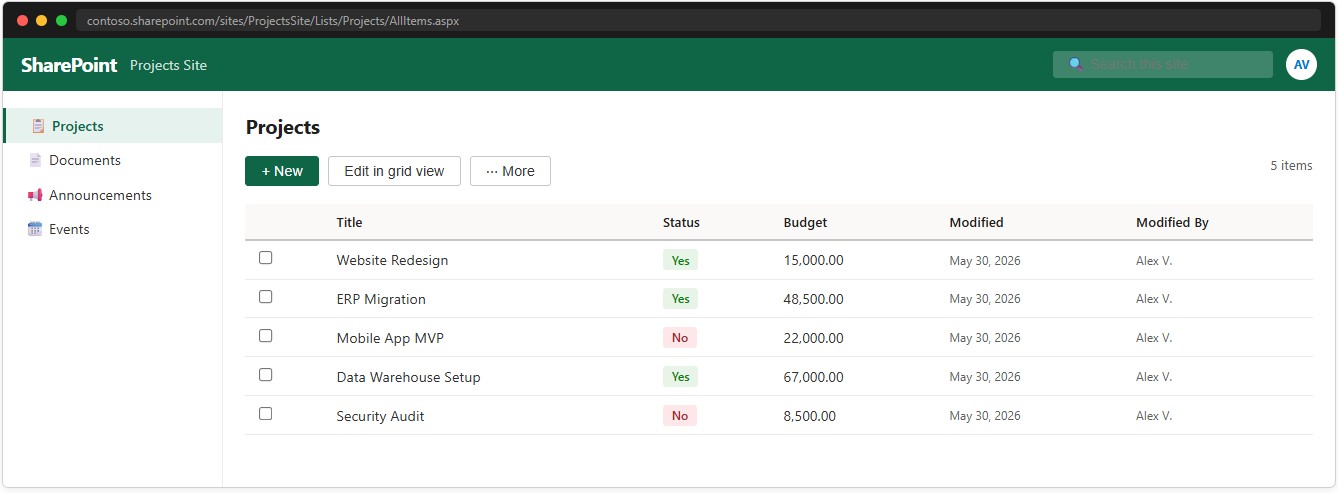
To make this concrete, the rest of Part 3 uses a SharePoint list called Projects with three columns: Title (single-line text — the record name), Status (yes/no — active or inactive), Budget (number, 2 decimal places — allocated budget).
📸 Ref. H — SharePoint list Projects with sample data — replace with real screenshot
Step 1 — Connection tab: choose the data source
In make.powerapps.com, open or create a Solution. Select New → Table → Table from external data. The wizard opens on the Connection tab. Select SharePoint.
📸 Ref. A — Data source selection panel — SharePoint highlighted — replace with real screenshot

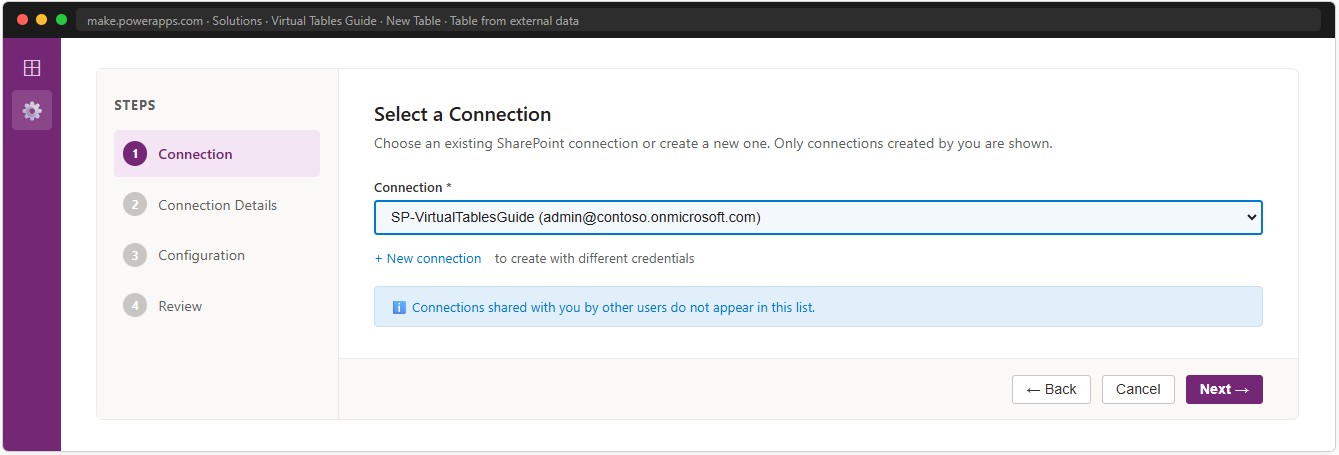
Step 2 — Select or create a Connection
Select an existing Connection or click New connection to sign in with the account that will access SharePoint — either a service account or your own Entra ID identity. See Part 6 for the implications of each choice.
The wizard only shows Connections created by your current identity. Connections shared from other users do not appear here. Every maker who creates a Virtual Table must have their own Connection configured.
📸 Ref. B — Connection dropdown — replace with real screenshot
Step 3 — Connection Details tab: site URL and list
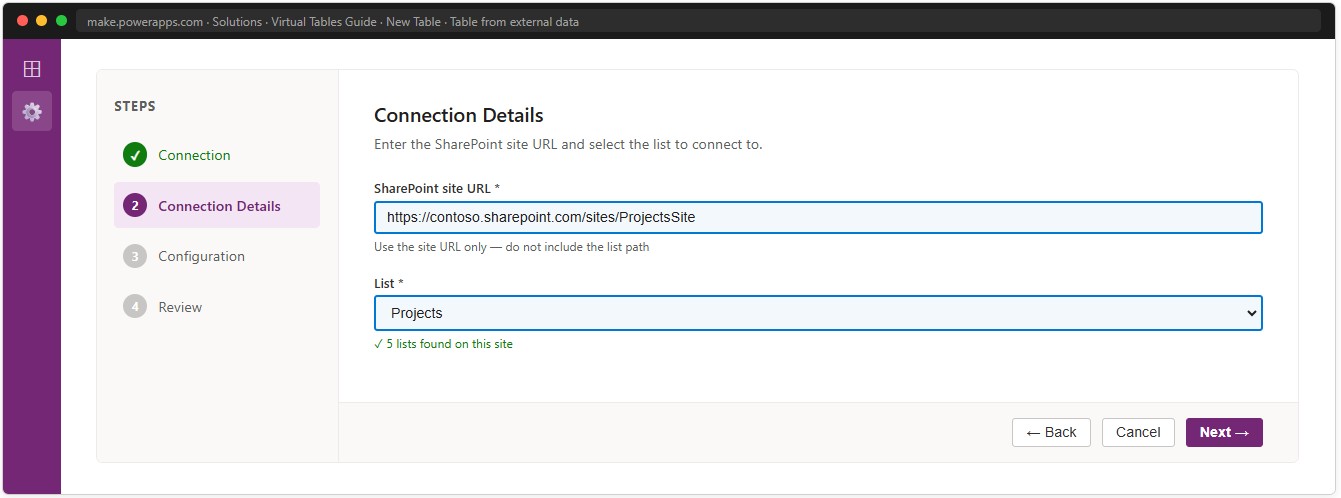
Enter the SharePoint site URL — only up to the site name, without any list path:
https://yourtenant.sharepoint.com/sites/ProjectsSiteThe wizard loads the available lists on that site. Select Projects. If the list does not appear, verify that the Connection account has at least Read permissions on the SharePoint site.
📸 Ref. C — Connection Details tab — replace with real screenshot
Step 4 — Configuration tab: column mapping
The Configuration tab presents every column detected in the SharePoint list with a suggested Dataverse type. The wizard auto-generates table properties from the list name — you can edit Display name, Plural name, Schema name (publisher prefix + list name), and Primary Field before clicking Finish.
📸 Ref. D — Configuration tab — all columns with type suggestions — replace with real screenshot
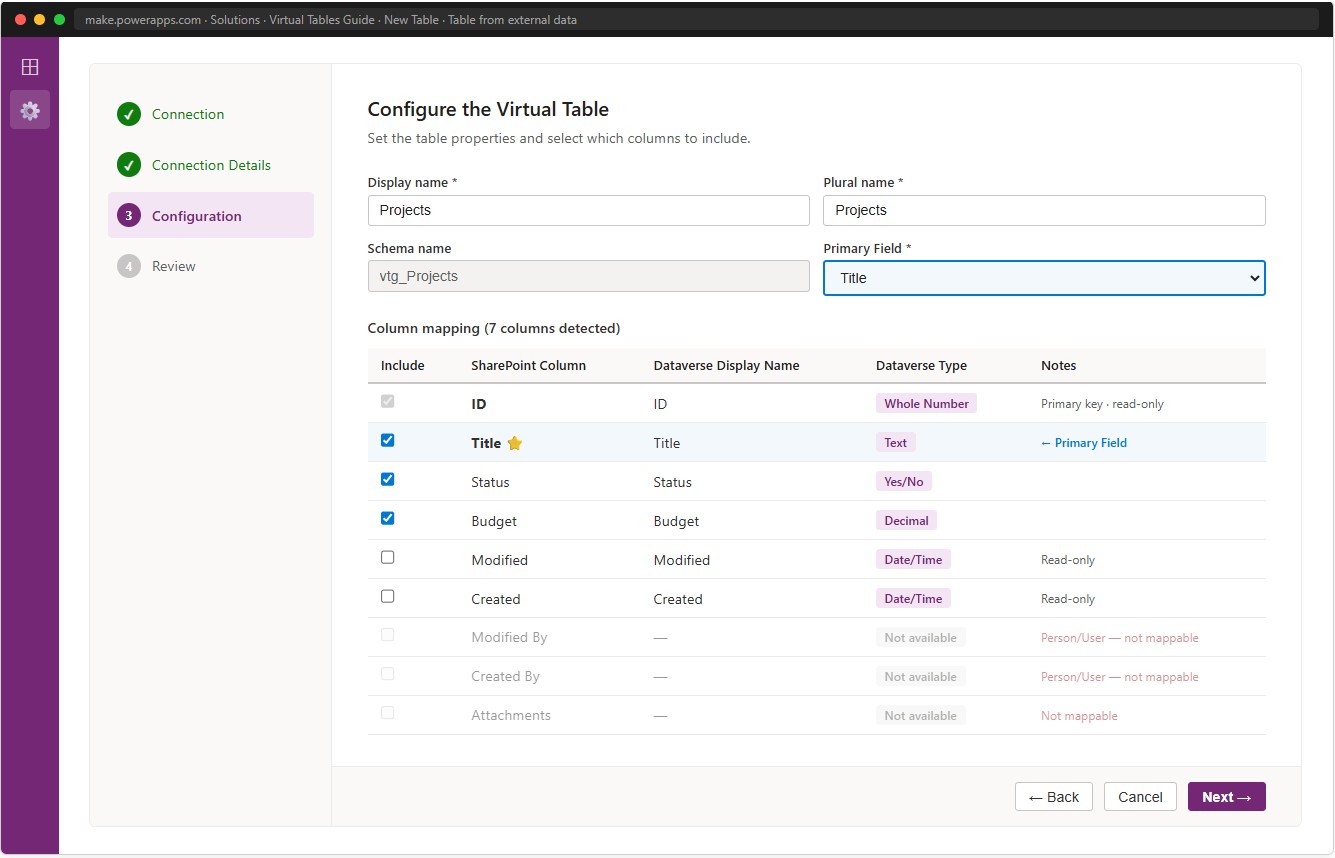
| SharePoint column | Dataverse type | Include? | Notes |
|---|---|---|---|
| ID | Whole Number | ✅ Auto | Primary key — read-only |
| Title | Text | ✅ Yes | Set as Primary Field |
| Status | Yes/No | ✅ Yes | |
| Budget | Decimal | ✅ Yes | |
| Modified By / Created By | — | ❌ Not available | Person/User — not mappable |
| Attachments | — | ❌ Not available | Not mappable |
Include only columns you will actually use. Set Title as the Primary Field. Leave out Modified By and Created By — they are Person/User columns and cannot be mapped.
After the Configuration tab the wizard shows a review summary. Use Back or Edit configuration to correct anything before clicking Finish.
📸 Ref. E — Review screen before clicking Finish — replace with real screenshot
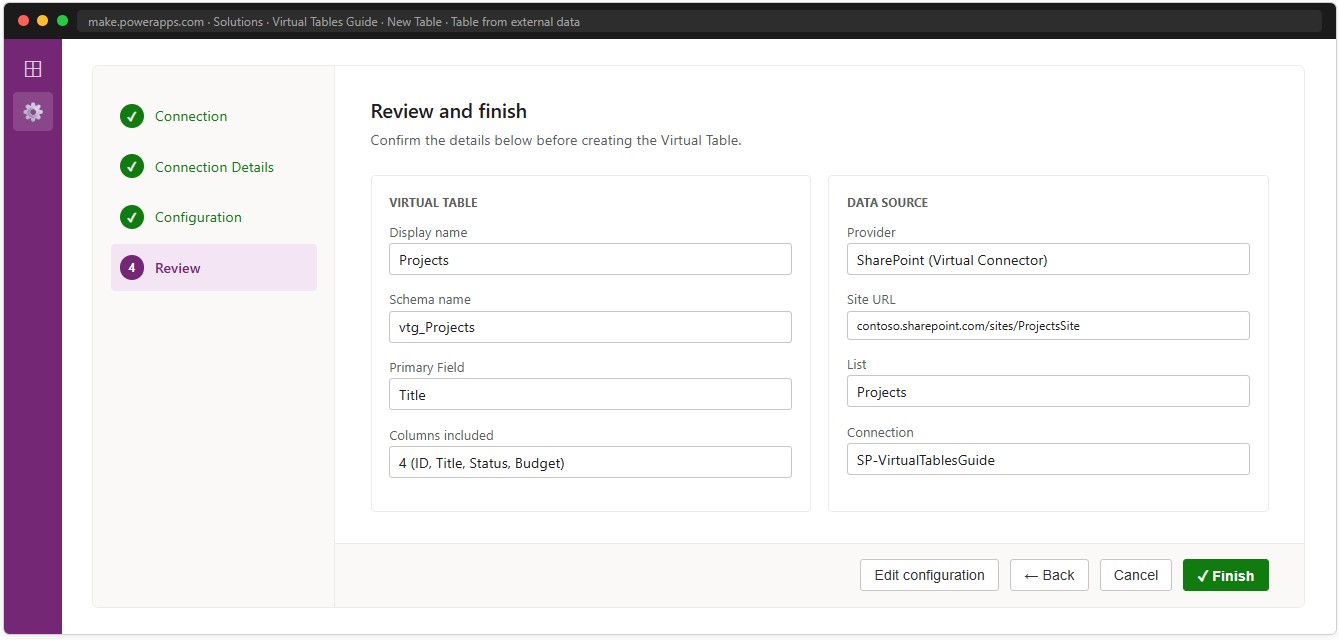
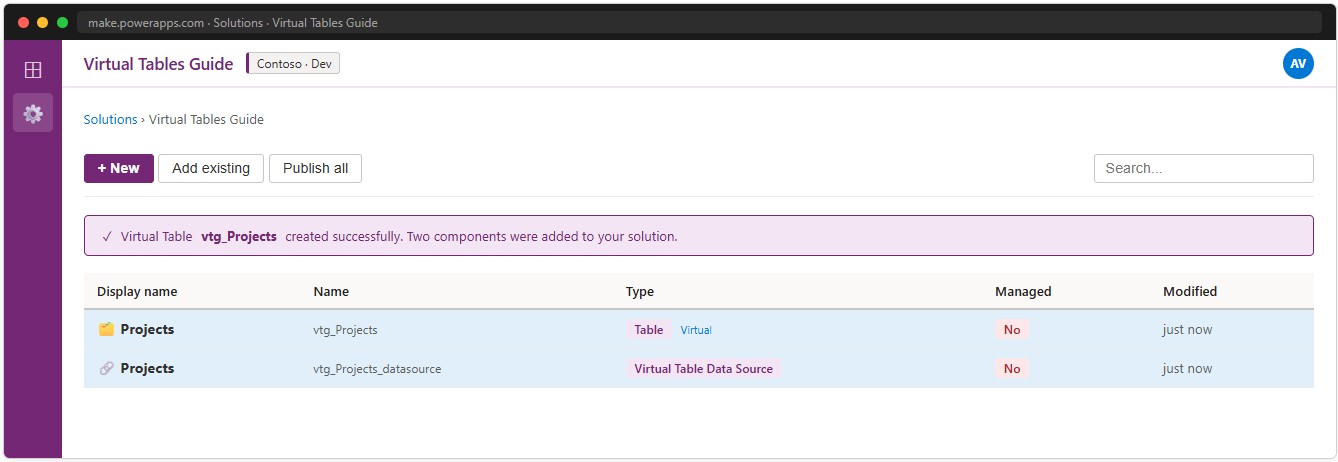
Click Finish. After creation, the solution contains two new assets: the Virtual Table (schema and column definitions) and a Virtual Table Data Source (the configuration link to the SharePoint list). The Data Source cannot be deleted without first removing the Virtual Table.
📸 Ref. F — Solution view — two new assets — replace with real screenshot
Verifying the result
Navigate to Tables in the solution and open the new Virtual Table. Go to the Data tab. You should see the records from the SharePoint list loaded live.
📸 Ref. G — Virtual Table Data tab with live records — replace with real screenshot
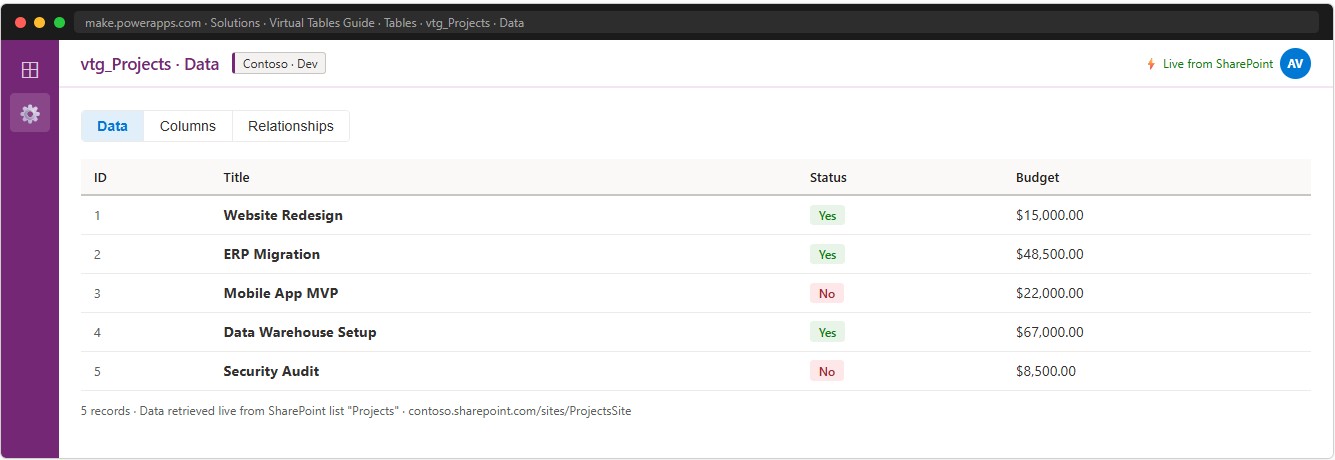
If the tab is empty or shows an error: verify the Connection is valid (re-authenticate if expired), verify the site URL is correct, verify the Connection account has Read permissions on the SharePoint list, and check that the Virtual Connector Provider is up to date (see section 10.7).
Column type mapping — complete reference
| SharePoint type | Dataverse type | Notes |
|---|---|---|
| Single-line text | Text (max 4,000 chars) | Text exceeding 4,000 chars triggers a write error |
| Multi-line text | Multiline text | Heavy payload — map only when necessary |
| Whole number | Whole number | Values exceeding Dataverse max are visible but cannot be saved |
| Decimal | Decimal | |
| Yes/No | Yes/No | |
| Date and time | Date and time | Possible timezone offset between SharePoint and Dataverse |
| Single choice | Choice | New options added in SharePoint do not sync automatically |
| Multi-select choice | Multi-select choices | |
| Hyperlink | URL | |
| Person/User | ❌ Not mappable | |
| Image | ❌ Not mappable | |
| Attachments | ❌ Not mappable | |
| Managed Metadata | ❌ Not mappable | |
| ID (SharePoint internal) | Whole number (read-only) | Primary key — not a standard GUID |
| Modified / Created | Date and time (read-only) | |
| Modified By / Created By | ❌ Not mappable | Person/User type |
Dataverse validation is not applied in read: a Virtual Table can display values that violate Dataverse column constraints — because the data is never stored locally. Validation is applied on write operations.
Using Virtual Tables across Power Platform
Canvas App
In a Canvas App, a Virtual Table is used exactly like any native Dataverse table:
// Bind a gallery
Gallery1.Items = VT_Projects

// Filter
Gallery1.Items = Filter(VT_Projects, Status = true)

// Create a record — writes directly to SharePoint
Patch(
    VT_Projects,
    Defaults(VT_Projects),
    {
        cr_title: TextInput_Title.Text,
        cr_budget: Value(TextInput_Budget.Text),
        cr_status: Toggle_Status.Value
    }
)

// Update a record
Patch(VT_Projects, Gallery1.Selected, { cr_title: TextInput_Title.Text })

// Delete a record
Remove(VT_Projects, Gallery1.Selected)
📸 Ref. I — Canvas App gallery from Virtual Table — replace with real screenshot
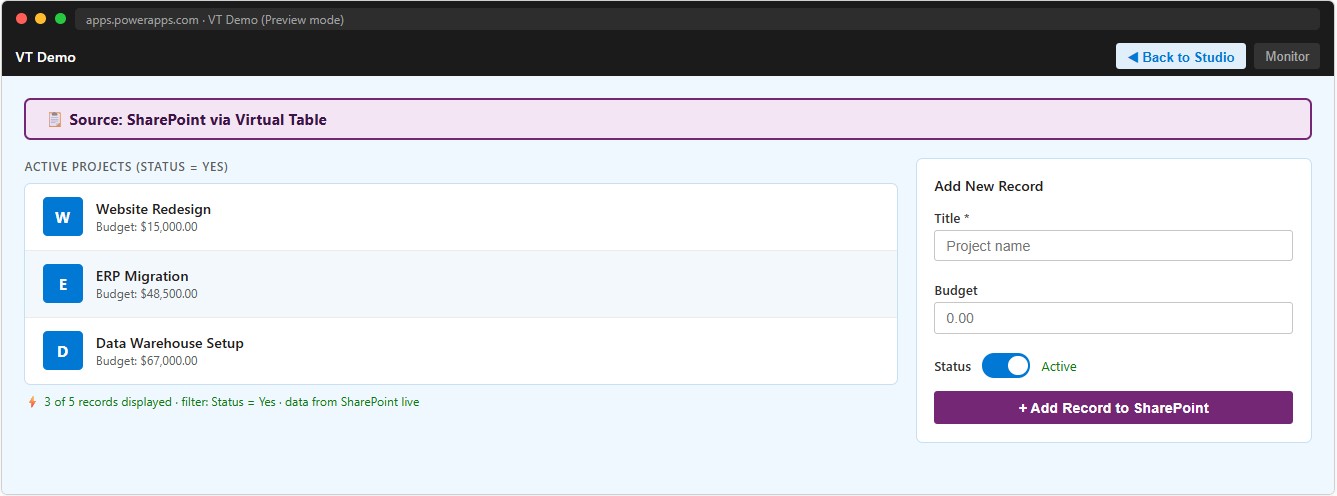
💡 When Patch() executes on a Virtual Table, Dataverse saves nothing locally — it passes the operation to the Data Provider, which calls the SharePoint REST API directly. If the Connection uses a shared service account, Modified By in SharePoint will always reflect that service account, not the actual identity of whoever performed the operation in the app.
Model-Driven App
A Virtual Table is added to a Model-Driven App like any other Dataverse table — it appears in views, forms, and subgrids. Views with filters and sorting, forms with read and edit, record creation and deletion all work.
What does not work: native charts and dashboards, Relevance Search, Dataverse audit trail, Service Level Agreements, Queues, duplicate detection, Knowledge Management, mobile offline.
⚠️ Subgrid warning: when a subgrid displays related records through a Virtual Table, every row triggers a separate call to SharePoint. With 50 records in the grid — 50 sequential SharePoint calls — load time can easily exceed 20–30 seconds. This issue is explained in detail in Part 5.
Power Automate
Access the Virtual Table through the Dataverse connector using the List rows action, selecting the Virtual Table as the target table with an OData filter expression (e.g. cr_status eq true).
📸 Ref. L — Power Automate List rows on Virtual Table — replace with real screenshot
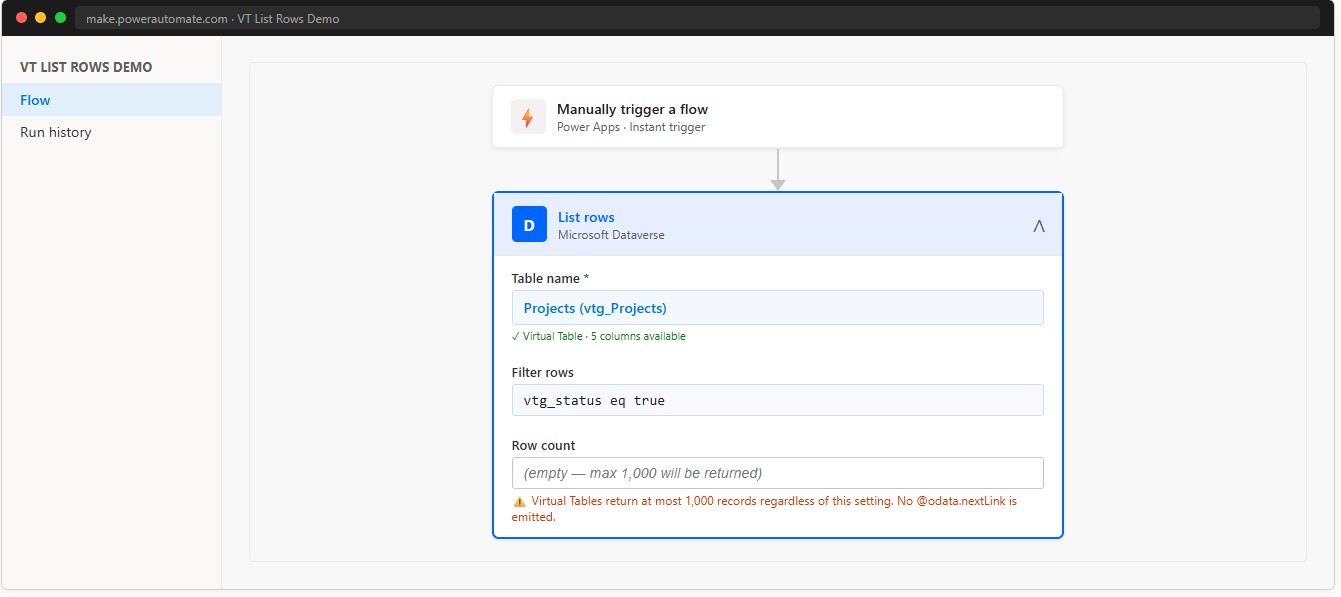
🔴 Critical: the Virtual Table returns at most 1,000 records and emits no pagination signal. The flow processes the first 1,000 records and finishes without any error or warning, even if the list contains many more. Always add an explicit check when the dataset might approach 1,000 records.
🔴 Automated triggers do not work on Virtual Tables. The Dataverse trigger “When a row is added, modified or deleted” relies on Change Tracking, which is not supported by Virtual Tables. The trigger will either never fire or fail at configuration time. Use the native SharePoint trigger “When an item is created or modified” instead.
📸 Ref. M — SharePoint trigger — correct alternative — replace with real screenshot

Exception: Dynamics 365 Business Central Virtual Tables support data change events (CUD events), meaning Power Automate flows can react to Business Central Virtual Table changes. This is not available for SharePoint, SQL, or other VCP-based sources.
Power Pages
Virtual Tables work in Power Pages to expose SharePoint data on public or authenticated portals. Add the Virtual Table as a table in the portal and configure Table Permissions.
What works: read and write from the portal, list and form components, integration with the Power Pages security model.
Limitations: Table Permissions have more limited support than with native tables. The portal’s built-in search does not index Virtual Table data. Performance is slower because every list view triggers a call to SharePoint.
Power BI
⚠️ Virtual Tables are not visible in the modern Dataverse connector for Power BI — only in the legacy Common Data Service connector, which is being deprecated. Alternatives: connect Power BI directly to SharePoint, replicate data into a native Dataverse table, or use an OData Feed connector pointing to the Dataverse endpoint (requires manual OAuth setup).
Dynamics 365
Virtual Tables integrate into Dynamics 365 modules as custom tables — they appear in forms, views, and relationships.
Specific limitations in Dynamics 365: Service Level Agreements cannot be applied; Queues and routing (Customer Service) not available; Business Process Flows not supported; the activity timeline cannot be associated with a Virtual Table; Dataverse plugins can intercept read/write operations but not as native business logic event handlers.
Table relationships
What is and is not supported
| Relationship type | Virtual Table as… | Supported? |
|---|---|---|
| N:1 — Virtual Table points to a native table | Many side | ✅ Yes |
| Lookup from native table → Virtual Table | Target | ⚠️ Yes, but slow |
| 1:N — Virtual Table as the one side | One side | ❌ No |
| N:N | Either side | ❌ No |
A Virtual Table cannot be on the “one” side of a 1:N relationship because Dataverse has nowhere to write the supporting foreign key columns — there is no physical storage. Additional constraint: although you can add a Virtual Table lookup column to a grid view, you cannot filter or sort based on that lookup column in the grid — this applies to both Model-Driven App views and Canvas App galleries.
The N+1 problem
When a native table has a lookup field pointing to a Virtual Table, every record in a grid resolves that lookup with a separate call:
Grid with 50 Account records, each with a lookup → Virtual Table Products
→ 50 separate calls to the Virtual Table → 50 separate calls to SharePoint
→ Estimated total time: 50 × ~500ms = ~25 seconds to load the gridSolution: pre-load the Virtual Table into a collection at app startup and resolve the lookup locally.
// On app start
OnStart: ClearCollect(colProducts, VT_Products)

// Inside the grid template — use the local collection, not the relationship field
LookUp(colProducts, ID = ThisItem.cr_product_id, cr_name)
Security — two independent layers
Two independent security layers
Diagram 2 — Security Model
Two independent layers: Dataverse controls access to the Virtual Table; SharePoint controls which data is returned.
Dataverse layer — controls who can access the Virtual Table within Power Platform. Security Roles enable or restrict access to the table and its columns. What Dataverse does not support for Virtual Tables: field-level security, row-level security per record, user-owned table ownership.
SharePoint layer — controls which data is actually returned, and depends on how the Connection is configured.
Shared service account
All users see all data the service account can access. No per-identity isolation. Modified By in SharePoint always shows the service account. Simpler to configure.
Entra ID passthrough
SharePoint applies its own permissions for each identity. True per-user data isolation. Modified By reflects the actual identity. Each user needs direct SharePoint access.
This choice must be made deliberately at the start of the project — it affects both security and data behavior throughout the solution.
Data Loss Prevention
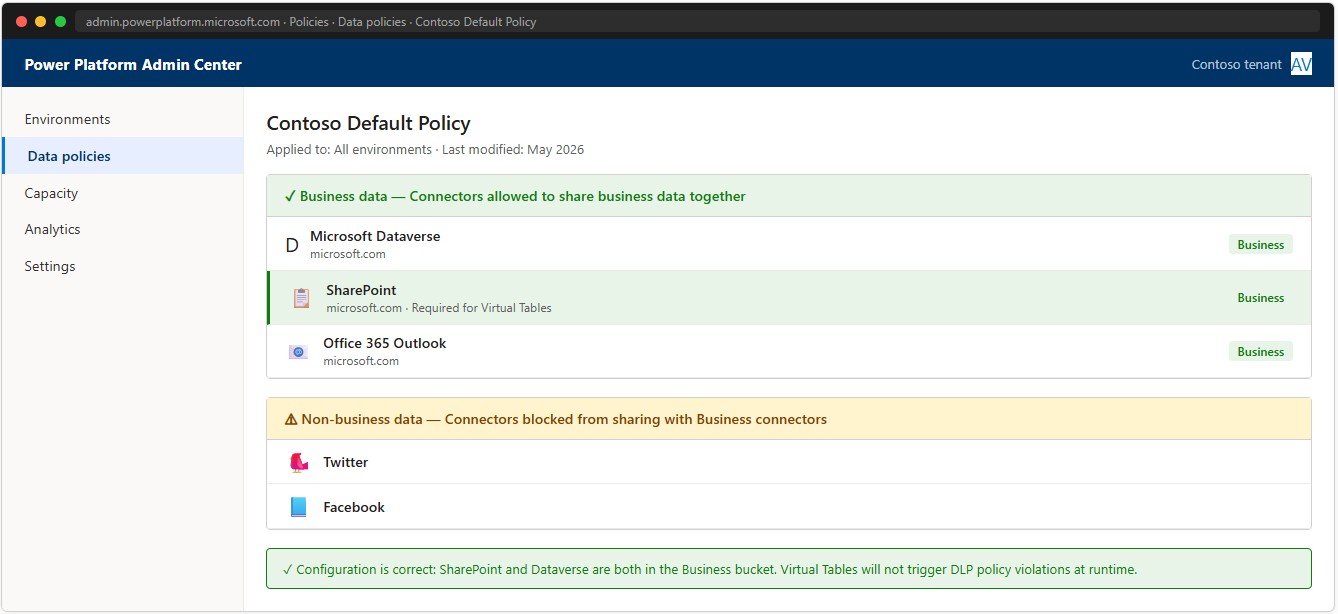
The Virtual Connector Provider uses the SharePoint connector internally. If the environment’s DLP policy places SharePoint and Dataverse in different policy buckets, the Virtual Table will violate the policy at runtime — not during configuration — making the issue difficult to catch early.
Required check: Power Platform Admin Center → Data policies → select the environment’s policy → the SharePoint connector must be in the same bucket as Dataverse (typically “Business”).
📸 Ref. N — PPAC DLP policy — replace with real screenshot
Performance — what to expect and how to improve it
Expected latency
Diagram 3 — Read Latency Comparison
Virtual Tables are 5–20× slower than native Dataverse tables. Cold start adds 500ms–1.5s on first query.
- Native Dataverse table: ~50ms – 150ms
- Virtual Table, small list (<100 records, plugin warm): ~500ms – 1s
- Virtual Table, medium list (100–500 records, filters with indexes): ~1s – 2.5s
- Virtual Table, large list (500–1,000 records, no optimizations): ~2s – 5s
- Cold start (first query after ~15 min idle): add +500ms – 1.5s on top
The cold start occurs when the plugin receives no queries for approximately 15 minutes and goes to sleep. The first query after that period pays the cost of restarting the process.
The 1,000-record hard limit
Every query against a Virtual Table returns at most 1,000 records. This limit is fixed and cannot be configured.
| Where it applies | Behavior beyond 1,000 records |
|---|---|
| Gallery in Canvas App | Silent truncation to ~1,000 |
| Grid in Model-Driven App | Capped at 1,000 — no pagination |
| Power Automate List rows | Max 1,000 returned — no pagination signal emitted |
| Subgrid with 1:N relationship | ❌ Explicit error if query exceeds 1,000 |
| Power BI | Truncation at 1,000 per query |
How to handle it: always use filters to keep result sets below 1,000 records. This is the only supported workaround.
Filter(VT_Projects, CreatedOn >= DateAdd(Today(), -30, Days))
Filter(VT_Projects, Status = "Active" And Owner = User().Email)
Filters — which work and which do not
| Filter | Push-down to SharePoint |
|---|---|
| Equals (eq) | ✅ Yes |
| Greater/less than (gt, lt, ge, le) | ✅ Yes |
| StartsWith | ✅ Yes |
| Contains | ✅ Partial |
| AND combinations | ✅ Yes |
| Not equals (ne) — Does Not Equal | ❌ Known bug: incorrect results beyond the first page |
| Not Contains | ❌ Known bug: same pagination issue |
| Complex OR | ⚠️ Partial |
| EndsWith | ❌ Not supported by SharePoint REST |
| CountRows | ❌ Returns inaccurate values |
Avoid negative filters (ne, Not Contains): they have a documented bug that produces incorrect results when data spans more than one page.
Optimization guidelines
DO
- Map only the columns actually used ($select is ignored — everything always comes back)
- Add SharePoint indexes on all columns used as filters
- Keep result sets under 100 records with filters (one single SharePoint call)
- For small, stable Virtual Tables: pre-load at startup with
ClearCollect - Use Power Apps Monitor (Play → Monitor) to verify filters are delegated server-side
DO NOT
- Map multi-line text columns unless strictly necessary
- Place lookups pointing to a Virtual Table in grids with many records
- Enable gallery auto-refresh at intervals shorter than 5 minutes
- Use
CountRowson a Virtual Table - Use negative filters (ne, Not Contains)
- Use a Virtual Table as source for analytics or large-scale data exports
Power Platform Requests — double counting
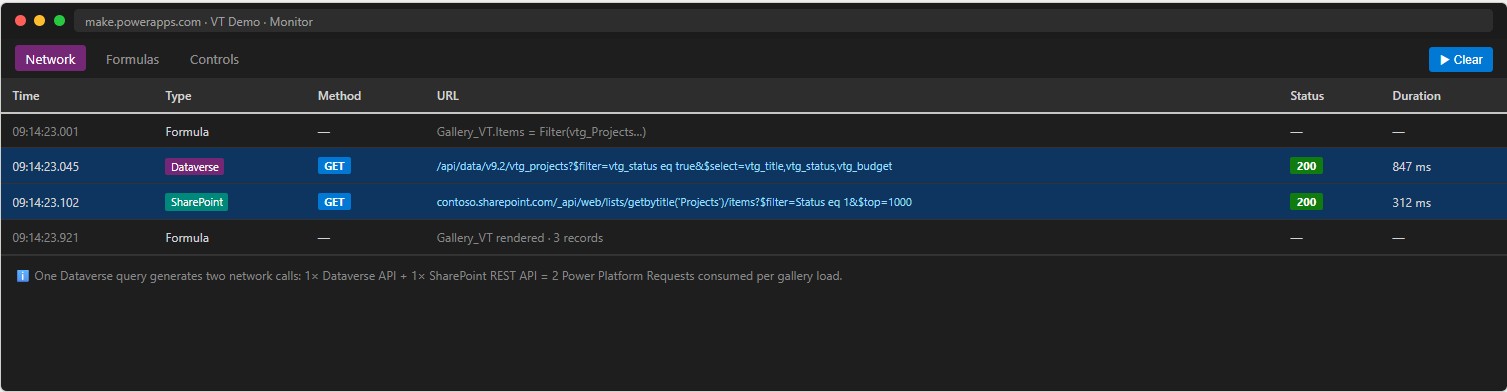
Every operation on a Virtual Table generates 2 Power Platform Requests instead of 1: one toward Dataverse and one toward the SharePoint connector. A gallery with frequent auto-refresh or high concurrent usage will consume the daily request allowance twice as fast as a native table. Factor this into capacity planning.
Practical example — seeing the difference
This section builds a complete working example: the “Projects” SharePoint list, exposed as a Virtual Table, with a Canvas App that reads and writes both through the Virtual Table and through a native Dataverse table — so you can observe the behavioral differences directly.
The SharePoint list
The list “Projects” has three columns: Title (text), Status (yes/no), Budget (number). A SharePoint index has been added on Budget. A few sample records have been entered directly in SharePoint.
📸 Ref. H — SharePoint list Projects with sample data — replace with real screenshot
The Virtual Table
Follow the creation procedure in Part 3. The result is a table such as cr_xxx_Projects in Dataverse, with columns cr_title, cr_status, cr_budget, and the read-only cr_id (the SharePoint internal ID).
📸 Ref. D — Configuration tab column mapping — replace with real screenshot
Open the Data tab — the records from SharePoint should appear immediately.
📸 Ref. G — Virtual Table Data tab with live records — replace with real screenshot
The native Dataverse table (for comparison)
Create a second table in Dataverse with the same three columns: Title, Status, Budget. This one stores data physically in the Dataverse database and is used for direct performance comparison.
The Canvas App — three screens
Screen 1 — Data from SharePoint via Virtual Table
// Gallery reads from the Virtual Table — data comes from SharePoint
Gallery_VT.Items = Filter(cr_xxx_Projects, cr_status = true)

// Add button writes to SharePoint through the Virtual Table
Button_Add.OnSelect =
    Patch(
        cr_xxx_Projects,
        Defaults(cr_xxx_Projects),
        {
            cr_title: Input_Title.Text,
            cr_status: Toggle_Status.Value,
            cr_budget: Value(Input_Budget.Text)
        }
    );
    Refresh(cr_xxx_Projects)
📸 Ref. I — Canvas App Screen 1 gallery from Virtual Table — replace with real screenshot
Screen 2 — Data from native Dataverse
// Gallery reads from the native table — data comes from Dataverse database
Gallery_Native.Items = Filter(ProjectsNative, cr_status = true)

Button_Add2.OnSelect =
    Patch(
        ProjectsNative,
        Defaults(ProjectsNative),
        {
            cr_title: Input_Title2.Text,
            cr_status: Toggle_Status2.Value,
            cr_budget: Value(Input_Budget2.Text)
        }
    )
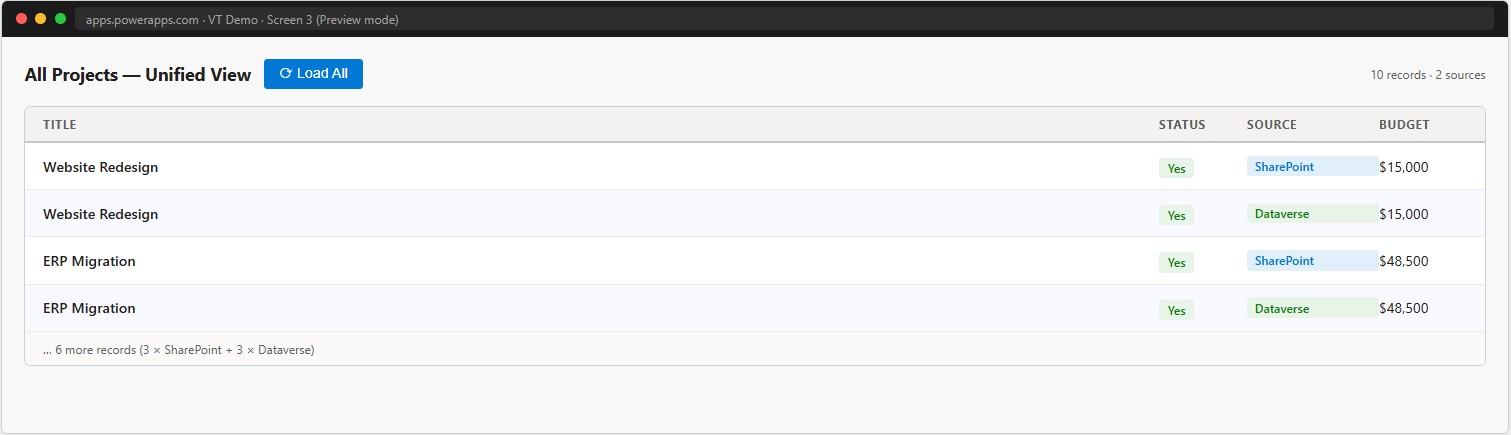
Screen 3 — Unified view from both sources
Button_Load.OnSelect =
    ClearCollect(
        colAll,
        AddColumns(cr_xxx_Projects, "Source", "SharePoint"),
        AddColumns(ProjectsNative, "Source", "Dataverse")
    )

Gallery_All.Items = colAll
📸 Ref. J — Canvas App Screen 3 unified gallery — replace with real screenshot
What to observe
- Add a record on Screen 1. Open SharePoint — the record is already there.
- Edit a record directly in SharePoint. Return to Screen 1 and reopen the gallery — the change is immediately visible.
- Open Power Apps Monitor (Play → Monitor) and observe the network calls — you will see the OData query going to Dataverse and the subsequent REST call Dataverse makes to SharePoint.
- Compare load times between Screen 1 (Virtual Table) and Screen 2 (native) — the latency difference is noticeable.
📸 Ref. K — Power Apps Monitor network trace — replace with real screenshot
When to use it and when not to
✅ Use a Virtual Table when
- The data must remain in SharePoint (policy, non-migrating team, compliance)
- The active dataset stays below 1,000 records with the applied filters
- Immediate bidirectional real-time access is needed
- It serves as a temporary bridge during a migration from SharePoint to Dataverse
- Avoiding additional Dataverse storage costs is a priority
- Time constraints are tight and no developer is available
❌ Do not use when
- A Dataverse audit trail is required
- Mobile offline capability is required
- The active dataset exceeds 1,000 records without the ability to filter it down
- Native Relevance Search, charts, or dashboards are required
- Event-driven Dataverse plugins are required on the table
- SLA, Queues, or Knowledge Management are required (Dynamics 365 Customer Service)
- Person, Image, or Attachment columns need to be mapped
- The UX requires responses under 300ms
- Expected load exceeds 100 concurrent users with frequent queries
Decision flow
Diagram 4 — Decision Flow
Use this flowchart before committing to a Virtual Table architecture.
Virtual Table vs Replication — the comparison
| Aspect | Virtual Table | Replication (Power Automate) |
|---|---|---|
| Initial setup | ~15 minutes, no code | 2–5 days of development |
| Data freshness | Absolute real-time | Depends on sync frequency |
| Dataverse storage | None | Consumes storage |
| Read performance | 0.5s – 3s | 50ms – 150ms |
| Max records per query | 1,000 | Unlimited |
| Complex filters | Limited | Full support |
| Dataverse audit | No | Yes |
| Mobile offline | No | Yes |
| Native charts and dashboards | No | Yes |
Things that will catch you in production
These are verified behaviors that the official documentation does not describe, or describes only superficially. Knowing them in advance prevents expensive late discoveries.
1. SharePoint list ID is read-only after an environment change
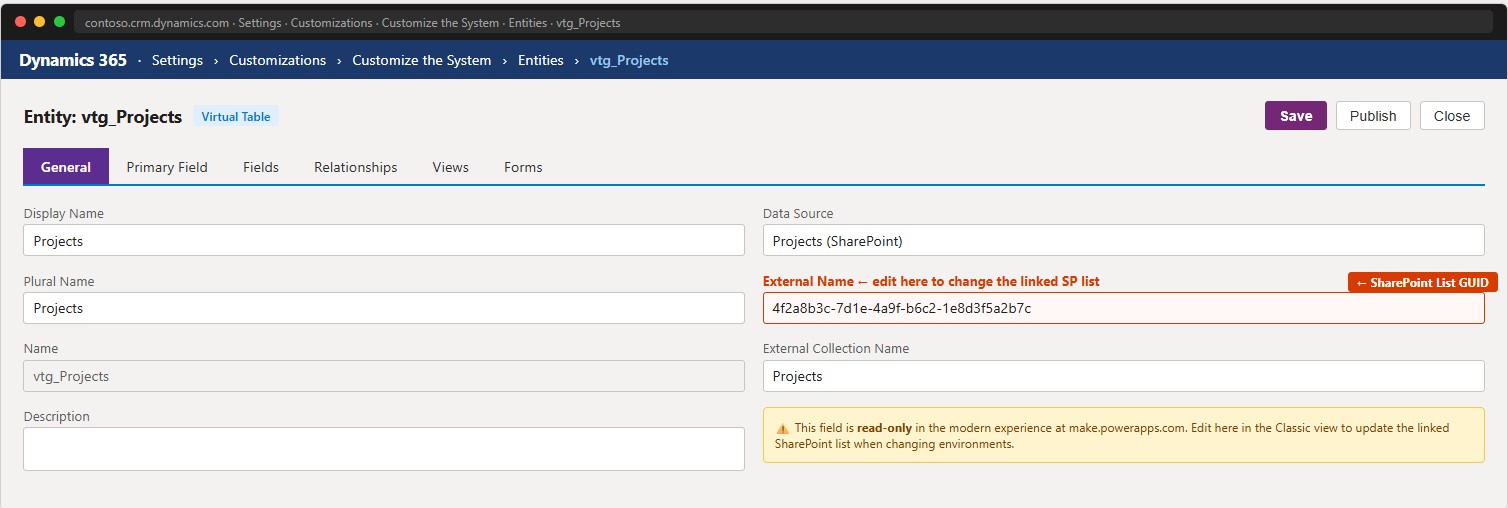
When a Virtual Table needs to point to a different SharePoint list (different site or recreated list), the field holding the list ID is read-only in the modern experience at make.powerapps.com. The only way to update it without code is through the classic experience: Settings → Customize the System → Entities → [Virtual Table] → External Name. This behavior is specific to Virtual Tables — no other Dataverse table type requires this manual step.
📸 Ref. O — Classic Customization — External Name field — replace with real screenshot
2. New SharePoint columns do not appear automatically
Adding a column to the SharePoint list after creating the Virtual Table does not update the schema in Dataverse — no error, no warning. To update: re-run the “Table from external data” wizard on the same list. Dataverse recognizes the existing Virtual Table and updates the schema without breaking existing dependencies. The same applies to Choice column options: new options added in SharePoint do not sync automatically and must be added manually to the corresponding Dataverse column.
3. Virtual Tables are not visible in the modern Power BI connector
Virtual Tables are not visible in the modern Dataverse connector for Power BI — only in the legacy Common Data Service connector, which is being deprecated. For Power BI reports on this data: connect Power BI directly to SharePoint, or replicate the data into a native Dataverse table.
4. Shared connections are not selectable in the wizard
The Virtual Table creation wizard only shows Connections created by the current identity. Connections shared from other users are not selectable. Every maker who creates a Virtual Table must have their own SharePoint Connection configured.
5. Power Automate: data silently truncated at 1,000 records
When a flow uses List rows on a Virtual Table and the SharePoint list contains more than 1,000 records, the flow processes only the first 1,000 without any error and without any warning. The silence is the problem. The flow completes believing it has processed all the data. Always add an explicit count check when the dataset might approach 1,000 records.
6. Features that can be configured but do not work at runtime
The Dataverse interface does not prevent enabling Service Level Agreements, duplicate detection, or change tracking on a Virtual Table. None of these features function at runtime. Discovering this dependency late in the project leads to costly rework.
7. Virtual Connector Provider — manual updates required
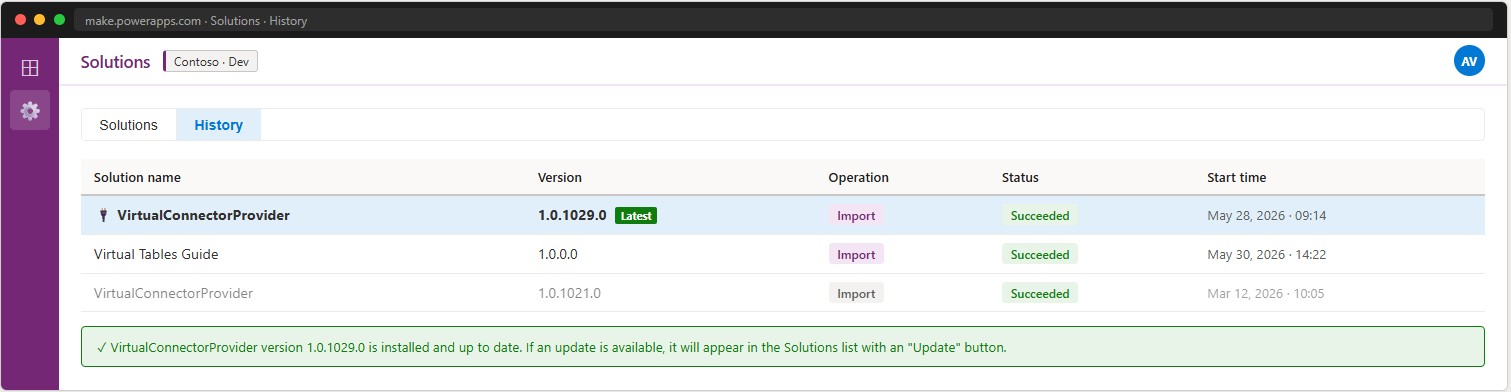
The Virtual Connector Provider is a separate component installed in the environment. It does not update automatically. When outdated, it can cause errors during Virtual Table creation or timeouts on queries. Check: Solutions → History tab → search for “ConnectorProvider” — apply any available update before proceeding.
📸 Ref. P — Solutions History ConnectorProvider version — replace with real screenshot
Pre-production checklist
Design
- Only map columns that are actively used ($select is ignored — everything is always returned)
- Avoid multi-line text columns unless strictly necessary
- Verify with real data that all result sets stay under 1,000 records with the applied filters
- No negative filters (ne, Not Contains) in any view
- No lookup from a native table → Virtual Table in a grid with many records
- The choice between service account and Entra ID passthrough is documented and communicated
SharePoint
- Indexes added on every column used as a filter
- List has fewer than 5,000 items, or all filters target indexed columns
- Service account or Application Registration uses minimum required permissions
Security
- Data Loss Prevention policy verified: SharePoint connector in the same bucket as Dataverse
- Service account vs Entra ID passthrough choice is documented and justified
Performance and testing
- Latency verified with real data at realistic volume
- Power Apps Monitor verified: filters are being delegated server-side
- Tested with at least 20 concurrent users
Team communication
- Maximum 1,000 records — always use filters
- Expected latency is 1–3 seconds
- No Dataverse audit on this table
- Modified By in SharePoint = service account, not the actual user identity
- New columns in SharePoint require a manual schema update on the Virtual Table
Glossary
| Term | Definition |
|---|---|
| Virtual Table | A Dataverse table with no physical storage that reads from an external source on every query |
| Virtual Connector Provider | A C# plugin that translates Dataverse queries into calls to the external data source |
| Connection | Authentication credentials used to access the external data source |
| Push-down | A filter executed by the external source rather than by Dataverse — more efficient |
| N+1 Problem | Every record in a grid triggers a separate call to the Virtual Table |
| Cold Start | Extra latency on the first query after the plugin has been idle for ~15 minutes |
| List View Threshold | SharePoint limit of 5,000 items on queries filtering non-indexed columns |
| Power Platform Requests | Daily consumption units included in Power Apps licenses |
| Service Account | A shared technical account used by the Connection to authenticate with SharePoint |
| Entra ID Passthrough | Authentication mode where each individual identity authenticates with SharePoint using their own credentials |
| Primary Field | The column in the Virtual Table that represents the display name of a record |
| Column Mapping | The process of selecting and typing SharePoint columns into their Dataverse equivalents during Virtual Table creation |
— Applies to SharePoint, SQL Server, Snowflake, Fabric, and every other Virtual Table source